Edit Shopify Order Confirmation Email: Turn It Into Revenue
Edit Shopify Order Confirmation Email: Turn It Into Revenue
Edit Shopify Order Confirmation Email: Turn It Into Revenue
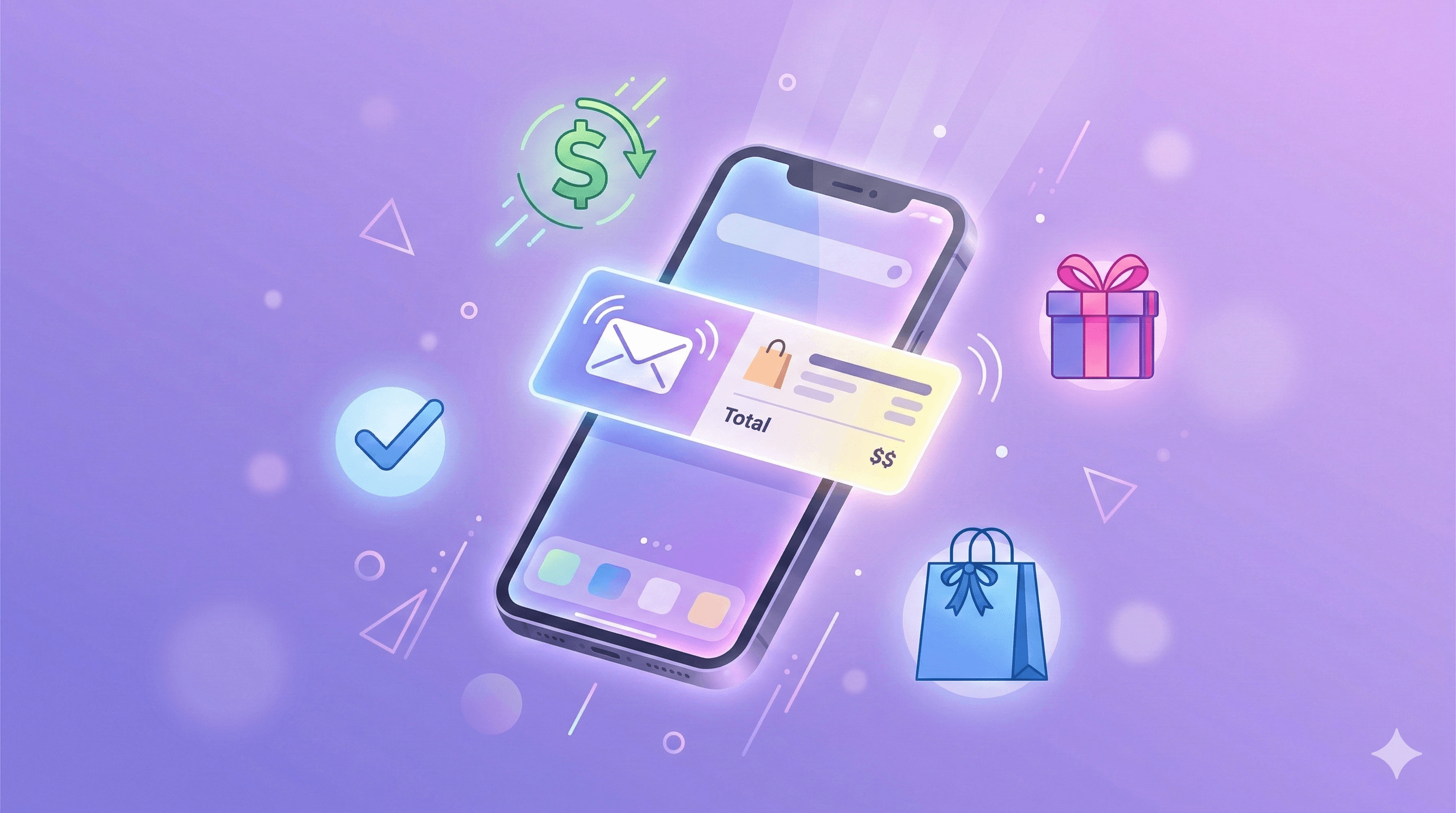
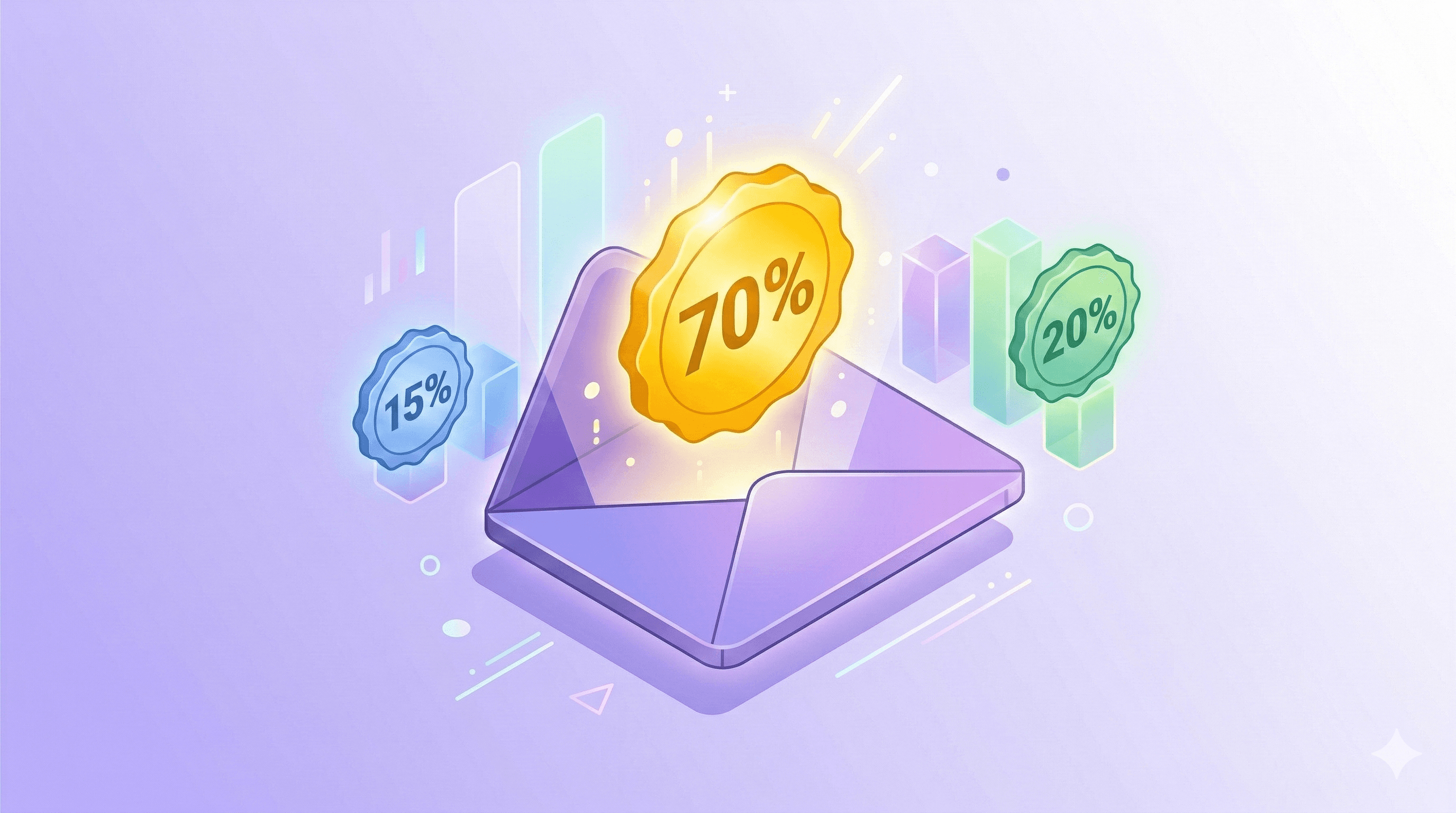
Your order confirmation email has a 70% open rate.
Your promotional emails? They average 15–20%.
Let that sink in. The highest-performing email you send — by a massive margin — is the one that says "thanks, your order is on its way." And most Shopify merchants use it to show an order summary and a customer service email address.
That's not a confirmation email. That's a missed opportunity sitting in every customer's inbox.
The confirmation email is the one moment in e-commerce where your customer is guaranteed to be paying attention. They just spent money. They're anxious. They want to see that everything looks right. They'll read every single line.
What you put in that moment — and what you let them do from it — determines whether the transaction ends at checkout or extends into something more.
This guide covers exactly how to edit your Shopify order confirmation email: the native method, the Klaviyo method, what to include, and how to add one-click post-purchase upsells that let customers add a product to their existing order with a single click. No new checkout required.
Why the Confirmation Email Is Your Most Valuable Real Estate
Before we get into the how-to, it's worth understanding why this matters so much.
The numbers tell the story
Order confirmation emails consistently hit 70%+ open rates — roughly 4x the average promotional email. They generate significantly more revenue per email than standard campaigns. And customers who receive a personalised post-purchase experience are far more likely to buy again.
Here's the number nobody tracks: the "forgot to add something" rate. The average cart abandonment rate is 70%. But how many customers finish checkout and immediately think "wait, I should have added that too"? Most stores give them no way to act on it.
The psychology behind it
When a customer places an order, they're in a state of high engagement. The purchase decision is made. Buyer's remorse hasn't set in yet. They're excited. They're reading your email carefully to confirm everything looks right.
This is the exact moment to:
Show them something complementary they didn't add
Let them fix a mistake before it ships
Ask them to upgrade their shipping
Collect their preferences (gift wrapping, personalisation)
The window is short. Once the email is read and the tab is closed, the moment is gone.
Method 1: Edit the Native Shopify Order Confirmation Email
Shopify sends an order confirmation email automatically after every purchase. By default it includes the order number, itemised list, shipping address, and estimated delivery.
Here's how to customise it:
Step 1: Open Settings → Notifications
From your Shopify admin, go to Settings → Notifications.
Step 2: Find Order Confirmation
Scroll to the Orders section and click Order confirmation.
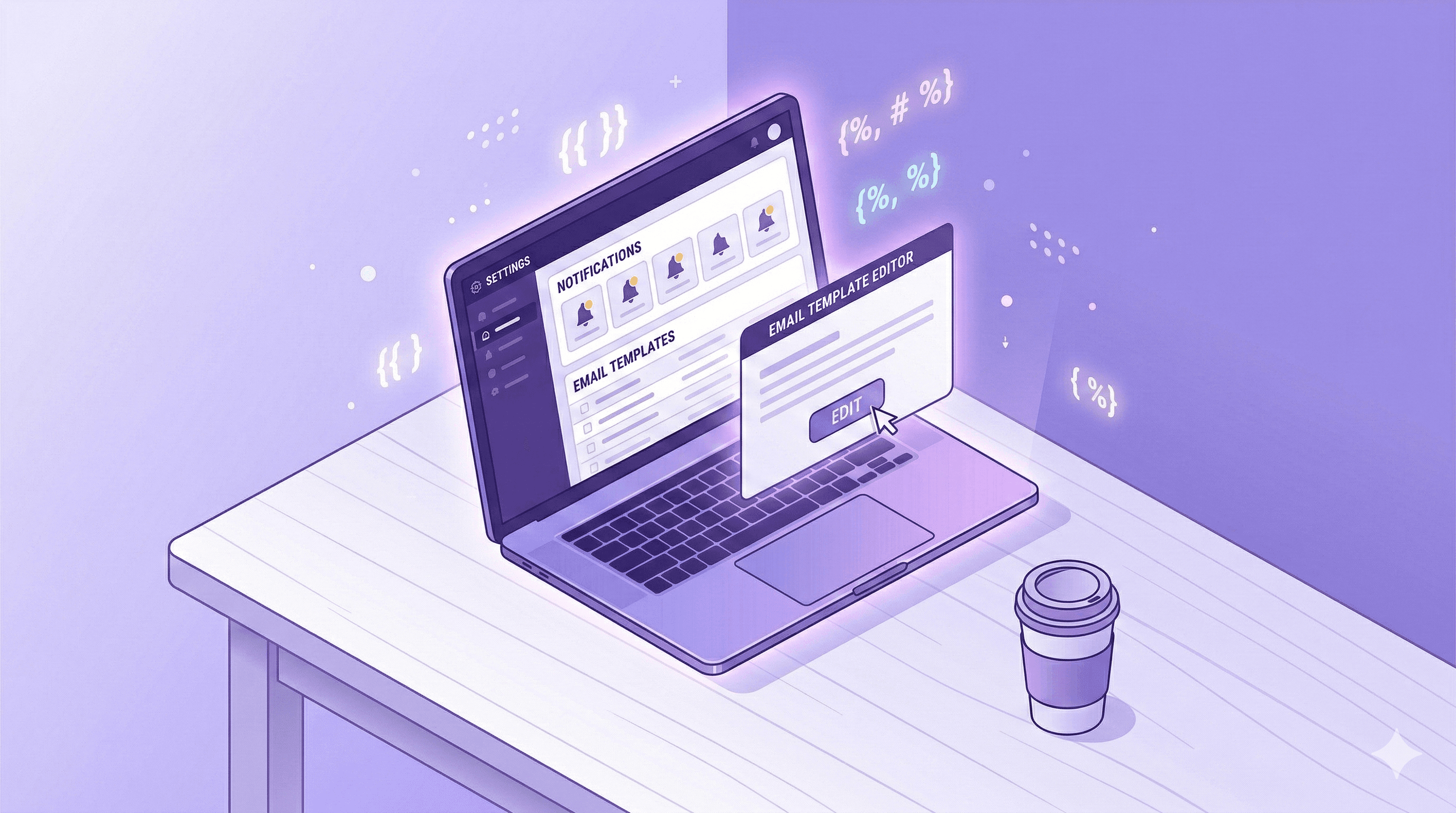
Step 3: Access the Template Editor
You'll see two fields — Email subject and Email body (HTML). Shopify uses Liquid templating language for these.
Step 4: Edit the Subject Line
The default subject is Order {{name}} confirmed. Something like:
Your order is confirmed — here's what's coming 🎉
This consistently outperforms the default in open rates. Use your brand voice here.
Step 5: Edit the Body
The email uses Liquid tags like {{ order.name }}, {{ shop.name }}, and {{ line_items }} to populate order data dynamically. You can add sections before or after the order summary.
What you can add natively
A thank-you message with your brand voice
A note about your return policy or next steps
Social media handles
A discount code for their next purchase
A link to your FAQ or help centre
Your support contact details
What you can't do natively
Personalised product recommendations based on what they bought
Dynamic upsell blocks based on order contents
One-click add-to-order functionality
A/B testing subject lines or content
Analytics on what people click inside the email
For those capabilities, you need Klaviyo.
Method 2: Replace the Shopify Confirmation Email with Klaviyo
This is the approach used by serious e-commerce operators. You turn off Shopify's native confirmation email and replace it with a Klaviyo flow — giving you full control over design, personalisation, and functionality.
Step 1: Set Up the Klaviyo Order Confirmation Flow
In Klaviyo, go to Flows → Create Flow → search for "Order Confirmation" in the template library.
Klaviyo's pre-built Order Confirmation flow triggers on the Placed Order metric and sends immediately. Clone it, customise it, and you have a solid starting point.
Step 2: Turn Off Shopify's Native Confirmation Email
Critical step — if you skip this, customers receive two confirmation emails.
Go to Shopify Settings → Notifications → Order confirmation → scroll down and click Disable (or in some Shopify plans, uncheck the email and save).
⚠️ Confirm the Klaviyo flow is live and tested before disabling the Shopify email. Send yourself a test order first.
Step 3: Customise the Klaviyo Email
This is where Klaviyo earns its place. You get access to:
Event properties — everything from the order event: {{ event.line_items }}, {{ event.total_price }}, {{ event.shipping_address }}, {{ event.discount_codes }}.
Profile properties — the customer's purchase history, predicted spend, segment membership, location.
Product catalogue — Klaviyo can pull in related products, cross-sells, and recommendations based on what was purchased.
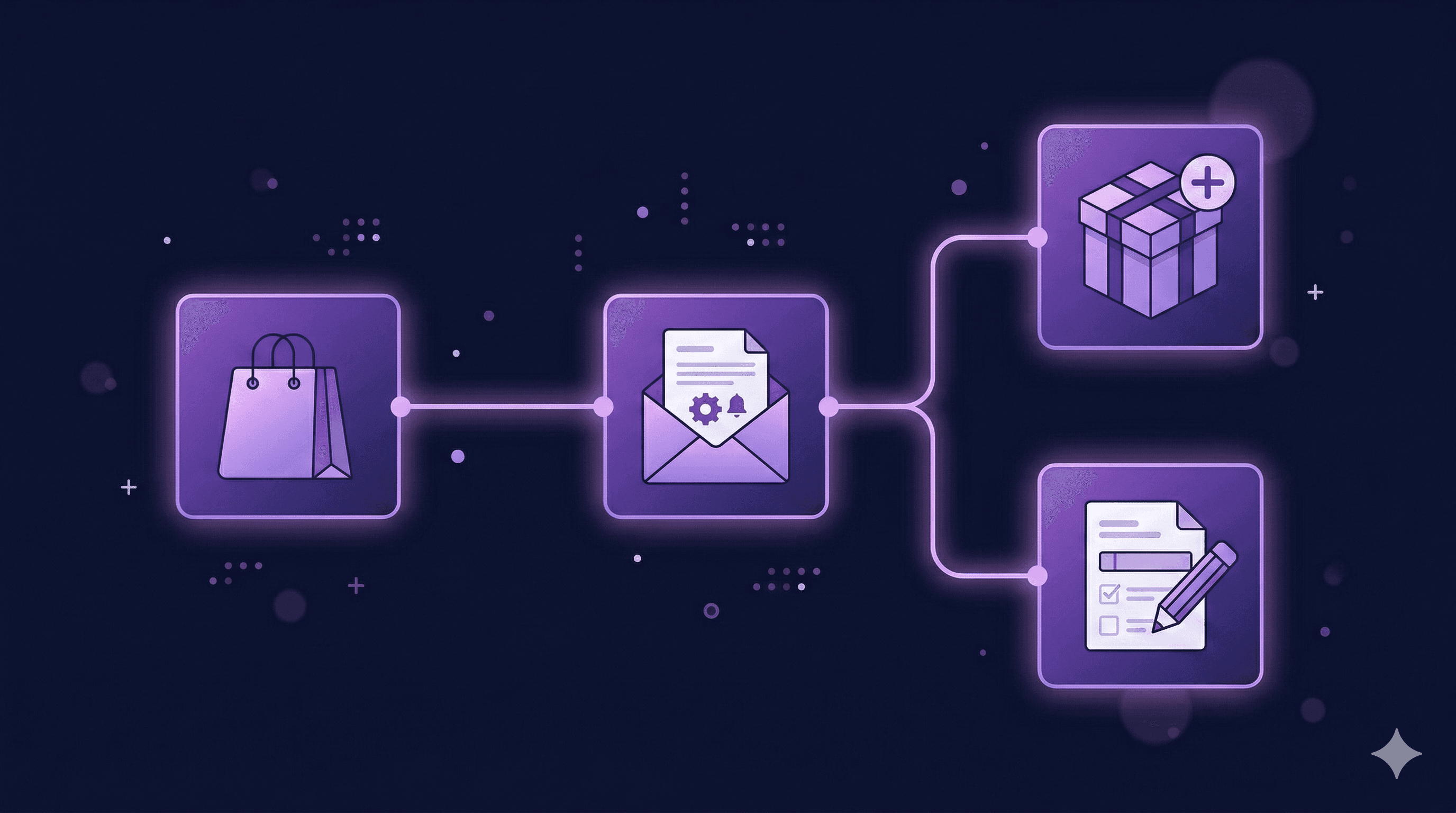
Anatomy of a high-converting Klaviyo confirmation email
A well-structured Klaviyo confirmation email typically includes these sections — in this order:
Subject line — personalised, not generic (Your [product name] is confirmed, [first name])
Hero section — branded thank-you with warmth, not corporate-speak
Order summary block — item names, images, quantities, price
Shipping address confirmation
Expected delivery (if you have this data)
Upsell or cross-sell block — the revenue layer (more on this below)
Edit your order CTA — the customer service layer (more on this too)
Footer — returns policy, contact, social
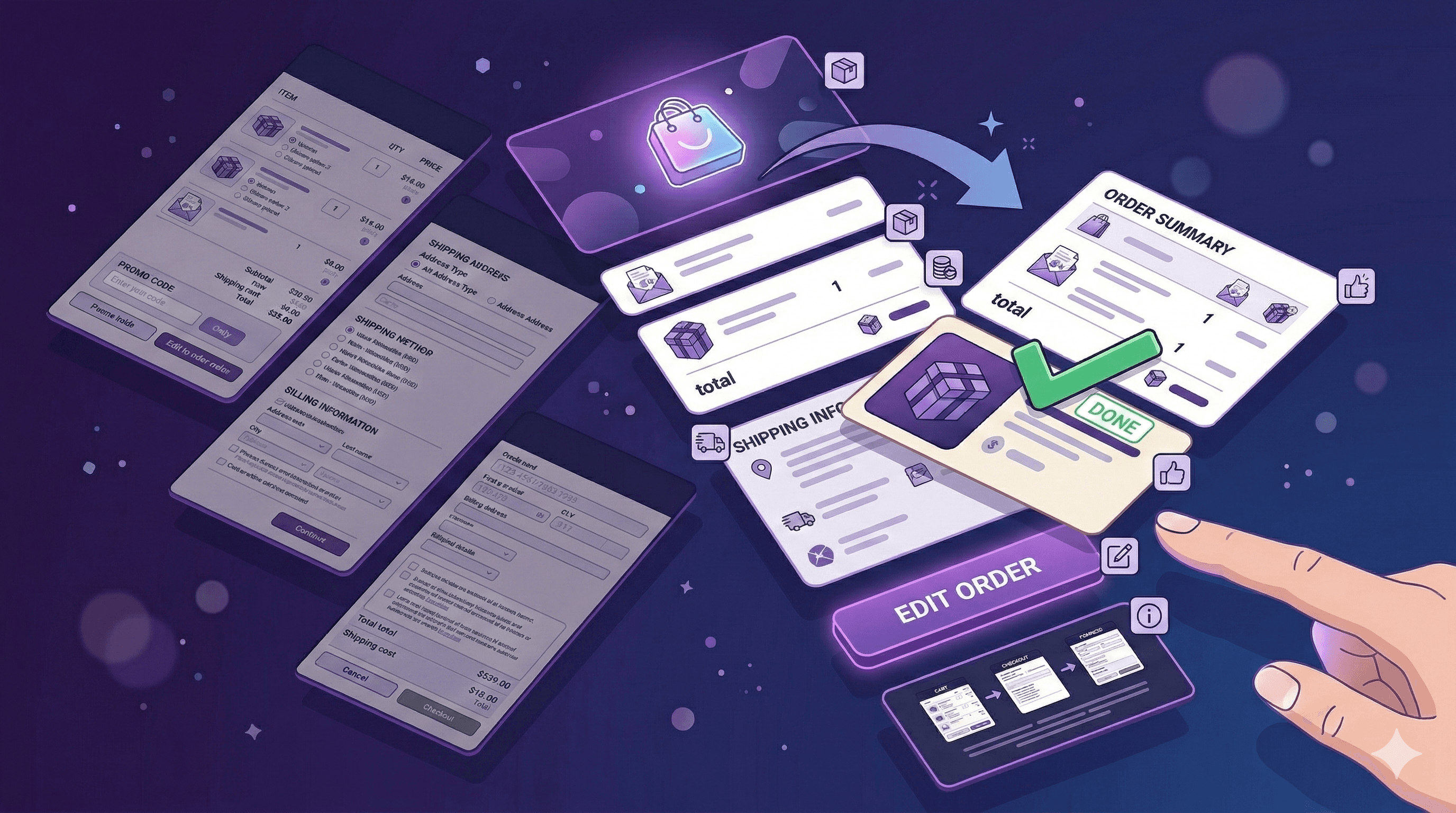
The Upsell Layer: How to Add Complementary Products to Your Confirmation Email
Here's where most Shopify merchants stop reading. Don't.
A post-purchase upsell in the confirmation email works differently from a standard promotional email. The customer isn't in browsing mode — they're in confirmation mode. The upsell has to feel like a natural extension of what they just bought, not an ad.
What works
"Customers who bought [X] also got [Y]" — with a specific, relevant product
A consumable that pairs — "Don't forget the batteries / filters / case"
Bundle completion — "You got the starter kit — the add-on ships separately"
Quantity-based offers — "Grab a second one at 15% off — most customers buy a pair"
What doesn't work
Generic "You might also like" blocks with unrelated products
Percentage-off discounts on anything in the catalogue
Upsells that cost more than the original purchase without a strong reason
Setting this up in Klaviyo
Using the Catalogue block or a Dynamic Product Block, configure recommendation logic:
Frequently Bought Together — based on historical order co-occurrence
Viewed and Bought — based on browsing + purchase patterns
Manually curated — define the product shown based on collection or tag
A typical setup: if the customer bought from collection X, show product Y. Use Klaviyo's conditional logic to build product-specific upsell paths.
The friction problem
Here's the issue with every standard post-purchase upsell: clicking it starts a new checkout. The customer has to go through cart → checkout → payment again.
That's enough friction that most people don't convert — even if they genuinely want the product.
The question becomes: what if they could add it to their existing order with one click?
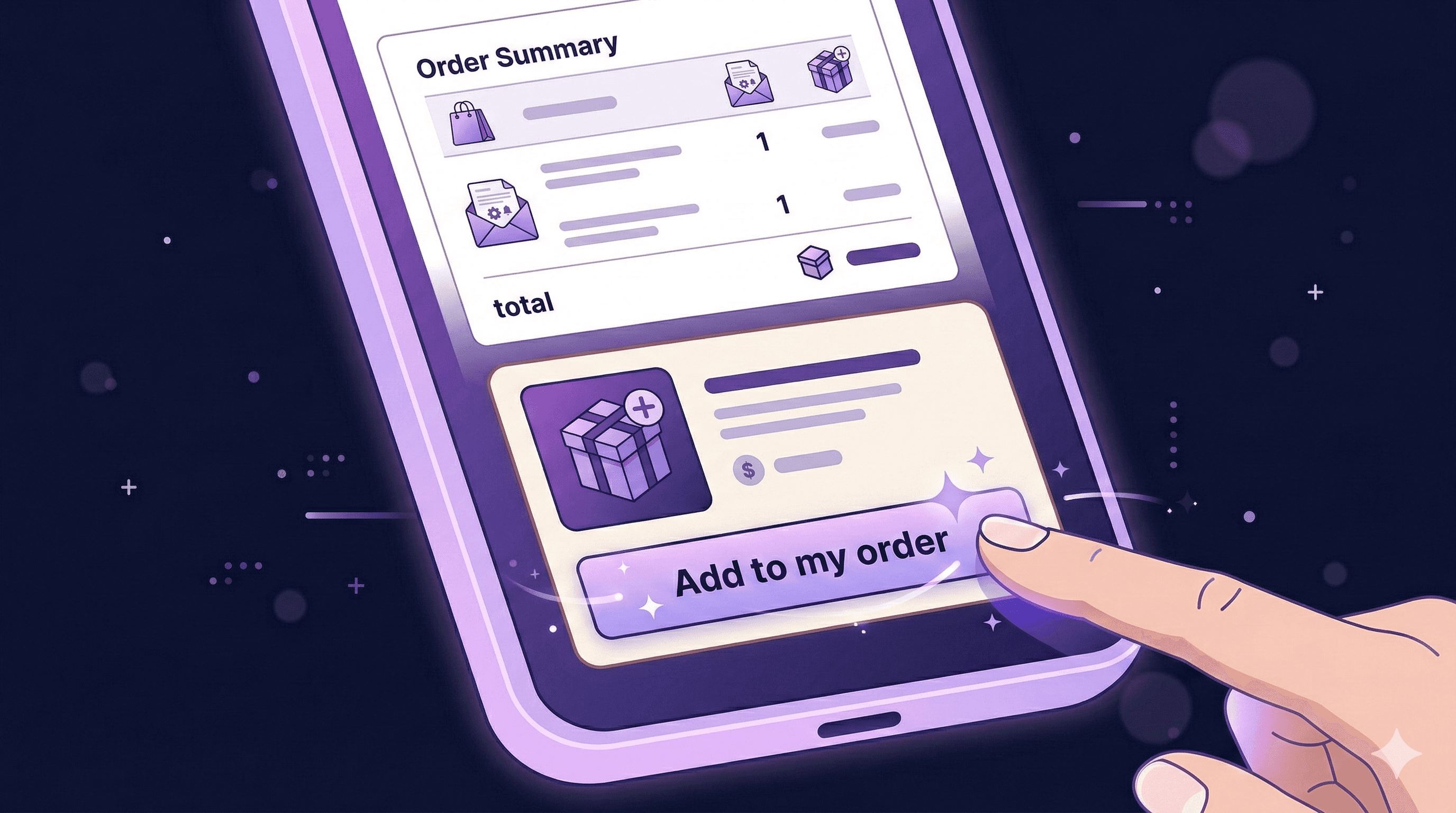
One-Click Post-Purchase Upsells: Add to Existing Order via Revize + Klaviyo
This is the setup that changes the economics.
The concept: You put a link in the Klaviyo confirmation email. The customer clicks it. The product is added to their existing order — no new checkout, no second payment flow, no new order number. The difference in price is charged automatically to their original payment method.
Done.
Why this is fundamentally different
A standard post-purchase upsell requires a new purchase decision. The customer has to decide to buy again, enter payment, confirm. Conversion rates on these typically range from 2–8%.
A one-click add-to-order feels like fixing an omission, not making a new purchase. "Oh, I should have added that" — click — done. Conversion rates jump significantly because the psychological barrier is lower and the friction is near-zero.
How it works with Revize + Klaviyo
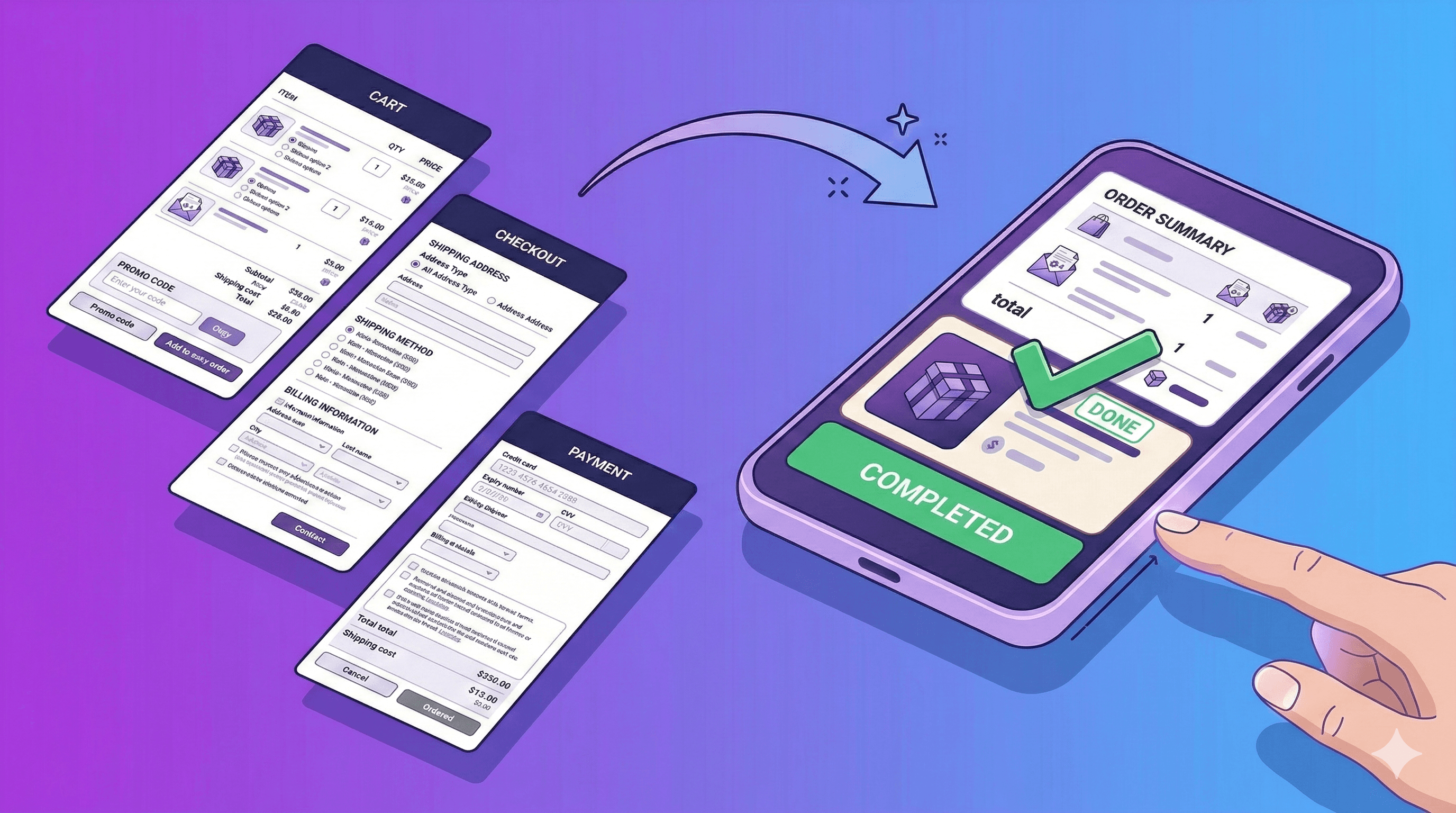
Revize provides a customer-facing order editing portal where customers can add products to their existing order. Revize handles the Shopify order edit and payment difference automatically. The magic is in how it connects with Klaviyo — and there are two layers to this.
Here's the setup:
Step 1: Configure Revize's Edit Window
In Revize settings, set your edit window duration — the period after checkout during which customers can modify their order. This is typically 30 minutes to 2 hours depending on your fulfilment speed.
Set the "Add Products" feature to enabled.
Step 2: Understand the two types of links
This is where it gets powerful. You have two different CTAs you can use in your Klaviyo email — and the best confirmation emails use both.
Link type 1: The order edit portal link
When a customer places an order, Shopify fires event data to Klaviyo. That event data includes the order edit link — the URL that takes the customer directly to their order's edit portal. In your Klaviyo template, you pull this in via the event properties (e.g. {{ event.extra.order_status_url }}).
This is your general "Edit your order" button. The customer clicks, lands on their order's edit portal, and can browse, add products, remove items, change variants — whatever they need. Think of it as the self-service layer.
Link type 2: Product-specific add-to-order links (the real game-changer)
Revize can generate product-specific links. Each link is tied to a specific product — when the customer clicks it, they land on their order status page and the product is already added to their order. No browsing. No searching. No extra clicks. They just see the updated order with the product already there, and pay the difference.
This is the difference between "go to a store and find what you want" and "here, this is already in your bag."
Step 3: Build the Upsell Block in Klaviyo
Now you combine both. Add a section to your confirmation email template:
The upsell cards — with product-specific links:
Forgot something? Add it to this order.
[Product image + name + price] → [Add to my order →]
Each product card links to its own Revize product-specific URL. Customer clicks. Product is already added. They just confirm the updated total and pay the difference. Done in seconds.
The general edit button — with the portal link:
Want to make other changes? [Edit your order →]
This links to the full order edit portal (pulled from Klaviyo event properties). Customers who want to change shipping, swap a variant, or browse other add-ons land here.
Two buttons. Two different jobs. One email.
Step 4: Segment by Product
In Klaviyo, use conditional content blocks to show different product-specific upsell cards based on what was purchased:
Someone who bought a coffee maker → sees a filter subscription card with a product-specific add link
Someone who bought a yoga mat → sees a foam roller card with its own add link
Someone who bought a one-time-use product → sees a multi-pack with a direct add link
The same logic works with Klaviyo's dynamic product blocks — you can set recommendation rules (Frequently Bought Together, collection-based, manual curation) and attach product-specific Revize links to each recommended product dynamically.
This takes an afternoon to set up and runs automatically from that point forward.
What Else to Include in a High-Converting Confirmation Email
Beyond the upsell, here's what the best confirmation emails get right.
An edit order link (even without the upsell)
Made a mistake? You have 30 minutes to edit your order before it ships.
This single line reduces support tickets dramatically. Customers who spot an error immediately know what to do. They don't email support — they click, fix it, done. The link goes to the Revize edit portal.
This also works as a retention signal. A merchant who lets you fix your own mistake before it ships is a merchant you trust. That trust compounds over time.
Related: How to Add Discount on Shopify After Checkout
Clear delivery expectations
Vague language like "your order will arrive soon" creates anxiety. Specific language like "Expected delivery: Wednesday 5 March" reduces it.
If you have estimated delivery data (from Shopify Shipping or your fulfilment app), pull it into the email dynamically.
A single, specific next step
Most confirmation emails try to do too many things — follow us on Instagram, join our loyalty programme, refer a friend, download the app.
Pick one. The one that drives the most lifetime value for your store.
For most Shopify merchants, that's either:
Join our loyalty programme (if you have one)
Leave a review after delivery (set a follow-up flow for this)
Add to your order (if the upsell is relevant)
Your return policy in plain language
Not a link to your returns page. One sentence:
Not happy? Free returns within 30 days, no questions asked.
This reduces post-purchase anxiety — and paradoxically reduces returns. Customers who trust you don't need to return things preemptively.
Measuring What's Working
Once your confirmation email is live in Klaviyo, track these metrics weekly:
Metric | What it tells you | Benchmark |
|---|---|---|
Open rate | Subject line effectiveness | 65–75% is normal for confirmation emails |
Click rate | Content relevance + CTA clarity | 15–25% is strong |
Upsell conversion rate | Upsell relevance + friction level | 3–12% (higher with one-click add) |
Revenue per recipient | Total value of the email | Track week-over-week |
Edit link click rate | How often customers make changes | Useful for product quality signals |
Set up a Klaviyo report that tracks these weekly. The upsell block and the edit link are the two variables worth testing — try different products, different copy, different placement.
Frequently Asked Questions
Will customers get two confirmation emails if I set up Klaviyo?
Yes — unless you disable Shopify's native confirmation email first. Go to Settings → Notifications → Order confirmation → Disable. Do this only after confirming your Klaviyo flow is live and tested.
Can I add the one-click upsell to other post-purchase emails too?
Absolutely. Any email sent within the Revize edit window is eligible. A shipping confirmation sent the same day as the order could still include an "add to your order" link if the window is open. Once the edit window closes (configured in Revize), the link should either be hidden or show the portal as expired.
What happens if the customer adds a product but their card declines?
Revize attempts to charge the difference via Shopify's existing payment token. If it fails, the customer is notified about the pending payment on the editing portal and asked to retry.
How do I show different upsells to different customers in Klaviyo?
Use Klaviyo's conditional content blocks. Set conditions based on event.collections, event.tags, event.line_items[0].product_id, or any order property available. Build a branch for each major product category.
Does this work with payment providers other than Shopify Payments?
Revize uses Shopify's order editing API and the stored payment method on the order. It works with Shopify Payments and all major payment processors. COD orders don't have a stored payment method, so automatic charging isn't possible — though the order is updated and shipped (while the payment is collected later).
Can I customise the order confirmation email without knowing HTML?
With Shopify's native editor, you're limited without HTML knowledge. That's one reason many merchants switch to Klaviyo — it has a drag-and-drop builder that doesn't require coding. You get full visual control over every section.
What's the ideal edit window duration for post-purchase upsells?
It depends on your fulfilment speed. If you ship same-day, keep it to 30–60 minutes. If orders take 24+ hours to process, you can extend the window to 2–4 hours. The key is giving customers enough time to act without delaying fulfilment.
The Bottom Line
Most merchants set up their order confirmation email once, forget about it, and never touch it again.
The ones who treat it as a revenue channel — personalised in Klaviyo, with relevant upsells and a clear way for customers to edit their order — turn their highest-engagement email into their highest-performing one.
The one-click upsell via Revize removes the biggest objection: friction. A customer who would have ignored a "you might also like" email will click "add to my order" because it feels like completing something, not starting something new.
Start with the Klaviyo flow. Add the edit order link. Then add the upsell block. Measure each one.
The confirmation email is already open. Make it count.
Related reading: How to Add Discount on Shopify After Checkout · Best Shopify Customer Service Apps
External resources: Klaviyo Flows Documentation · Shopify Notifications Guide
Your order confirmation email has a 70% open rate.
Your promotional emails? They average 15–20%.
Let that sink in. The highest-performing email you send — by a massive margin — is the one that says "thanks, your order is on its way." And most Shopify merchants use it to show an order summary and a customer service email address.
That's not a confirmation email. That's a missed opportunity sitting in every customer's inbox.
The confirmation email is the one moment in e-commerce where your customer is guaranteed to be paying attention. They just spent money. They're anxious. They want to see that everything looks right. They'll read every single line.
What you put in that moment — and what you let them do from it — determines whether the transaction ends at checkout or extends into something more.
This guide covers exactly how to edit your Shopify order confirmation email: the native method, the Klaviyo method, what to include, and how to add one-click post-purchase upsells that let customers add a product to their existing order with a single click. No new checkout required.
Why the Confirmation Email Is Your Most Valuable Real Estate
Before we get into the how-to, it's worth understanding why this matters so much.
The numbers tell the story
Order confirmation emails consistently hit 70%+ open rates — roughly 4x the average promotional email. They generate significantly more revenue per email than standard campaigns. And customers who receive a personalised post-purchase experience are far more likely to buy again.
Here's the number nobody tracks: the "forgot to add something" rate. The average cart abandonment rate is 70%. But how many customers finish checkout and immediately think "wait, I should have added that too"? Most stores give them no way to act on it.
The psychology behind it
When a customer places an order, they're in a state of high engagement. The purchase decision is made. Buyer's remorse hasn't set in yet. They're excited. They're reading your email carefully to confirm everything looks right.
This is the exact moment to:
Show them something complementary they didn't add
Let them fix a mistake before it ships
Ask them to upgrade their shipping
Collect their preferences (gift wrapping, personalisation)
The window is short. Once the email is read and the tab is closed, the moment is gone.
Method 1: Edit the Native Shopify Order Confirmation Email
Shopify sends an order confirmation email automatically after every purchase. By default it includes the order number, itemised list, shipping address, and estimated delivery.
Here's how to customise it:
Step 1: Open Settings → Notifications
From your Shopify admin, go to Settings → Notifications.
Step 2: Find Order Confirmation
Scroll to the Orders section and click Order confirmation.
Step 3: Access the Template Editor
You'll see two fields — Email subject and Email body (HTML). Shopify uses Liquid templating language for these.
Step 4: Edit the Subject Line
The default subject is Order {{name}} confirmed. Something like:
Your order is confirmed — here's what's coming 🎉
This consistently outperforms the default in open rates. Use your brand voice here.
Step 5: Edit the Body
The email uses Liquid tags like {{ order.name }}, {{ shop.name }}, and {{ line_items }} to populate order data dynamically. You can add sections before or after the order summary.
What you can add natively
A thank-you message with your brand voice
A note about your return policy or next steps
Social media handles
A discount code for their next purchase
A link to your FAQ or help centre
Your support contact details
What you can't do natively
Personalised product recommendations based on what they bought
Dynamic upsell blocks based on order contents
One-click add-to-order functionality
A/B testing subject lines or content
Analytics on what people click inside the email
For those capabilities, you need Klaviyo.
Method 2: Replace the Shopify Confirmation Email with Klaviyo
This is the approach used by serious e-commerce operators. You turn off Shopify's native confirmation email and replace it with a Klaviyo flow — giving you full control over design, personalisation, and functionality.
Step 1: Set Up the Klaviyo Order Confirmation Flow
In Klaviyo, go to Flows → Create Flow → search for "Order Confirmation" in the template library.
Klaviyo's pre-built Order Confirmation flow triggers on the Placed Order metric and sends immediately. Clone it, customise it, and you have a solid starting point.
Step 2: Turn Off Shopify's Native Confirmation Email
Critical step — if you skip this, customers receive two confirmation emails.
Go to Shopify Settings → Notifications → Order confirmation → scroll down and click Disable (or in some Shopify plans, uncheck the email and save).
⚠️ Confirm the Klaviyo flow is live and tested before disabling the Shopify email. Send yourself a test order first.
Step 3: Customise the Klaviyo Email
This is where Klaviyo earns its place. You get access to:
Event properties — everything from the order event: {{ event.line_items }}, {{ event.total_price }}, {{ event.shipping_address }}, {{ event.discount_codes }}.
Profile properties — the customer's purchase history, predicted spend, segment membership, location.
Product catalogue — Klaviyo can pull in related products, cross-sells, and recommendations based on what was purchased.
Anatomy of a high-converting Klaviyo confirmation email
A well-structured Klaviyo confirmation email typically includes these sections — in this order:
Subject line — personalised, not generic (Your [product name] is confirmed, [first name])
Hero section — branded thank-you with warmth, not corporate-speak
Order summary block — item names, images, quantities, price
Shipping address confirmation
Expected delivery (if you have this data)
Upsell or cross-sell block — the revenue layer (more on this below)
Edit your order CTA — the customer service layer (more on this too)
Footer — returns policy, contact, social
The Upsell Layer: How to Add Complementary Products to Your Confirmation Email
Here's where most Shopify merchants stop reading. Don't.
A post-purchase upsell in the confirmation email works differently from a standard promotional email. The customer isn't in browsing mode — they're in confirmation mode. The upsell has to feel like a natural extension of what they just bought, not an ad.
What works
"Customers who bought [X] also got [Y]" — with a specific, relevant product
A consumable that pairs — "Don't forget the batteries / filters / case"
Bundle completion — "You got the starter kit — the add-on ships separately"
Quantity-based offers — "Grab a second one at 15% off — most customers buy a pair"
What doesn't work
Generic "You might also like" blocks with unrelated products
Percentage-off discounts on anything in the catalogue
Upsells that cost more than the original purchase without a strong reason
Setting this up in Klaviyo
Using the Catalogue block or a Dynamic Product Block, configure recommendation logic:
Frequently Bought Together — based on historical order co-occurrence
Viewed and Bought — based on browsing + purchase patterns
Manually curated — define the product shown based on collection or tag
A typical setup: if the customer bought from collection X, show product Y. Use Klaviyo's conditional logic to build product-specific upsell paths.
The friction problem
Here's the issue with every standard post-purchase upsell: clicking it starts a new checkout. The customer has to go through cart → checkout → payment again.
That's enough friction that most people don't convert — even if they genuinely want the product.
The question becomes: what if they could add it to their existing order with one click?
One-Click Post-Purchase Upsells: Add to Existing Order via Revize + Klaviyo
This is the setup that changes the economics.
The concept: You put a link in the Klaviyo confirmation email. The customer clicks it. The product is added to their existing order — no new checkout, no second payment flow, no new order number. The difference in price is charged automatically to their original payment method.
Done.
Why this is fundamentally different
A standard post-purchase upsell requires a new purchase decision. The customer has to decide to buy again, enter payment, confirm. Conversion rates on these typically range from 2–8%.
A one-click add-to-order feels like fixing an omission, not making a new purchase. "Oh, I should have added that" — click — done. Conversion rates jump significantly because the psychological barrier is lower and the friction is near-zero.
How it works with Revize + Klaviyo
Revize provides a customer-facing order editing portal where customers can add products to their existing order. Revize handles the Shopify order edit and payment difference automatically. The magic is in how it connects with Klaviyo — and there are two layers to this.
Here's the setup:
Step 1: Configure Revize's Edit Window
In Revize settings, set your edit window duration — the period after checkout during which customers can modify their order. This is typically 30 minutes to 2 hours depending on your fulfilment speed.
Set the "Add Products" feature to enabled.
Step 2: Understand the two types of links
This is where it gets powerful. You have two different CTAs you can use in your Klaviyo email — and the best confirmation emails use both.
Link type 1: The order edit portal link
When a customer places an order, Shopify fires event data to Klaviyo. That event data includes the order edit link — the URL that takes the customer directly to their order's edit portal. In your Klaviyo template, you pull this in via the event properties (e.g. {{ event.extra.order_status_url }}).
This is your general "Edit your order" button. The customer clicks, lands on their order's edit portal, and can browse, add products, remove items, change variants — whatever they need. Think of it as the self-service layer.
Link type 2: Product-specific add-to-order links (the real game-changer)
Revize can generate product-specific links. Each link is tied to a specific product — when the customer clicks it, they land on their order status page and the product is already added to their order. No browsing. No searching. No extra clicks. They just see the updated order with the product already there, and pay the difference.
This is the difference between "go to a store and find what you want" and "here, this is already in your bag."
Step 3: Build the Upsell Block in Klaviyo
Now you combine both. Add a section to your confirmation email template:
The upsell cards — with product-specific links:
Forgot something? Add it to this order.
[Product image + name + price] → [Add to my order →]
Each product card links to its own Revize product-specific URL. Customer clicks. Product is already added. They just confirm the updated total and pay the difference. Done in seconds.
The general edit button — with the portal link:
Want to make other changes? [Edit your order →]
This links to the full order edit portal (pulled from Klaviyo event properties). Customers who want to change shipping, swap a variant, or browse other add-ons land here.
Two buttons. Two different jobs. One email.
Step 4: Segment by Product
In Klaviyo, use conditional content blocks to show different product-specific upsell cards based on what was purchased:
Someone who bought a coffee maker → sees a filter subscription card with a product-specific add link
Someone who bought a yoga mat → sees a foam roller card with its own add link
Someone who bought a one-time-use product → sees a multi-pack with a direct add link
The same logic works with Klaviyo's dynamic product blocks — you can set recommendation rules (Frequently Bought Together, collection-based, manual curation) and attach product-specific Revize links to each recommended product dynamically.
This takes an afternoon to set up and runs automatically from that point forward.
What Else to Include in a High-Converting Confirmation Email
Beyond the upsell, here's what the best confirmation emails get right.
An edit order link (even without the upsell)
Made a mistake? You have 30 minutes to edit your order before it ships.
This single line reduces support tickets dramatically. Customers who spot an error immediately know what to do. They don't email support — they click, fix it, done. The link goes to the Revize edit portal.
This also works as a retention signal. A merchant who lets you fix your own mistake before it ships is a merchant you trust. That trust compounds over time.
Related: How to Add Discount on Shopify After Checkout
Clear delivery expectations
Vague language like "your order will arrive soon" creates anxiety. Specific language like "Expected delivery: Wednesday 5 March" reduces it.
If you have estimated delivery data (from Shopify Shipping or your fulfilment app), pull it into the email dynamically.
A single, specific next step
Most confirmation emails try to do too many things — follow us on Instagram, join our loyalty programme, refer a friend, download the app.
Pick one. The one that drives the most lifetime value for your store.
For most Shopify merchants, that's either:
Join our loyalty programme (if you have one)
Leave a review after delivery (set a follow-up flow for this)
Add to your order (if the upsell is relevant)
Your return policy in plain language
Not a link to your returns page. One sentence:
Not happy? Free returns within 30 days, no questions asked.
This reduces post-purchase anxiety — and paradoxically reduces returns. Customers who trust you don't need to return things preemptively.
Measuring What's Working
Once your confirmation email is live in Klaviyo, track these metrics weekly:
Metric | What it tells you | Benchmark |
|---|---|---|
Open rate | Subject line effectiveness | 65–75% is normal for confirmation emails |
Click rate | Content relevance + CTA clarity | 15–25% is strong |
Upsell conversion rate | Upsell relevance + friction level | 3–12% (higher with one-click add) |
Revenue per recipient | Total value of the email | Track week-over-week |
Edit link click rate | How often customers make changes | Useful for product quality signals |
Set up a Klaviyo report that tracks these weekly. The upsell block and the edit link are the two variables worth testing — try different products, different copy, different placement.
Frequently Asked Questions
Will customers get two confirmation emails if I set up Klaviyo?
Yes — unless you disable Shopify's native confirmation email first. Go to Settings → Notifications → Order confirmation → Disable. Do this only after confirming your Klaviyo flow is live and tested.
Can I add the one-click upsell to other post-purchase emails too?
Absolutely. Any email sent within the Revize edit window is eligible. A shipping confirmation sent the same day as the order could still include an "add to your order" link if the window is open. Once the edit window closes (configured in Revize), the link should either be hidden or show the portal as expired.
What happens if the customer adds a product but their card declines?
Revize attempts to charge the difference via Shopify's existing payment token. If it fails, the customer is notified about the pending payment on the editing portal and asked to retry.
How do I show different upsells to different customers in Klaviyo?
Use Klaviyo's conditional content blocks. Set conditions based on event.collections, event.tags, event.line_items[0].product_id, or any order property available. Build a branch for each major product category.
Does this work with payment providers other than Shopify Payments?
Revize uses Shopify's order editing API and the stored payment method on the order. It works with Shopify Payments and all major payment processors. COD orders don't have a stored payment method, so automatic charging isn't possible — though the order is updated and shipped (while the payment is collected later).
Can I customise the order confirmation email without knowing HTML?
With Shopify's native editor, you're limited without HTML knowledge. That's one reason many merchants switch to Klaviyo — it has a drag-and-drop builder that doesn't require coding. You get full visual control over every section.
What's the ideal edit window duration for post-purchase upsells?
It depends on your fulfilment speed. If you ship same-day, keep it to 30–60 minutes. If orders take 24+ hours to process, you can extend the window to 2–4 hours. The key is giving customers enough time to act without delaying fulfilment.
The Bottom Line
Most merchants set up their order confirmation email once, forget about it, and never touch it again.
The ones who treat it as a revenue channel — personalised in Klaviyo, with relevant upsells and a clear way for customers to edit their order — turn their highest-engagement email into their highest-performing one.
The one-click upsell via Revize removes the biggest objection: friction. A customer who would have ignored a "you might also like" email will click "add to my order" because it feels like completing something, not starting something new.
Start with the Klaviyo flow. Add the edit order link. Then add the upsell block. Measure each one.
The confirmation email is already open. Make it count.
Related reading: How to Add Discount on Shopify After Checkout · Best Shopify Customer Service Apps
External resources: Klaviyo Flows Documentation · Shopify Notifications Guide
Revize your Shopify store. Lead with customer experience.

© Copyright 2024, All Rights Reserved
Revize your Shopify store. Lead with customer experience.
© Copyright 2024, All Rights Reserved
Revize your Shopify store. Lead with customer experience.
© Copyright 2024, All Rights Reserved
Revize your Shopify store. Lead with customer experience.
© Copyright 2024, All Rights Reserved