
Start a Shopify Store in 2026: Zero to First Sale
Start a Shopify Store in 2026: Zero to First Sale
Start a Shopify Store in 2026: Zero to First Sale

Go from zero to first sale — every step explained, no tech skills required.
Starting an online store feels overwhelming. What platform should you use? How do you set up payments? How do you actually get customers?
Sorry about the noise above, here's the clean rewrite: Here's the good news: launching a Shopify store in 2026 has never been easier. With new AI tools like Sidekick and the Horizon theme collection, you can build a professional store in hours, not weeks. No coding skills, no design experience, no massive budget required. Just be ready for customers to move fast too: the median post-checkout edit lands 4.6 minutes after the order is placed (Revize, 2026), so your new store needs a way to handle changes just as quickly.
This guide walks you through everything — from creating your Shopify account to making your first sale. We'll cover every click, every setting, and show you how to use Shopify's newest AI features to move faster.
What you'll learn:
How to set up your Shopify store from scratch
Using Sidekick AI and Shopify Magic to speed up your work
Building with Horizon themes and AI-generated design blocks
Adding products, payments, and shipping
Getting your first customers and making that first sale
Let's get started.
Table of Contents
What You Need Before Starting
How to Find a Product to Sell
Creating Your Shopify Account
Meet Sidekick: Your AI Store Assistant
Setting Up Your Store
Adding Your First Products
Choosing a Horizon Theme
Using AI to Design Your Store
Setting Up Payments
Configuring Shipping
Creating Essential Pages
Pre-Launch Checklist
How to Get Your First Sale
Common Mistakes to Avoid
FAQ
What You Need Before Starting
Before you create your Shopify store, gather these essentials:
Required:
A product idea (or general direction)
Email address
Credit or debit card (for subscription after free trial)
2-4 hours of focused time
Computer or laptop (desktop makes setup easier)
Not required:
Business license (you can register later)
Coding or design skills
Large startup budget
Technical experience
That's it. If you have a product idea and an internet connection, you're ready to start.
How to Find a Product to Sell
Already know what you're selling? Skip to creating your account.
Still deciding? Here's how to find a product that sells:
The Product Validation Framework
Your ideal product sits at the intersection of three things:
Something you understand — You won't burn out explaining it
Proven demand — People are actively buying it
Healthy margins — You can make money after costs
Quick Validation Methods
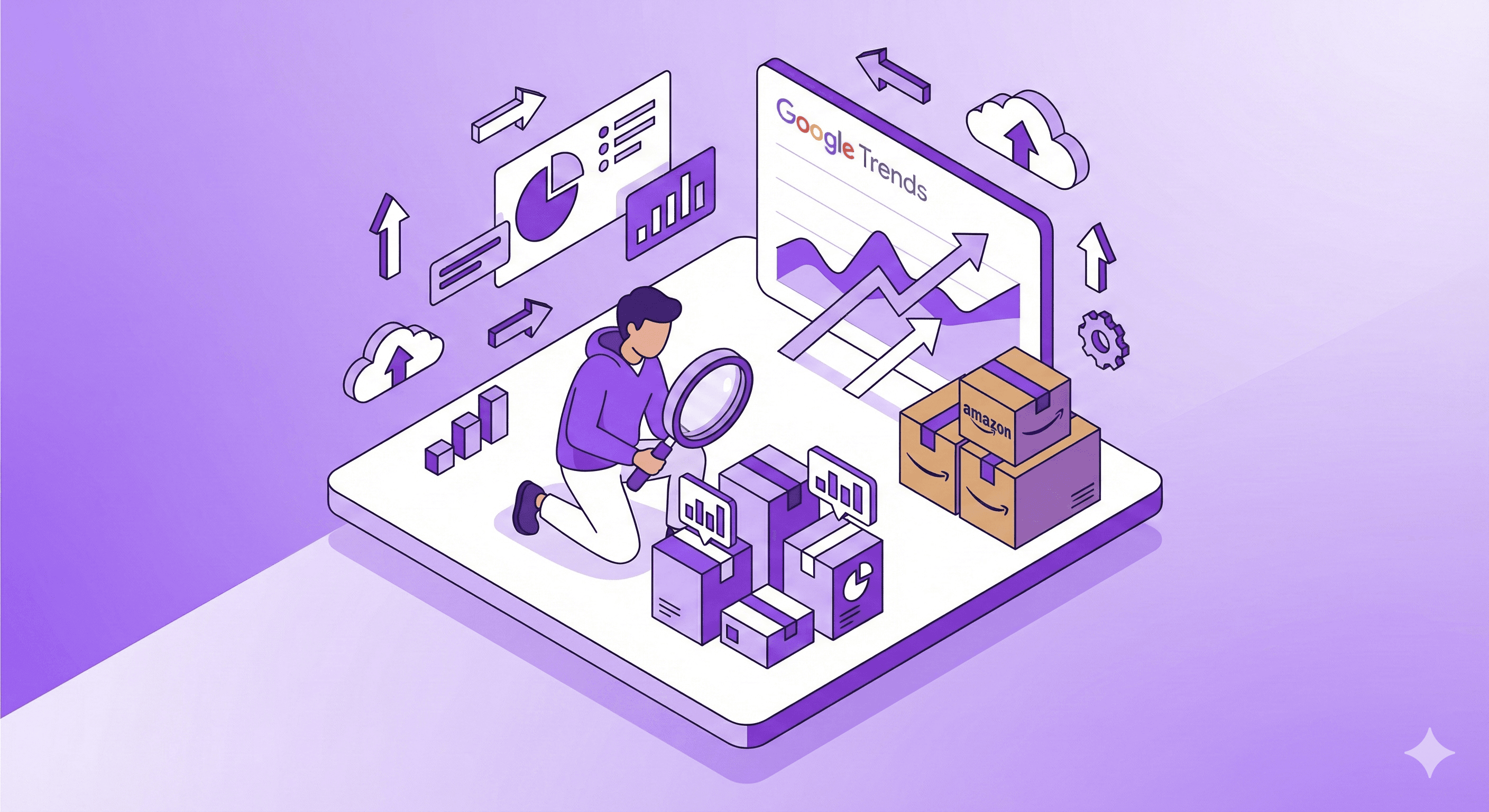
Check Google Trends
Visit trends.google.com and search your product idea. Look for:
Stable or growing interest over 12 months
No dramatic recent decline
Seasonal patterns you can plan around
Browse Amazon Best Sellers
Amazon's Best Sellers shows real-time purchasing behavior. Look for:
Products with hundreds of reviews (proven demand)
Negative reviews mentioning "wish it had X" (your opportunity)
Price points that allow healthy margins
Search Social Media
Check TikTok and Instagram for your product category. Active content creation around a product signals market interest.
Popular Shopify Business Models in 2026
Model | Startup Cost | Profit Margin | Best For |
|---|---|---|---|
Physical products | $500-5,000+ | 40-60% | Full control over quality |
Dropshipping | Under $100 | 15-30% | Testing ideas with low risk |
Print-on-demand | Under $50 | 20-40% | Custom designs, creative products |
Digital products | Under $50 | 70-90% | Courses, templates, downloads |
Choose based on your budget and goals. Dropshipping and print-on-demand let you test ideas without inventory risk.
Creating Your Shopify Account
Here's how to start your Shopify store step by step:
Step 1: Start Your Free Trial
Go to shopify.com
Click "Start free trial"
Enter your email address
Create a password
Enter a store name (you can change this later)
Shopify Pricing in 2026:
Free trial: 3 days
First 3 months: $1/month
Basic plan after trial: $29/month
This gives you over 3 months to build and test your store for essentially nothing.
Step 2: Complete Initial Setup
Shopify asks a few questions to personalize your experience:
Are you just starting or already selling?
What's your revenue goal?
What industry are you in?
Answer honestly — it helps Shopify show relevant features. Skipping these doesn't affect your store.
Step 3: Access Your Dashboard
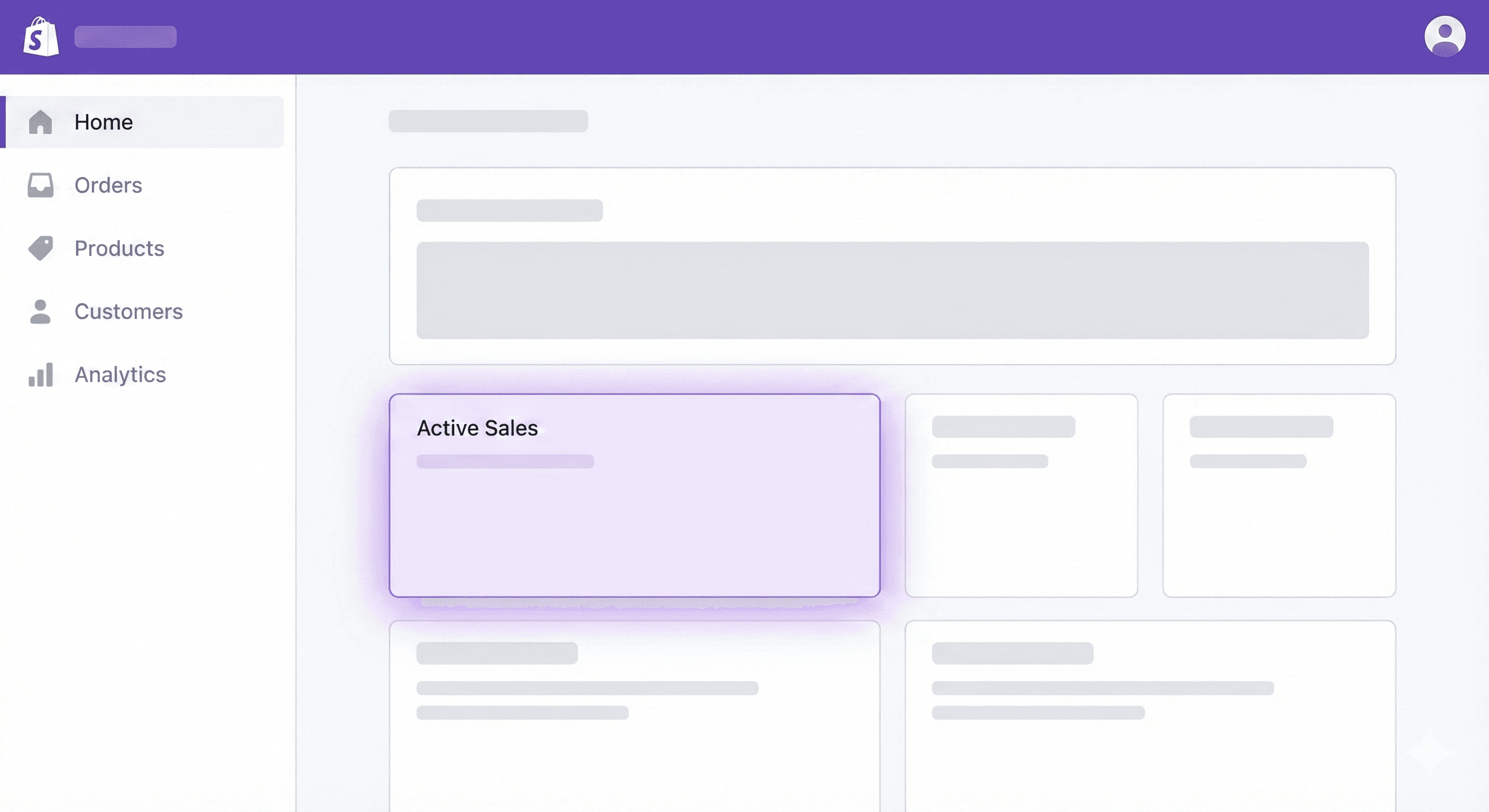
You're now in your Shopify admin. This is your command center:
Home — Overview and quick actions
Orders — Incoming sales
Products — Your catalog
Customers — Buyer information
Analytics — Performance data
Marketing — Promotional tools
Settings — Store configuration
Notice the purple glasses icon in the corner? That's Sidekick — your AI assistant. We'll cover that next.
Meet Sidekick: Your AI Store Assistant
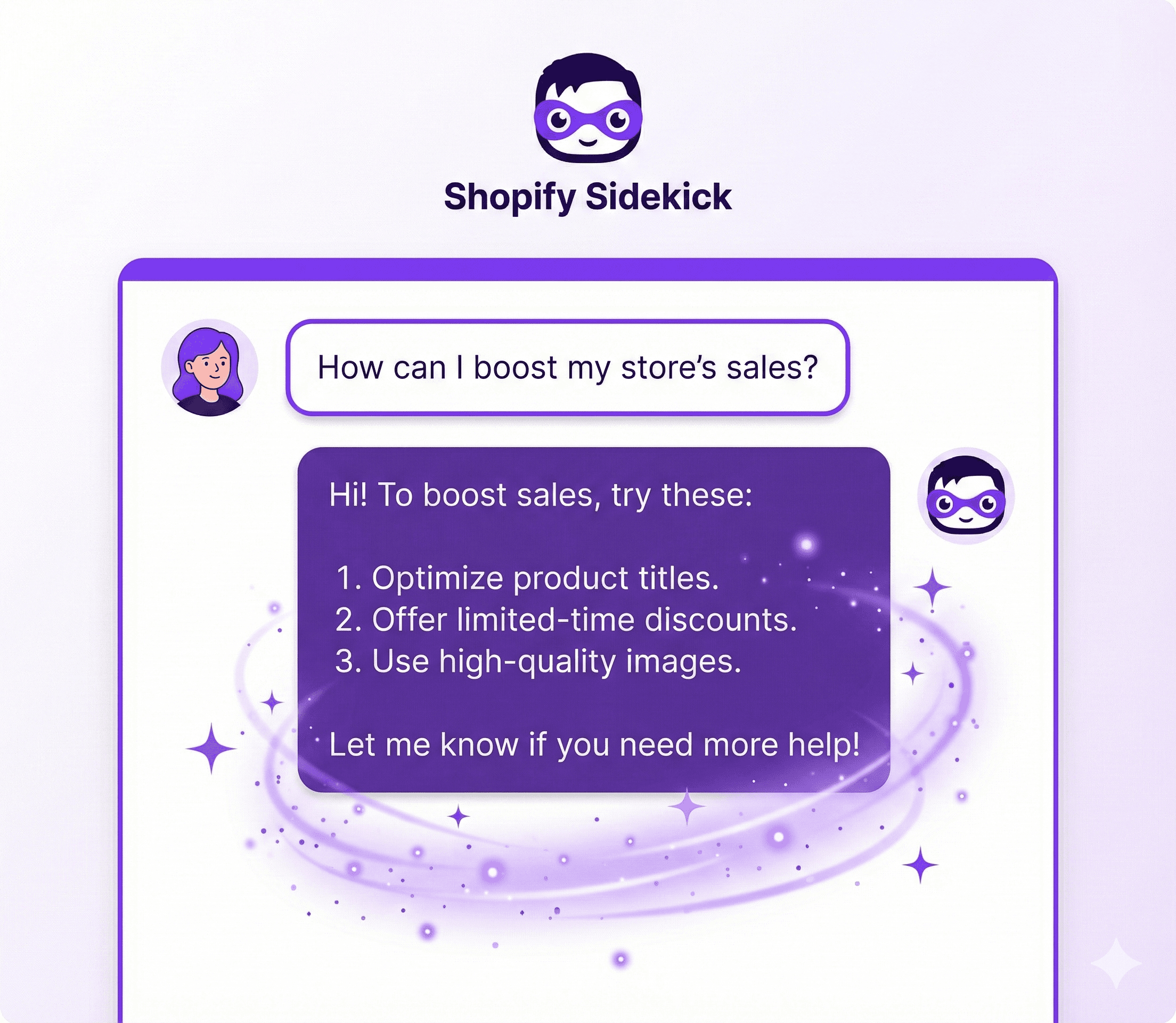
One of the biggest advantages of starting a Shopify store in 2026 is Sidekick — an AI-powered assistant built directly into your admin dashboard.
What is Sidekick?
Sidekick is like having a Shopify expert available 24/7. It understands your store data, can answer questions, generate content, and even execute tasks for you.
To access Sidekick: Click the purple glasses icon in your Shopify admin. No setup required — it's ready to use immediately.
What Sidekick Can Do For You
Answer questions about your store:
"Why did my sales drop last week?"
"Which products have the highest profit margin?"
"How do I set up shipping to Canada?"
Generate content:
Product descriptions
Product images
Email marketing copy
Blog post ideas
Marketing campaign suggestions
Create images:
Hero banners for your homepage
Social media graphics
Product lifestyle images
Promotional visuals
Execute tasks:
Create discount codes
Set up customer segments
Build reports
Configure settings
How to Use Sidekick Effectively
Just type naturally. Instead of searching through settings or documentation, ask Sidekick:
Examples:
"Create a 20% discount code for first-time customers that expires in 30 days"
"Generate a product description for a handmade ceramic mug"
"Make a hero banner image for my summer sale with beach vibes"
"Show me my best-selling products from last month"
Sidekick will either answer directly, provide step-by-step guidance, or execute the task (with your approval).
Pro tip: Throughout this guide, whenever you're stuck on something, try asking Sidekick first. It's often faster than searching through menus.
Setting Up Your Store
Focus on essentials first. You can polish details after launch.
Store Settings to Configure First
Go to Settings in your Shopify admin:
Store details:
Store name
Store contact email
Business address (for invoices and legal pages)
Plan:
Select your plan before your trial ends to avoid interruption
Or ask Sidekick: "Help me set up my basic store information"
Adding Your First Products
Products are the heart of your store. Here's how to add them correctly:
Step 1: Navigate to Products
Go to Products → Add product
Step 2: Fill in Product Information
→ Title
Make it clear and searchable. Include keywords people actually search for.
❌ "The Best Thing Ever"
✅ "Organic Cotton Oversized T-Shirt - Sage Green"
→ Description
Focus on benefits, not just features. Write like you're explaining the product to a friend.
❌ "This shirt is made of cotton."
✅ "Breathable organic cotton that stays soft wash after wash. The relaxed fit works for coffee runs, workouts, or couch days."
Pro tip — Use Sidekick for descriptions:
Ask: "Write a product description for [your product] that highlights [key benefits]"
Sidekick will generate multiple options you can edit and customize.
→ Media
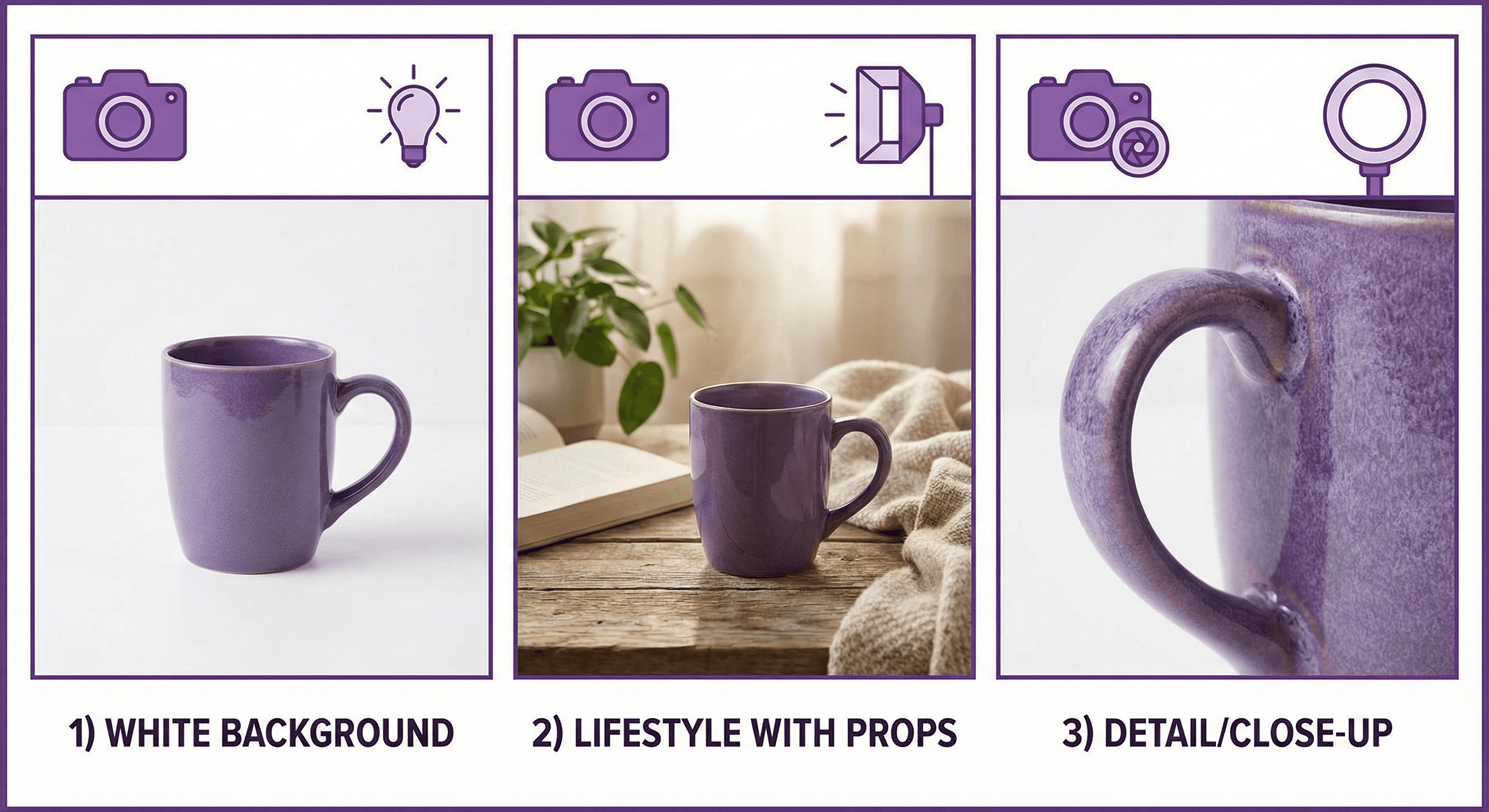
Upload high-quality product images. At minimum, include:
Main product photo (clean background, good lighting)
Product in use (lifestyle shot)
Detail shots (texture, quality indicators)
Size reference (if applicable)
Need product images? Sidekick can help here too:
"Create a lifestyle image of a coffee mug on a wooden desk with morning light"
"Generate a product banner for my candle collection with a cozy aesthetic"
→ Pricing
Price — What customers pay
Compare at price — Original price (shows discount)
Cost per item — Your cost (for profit tracking)
→ Inventory
Add SKU (e.g., "TEE-GREEN-M")
Set quantity if tracking stock
Enable inventory tracking
→ Shipping
Enter product weight (affects shipping calculations)
Check "This is a physical product"
Step 3: Save and Repeat
Click Save. Add 3-5 products to start — enough to look legitimate without overwhelming yourself.
Choosing a Horizon Theme
Your theme controls how your store looks. In 2026, Shopify's Horizon themes are the new standard — and they're all free.
What are Horizon Themes?
Horizon is Shopify's newest theme collection, launched in Summer 2025. Unlike older themes, Horizon themes are:
Fully block-based — Drag and drop anything, anywhere
AI-integrated — Generate custom design blocks by describing what you want
Up to 8 levels of nesting — Build complex layouts without code
Mobile-first — Optimized for Core Web Vitals and fast loading
Completely free — All 10+ Horizon themes cost nothing
Best Free Horizon Themes for 2026
Theme | Best For | Style |
|---|---|---|
Horizon | General stores, versatile | Clean, modern, flexible |
Fabric | Fashion, apparel | Editorial, magazine-style |
Savor | Food, beverage, artisan | Visual storytelling, rich imagery |
Ritual | Luxury, beauty, lifestyle | High-end, bold, premium |
Atelier | Jewelry, arts, large catalogs | Spacious, elegant, product-focused |
Vessel | Minimalist brands | Simple, clean, distraction-free |
How to Select a Theme
Go to Online Store → Themes
Click "Add theme" → "Visit Theme Store"
Browse the Horizon collection (look for "Free" badge)
Click "Try theme" to preview with your products
When ready, click "Publish"
Pro tip: Start with the base Horizon theme if you're unsure. It's the most versatile and works for almost any product category.
Using AI to Design Your Store
This is where 2026 gets exciting. Horizon themes include AI-powered block generation through Shopify Magic.
What is AI Block Generation?
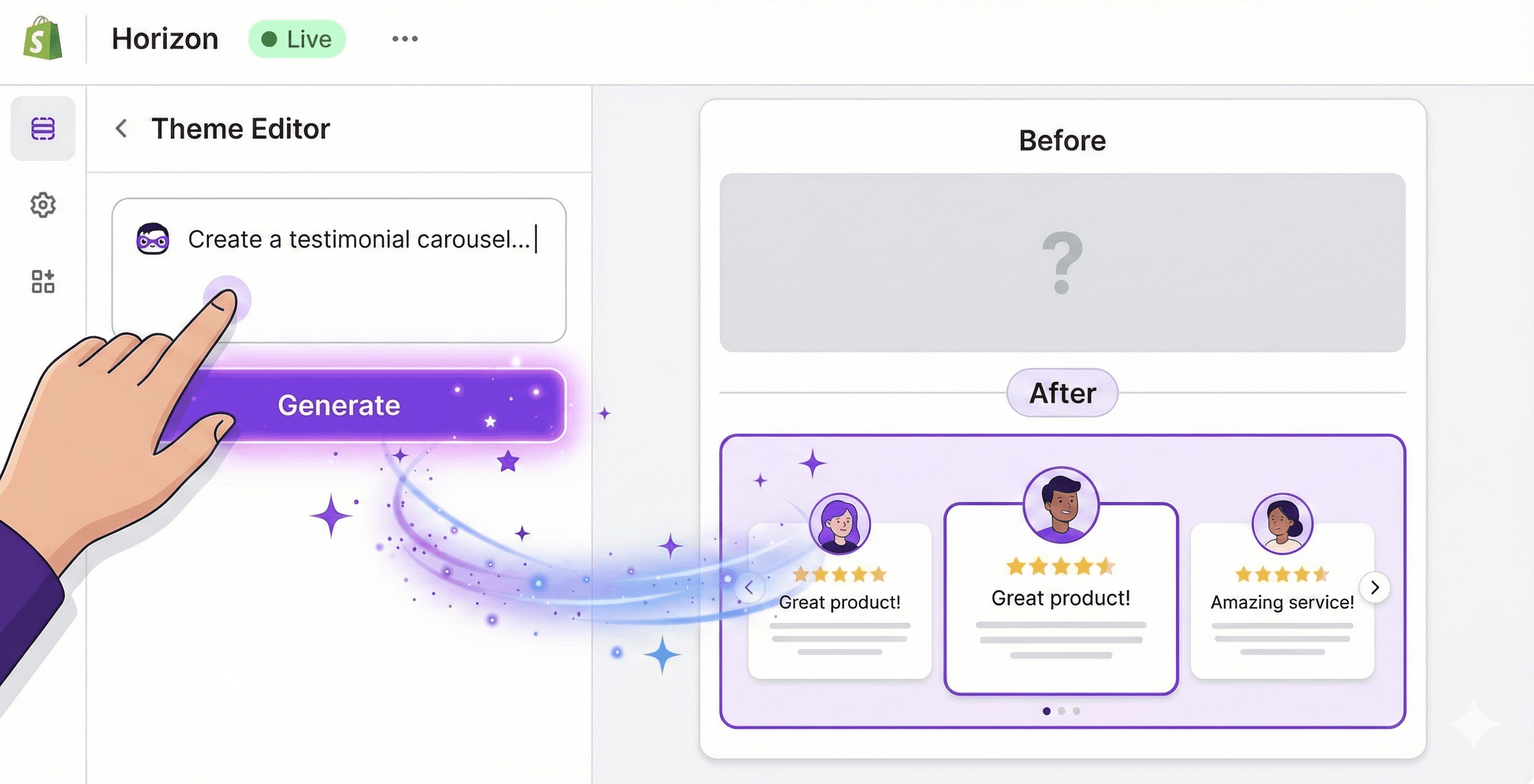
Instead of being limited to pre-built sections, you can describe what you want and Shopify's AI will create it for you.
Example: You want a testimonial carousel. Instead of searching for an app or hiring a developer:
Open the theme editor (Online Store → Themes → Customize)
Click "Add section" or "Add block"
Select "Generate" (the AI option)
Type: "A customer testimonial carousel with star ratings, customer photos, and a sliding animation"
Shopify Magic creates the block in seconds
Customize colors, fonts, and content to match your brand
AI Block Ideas to Try
Homepage:
"A hero banner with a typing animation effect and a call-to-action button"
"A featured collection grid with hover effects"
"A discount countdown timer banner for my summer sale"
Product pages:
"A size guide comparison chart"
"A product benefits section with icons"
"A 'frequently bought together' recommendation block"
Marketing:
"An email signup popup with a discount offer"
"A trust badges section showing payment methods and guarantees"
"An Instagram feed gallery"
Customizing Your Theme
Click Customize on your active theme to access the editor:
Header:
Upload logo (or use text)
Set up navigation menu
Homepage:
Add hero image with clear headline
Feature products or collections
Include trust elements (reviews, press mentions)
Footer:
Navigation links
Social media icons
Newsletter signup
Colors and Fonts:
Pick 2-3 brand colors maximum
Choose readable fonts
When unsure, stick with defaults
Using Sidekick in the theme editor:
You can also ask Sidekick to help design:
"Make this section have a dark background with white text"
"Add rounded corners to all buttons"
"Use a more modern font throughout the store"
Sidekick understands design commands and can make changes for you.
Setting Up Payments
Configure payments so you can actually receive money.
Enabling Shopify Payments
Go to Settings → Payments
Shopify Payments (recommended):
No additional transaction fees
Accepts all major credit cards
Includes Shop Pay (accelerated checkout)
To activate:
Click "Complete account setup"
Enter business details
Add banking information for payouts
Verify your identity
Or ask Sidekick: "Help me set up Shopify Payments"
Adding PayPal
Many customers prefer PayPal. To add it:
Click "Add payment methods"
Select PayPal
Connect your PayPal business account
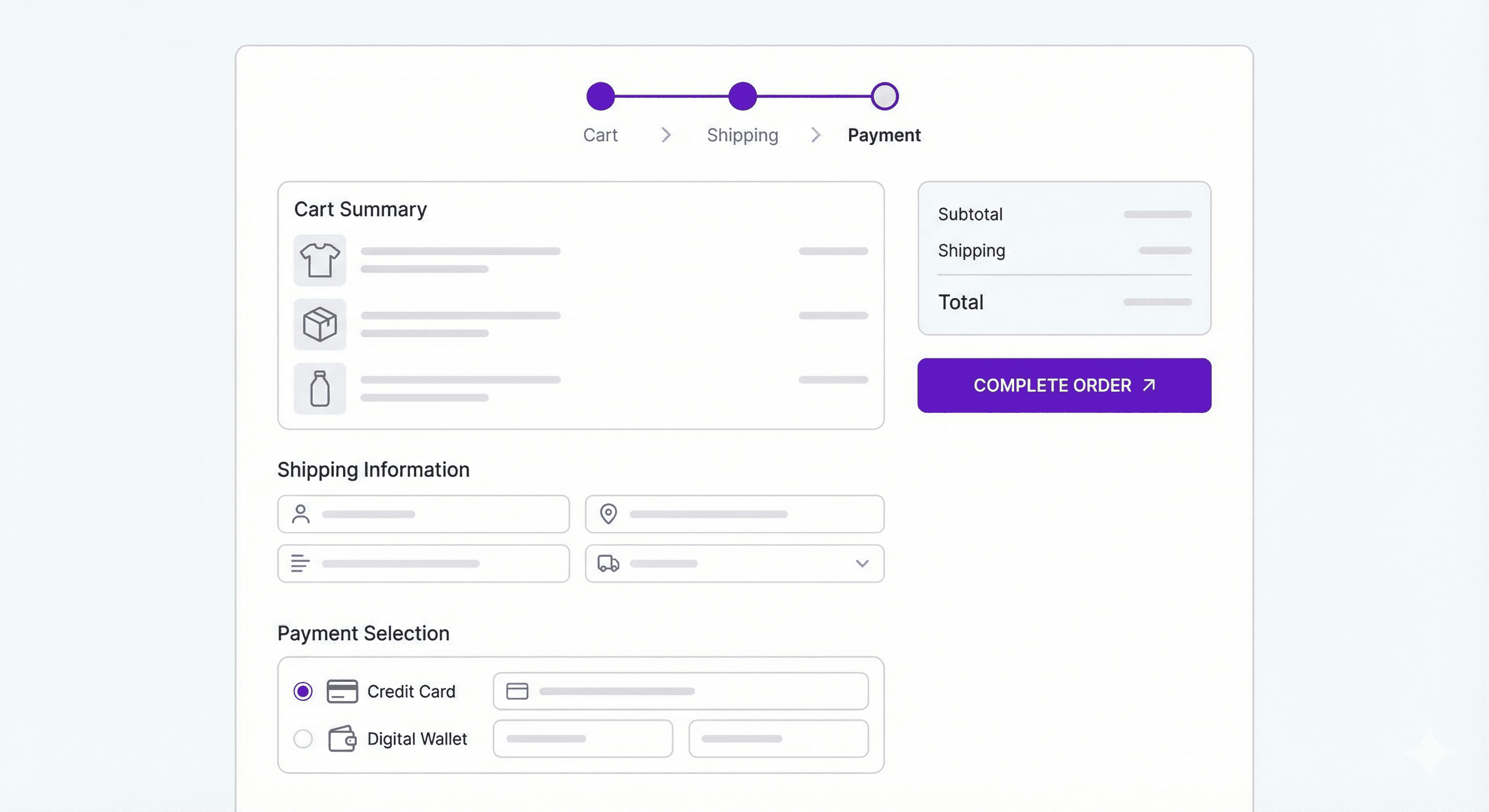
Checkout Configuration
Go to Settings → Checkout
Essential settings:
Customer contact: Email (standard choice)
Customer information: Require first and last name
Address autocomplete: Enable (reduces errors)
Guest checkout: Enable (don't force account creation)
Forcing customers to create accounts kills conversions. Let them buy as guests.
Configuring Shipping
Set up shipping rates that work for your products and margins.
Creating Shipping Zones
Go to Settings → Shipping and delivery
Domestic shipping:
Click Manage next to your domestic zone and add rates:
Simple options to start:
Free shipping over a certain amount (e.g., free over $50)
Flat rate shipping (e.g., $5.99 anywhere)
Calculated shipping (real-time carrier rates)
Free shipping thresholds increase average order value. Consider this strategy.
International shipping:
Decide whether to ship internationally at launch. You can always add this later.
Package Dimensions
Add your typical package sizes under Packages. This helps calculate accurate shipping costs.
Shipping Labels
Shopify Shipping lets you buy discounted labels directly from your admin:
Discounted rates from USPS, UPS, DHL
Automatic tracking updates to customers
No separate software needed
Creating Essential Pages
Trust pages are essential for conversions. Customers want to know your policies before buying.
Required Pages
Go to Online Store → Pages → Add page
About Page
Tell your story:
Who are you?
Why did you start this business?
What makes you different?
Pro tip: Ask Sidekick: "Help me write an About Us page for my [type of business]"
Contact Page
Make it easy to reach you:
Email address (use professional email like hello@yourstore.com)
Contact form
Expected response time
Shipping Policy
Be clear about:
Where you ship
Shipping timeframes
Shipping costs
Free shipping thresholds
Return Policy
Cover:
Return window (30 days is standard)
Condition requirements
Return process
Refund timeline
Privacy Policy and Terms of Service
Go to Settings → Policies. Shopify generates templates — review and customize them for your business.
Pre-Launch Checklist
Before going live, verify everything works:
Test Your Checkout
Go to Settings → Payments
Enable test mode (or use Bogus Gateway)
Place a test order
Verify:
Products display correctly
Prices are accurate
Shipping calculates properly
Confirmation email sends
Order appears in admin
Mobile Experience
Pull up your store on your phone. Over 70% of e-commerce traffic is mobile.
Check:
Navigation is easy
Images load quickly
Checkout works smoothly
Text is readable
Final Verification
✔️ All products have descriptions and images
✔️ Prices are correct
✔️ Shipping rates are configured
✔️ Payment methods work
✔️ Legal pages are complete
✔️ Contact information is visible
✔️ Navigation links work
✔️ No placeholder text remains
Quick check with Sidekick: "Is my store ready to launch? What am I missing?"
Launching Your Shopify Store
Ready to go live? Here's how:
Remove Password Protection
By default, your store is password-protected during setup.
Go to Online Store → Preferences
Uncheck "Restrict access to visitors with the password"
Save
Your store is now live. Anyone can visit and purchase.
How to Get Your First Sale
Having a store is great. Getting customers is the real challenge.
Week 1: Leverage Your Network
Your first customers will likely be people who already know you.
Actions:
Post on personal social media
Text friends and family
Email your contacts
Don't be shy. You're sharing something you created.
Sample message:
"Hey! I just launched my online store selling [products]. Would mean a lot if you checked it out: [link]. Even sharing helps!"
Create a launch discount:
Ask Sidekick: "Create a 15% discount code called FRIENDS that expires in 2 weeks"
Weeks 2-4: Build Social Presence
Pick 1-2 platforms where your customers spend time:
Instagram — Fashion, beauty, home goods, lifestyle products
TikTok — Trendy products, younger audiences, visual appeal
Pinterest — Home decor, fashion, DIY, wedding
Facebook — Local businesses, older demographics, community
Pro tip: Use Sidekick to generate social media content:
"Write 5 Instagram captions for my new candle collection"
"Create a content calendar for my first month on TikTok"
Consistency matters more than perfection. Post regularly rather than waiting for perfect content.
Month 1-2: Test Paid Advertising
Once you understand your audience, try small paid campaigns:
Facebook/Instagram Ads:
Start with $5-10/day
Create simple product ads
Target interests related to your products
Test multiple variations
Google Shopping:
Great if people search for your product type
Requires product feed setup
Budget reality: Your first ads probably won't be profitable. You're buying data about what works.
Ongoing: Email Marketing
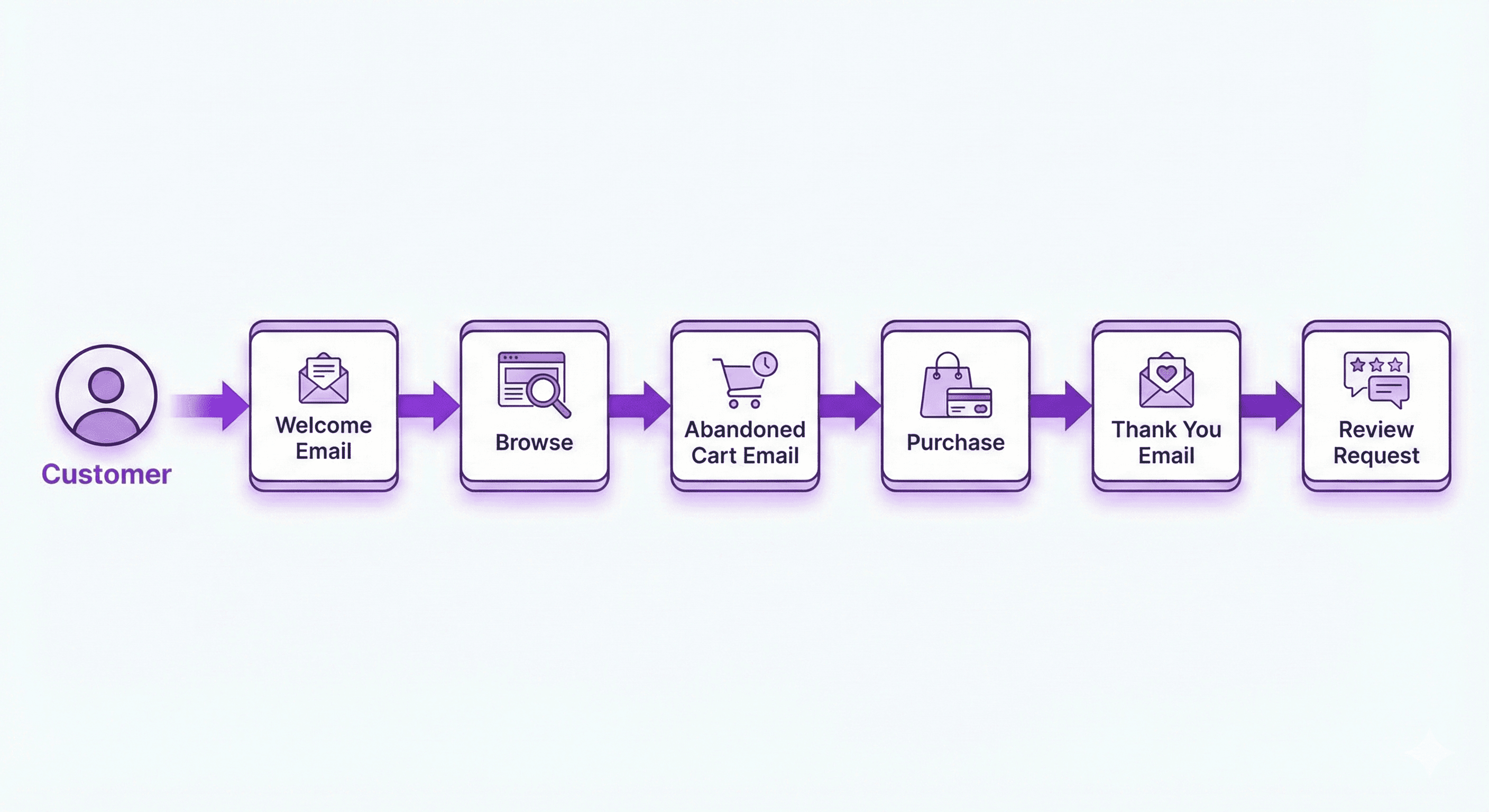
Email has the highest ROI of any marketing channel.
Essential automated flows:
Welcome series (when someone subscribes):
Welcome + discount code
Brand story
Best sellers
Abandoned cart (when someone leaves without buying):
Reminder (1 hour)
Follow-up (24 hours)
Final reminder + possible discount (48 hours)
Post-purchase (after a sale):
Order confirmation
Shipping notification
Review request
Related product recommendations
Common Mistakes to Avoid
Learn from others' errors:
Perfectionism Paralysis
"I'll launch when it's perfect."
Your store will never be perfect. Launch with "good enough" and improve based on real feedback.
Ignoring Mobile
60-80% of traffic is mobile. If your mobile experience is poor, you're losing sales.
Complicated Checkout
Every extra step loses customers. Enable guest checkout. Don't require account creation.
Poor Product Photos
This is where most beginners cut corners. Good photos are the difference between "looks legit" and "looks sketchy."
No Marketing Budget
"I'll just post on social media for free."
Organic reach is limited. Budget at least $100-200/month to test paid acquisition.
Installing Too Many Apps
More apps means slower site and higher costs. Start with 3-5 essential apps maximum.
Not Using AI Tools
In 2026, not using Sidekick and Shopify Magic is leaving speed on the table. Let AI handle content generation, image creation, and routine tasks so you can focus on strategy.
What to Do After Your First Sale
You got the notification. Someone bought something. Now what?
Fulfill Promptly
Ship within 1-2 business days. Fast shipping leads to good reviews.
Send a Personal Thank You
For your first customers, personal touches matter:
Handwritten note in the package
Personal thank you email
Small free sample
Request a Review
After they receive the product:
"Hope you love your [product]! Would you mind leaving a quick review? It helps us more than you know."
Analyze What Worked
Ask Sidekick: "Show me how my first customer found my store"
Do more of what worked.
Scaling Your Store: Post-Purchase Experience
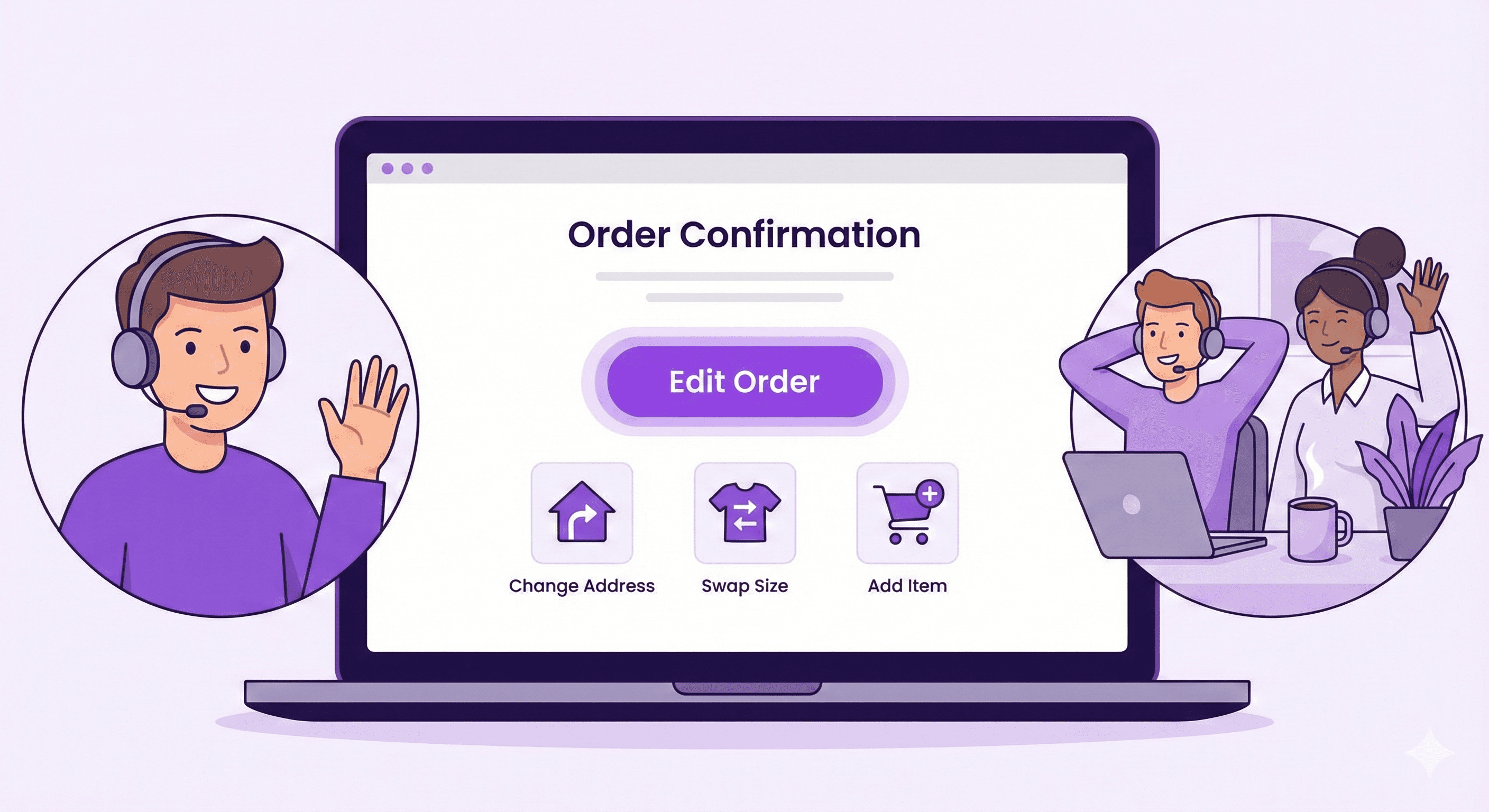
Once orders start flowing, you'll face a new challenge: customers who need changes after ordering.
Wrong address. Wrong size. Forgot to add an item. Wanted to apply a discount code.
These requests flood your inbox and slow you down.
Self-service order editing solves this. Apps like Revize let customers edit their own orders directly from their order confirmation page — no support tickets required.
They can:
Change shipping address
Swap product variants
Add items
Apply forgotten discount codes
Taxes and shipping recalculate automatically. Everything stays synced with Shopify.
Result: Fewer support tickets, happier customers, orders that keep moving.
Frequently Asked Questions
How much does it cost to start a Shopify store in 2026?
Starting a Shopify store costs approximately $29/month for the Basic plan. However, Shopify offers a 3-day free trial followed by 3 months at $1/month, so your first three months cost just $3 total. Additional costs include your domain name ($14-20/year) and any paid apps you choose to install.
What are Shopify Horizon themes?
Horizon themes are Shopify's newest free theme collection, launched in Summer 2025. They're built on a fully block-based system with AI integration, allowing you to create custom design blocks by describing what you want. There are 10+ Horizon themes available, including Horizon, Fabric, Savor, Ritual, and Atelier.
What is Shopify Sidekick?
Shopify Sidekick is an AI-powered assistant built into every Shopify admin dashboard. It can answer questions about your store, generate product descriptions and marketing content, create images, analyze your sales data, and execute tasks like creating discount codes. Access it by clicking the purple glasses icon in your admin.
Can Shopify AI write my product descriptions?
Yes. Sidekick can generate product descriptions, email copy, blog posts, and other marketing content. Simply ask it to write content and provide details about your product. You can then edit and customize the generated content to match your brand voice.
Do I need coding skills to use Shopify in 2026?
No, coding skills are not required. Shopify's Horizon themes use a drag-and-drop editor with AI-powered block generation. You can describe what you want in plain language, and Shopify Magic will create custom design elements for you. Complex layouts that previously required developers can now be built without code.
How long does it take to set up a Shopify store?
You can set up a basic Shopify store in 2-4 hours. With AI tools like Sidekick helping with content generation and Horizon themes providing pre-built designs, the process is faster than ever. More time is needed for customization, but you can launch with a functional store in an afternoon.
Are Horizon themes really free?
Yes, all Horizon themes are completely free. This includes the base Horizon theme and all variations like Fabric, Savor, Ritual, Atelier, and Vessel. They're available to any Shopify merchant regardless of subscription plan.
How do I get my first sale on Shopify?
To get your first Shopify sale, start by sharing your store with friends and family, offering a launch discount. Then build a social media presence on 1-2 platforms, test small paid advertising campaigns, and set up email marketing to capture and nurture leads. Use Sidekick to help create marketing content and analyze what's working.
What sells best on Shopify in 2026?
Top-performing Shopify categories in 2026 include fashion and apparel, health and beauty products, home goods and decor, pet products, and digital products. Success depends more on finding a specific niche with passionate buyers than choosing a particular category.
Is Shopify good for beginners?
Yes, Shopify is excellent for beginners, especially in 2026 with AI tools built in. Sidekick acts as a 24/7 expert assistant, Horizon themes require no coding, and Shopify Magic generates content and images on demand. Most beginners can launch a professional-looking store without any technical experience.
Start Your Shopify Store Today
Starting a Shopify store in 2026 is achievable for anyone. The platform handles the technical complexity, and AI tools like Sidekick and Shopify Magic accelerate everything from content creation to store design.
Your first version won't be perfect. Your first ads might not work. Your first months might be slow. That's completely normal.
The difference between stores that succeed and stores that don't? The ones that succeed keep going. They launch, learn, adjust, and try again.
Your job isn't to be perfect. Your job is to start.
Start your free Shopify trial →
Updated August 2026. Revize is a Shopify app for customer self-serve post-purchase order editing, letting shoppers change the shipping address, swap a variant or product, cancel, and get a refund or store credit before fulfillment, without a support ticket. Learn more about letting customers edit their own Shopify orders, or find Revize on the Shopify App Store.
Go from zero to first sale — every step explained, no tech skills required.
Starting an online store feels overwhelming. What platform should you use? How do you set up payments? How do you actually get customers?
Sorry about the noise above, here's the clean rewrite: Here's the good news: launching a Shopify store in 2026 has never been easier. With new AI tools like Sidekick and the Horizon theme collection, you can build a professional store in hours, not weeks. No coding skills, no design experience, no massive budget required. Just be ready for customers to move fast too: the median post-checkout edit lands 4.6 minutes after the order is placed (Revize, 2026), so your new store needs a way to handle changes just as quickly.
This guide walks you through everything — from creating your Shopify account to making your first sale. We'll cover every click, every setting, and show you how to use Shopify's newest AI features to move faster.
What you'll learn:
How to set up your Shopify store from scratch
Using Sidekick AI and Shopify Magic to speed up your work
Building with Horizon themes and AI-generated design blocks
Adding products, payments, and shipping
Getting your first customers and making that first sale
Let's get started.
Table of Contents
What You Need Before Starting
How to Find a Product to Sell
Creating Your Shopify Account
Meet Sidekick: Your AI Store Assistant
Setting Up Your Store
Adding Your First Products
Choosing a Horizon Theme
Using AI to Design Your Store
Setting Up Payments
Configuring Shipping
Creating Essential Pages
Pre-Launch Checklist
How to Get Your First Sale
Common Mistakes to Avoid
FAQ
What You Need Before Starting
Before you create your Shopify store, gather these essentials:
Required:
A product idea (or general direction)
Email address
Credit or debit card (for subscription after free trial)
2-4 hours of focused time
Computer or laptop (desktop makes setup easier)
Not required:
Business license (you can register later)
Coding or design skills
Large startup budget
Technical experience
That's it. If you have a product idea and an internet connection, you're ready to start.
How to Find a Product to Sell
Already know what you're selling? Skip to creating your account.
Still deciding? Here's how to find a product that sells:
The Product Validation Framework
Your ideal product sits at the intersection of three things:
Something you understand — You won't burn out explaining it
Proven demand — People are actively buying it
Healthy margins — You can make money after costs
Quick Validation Methods
Check Google Trends
Visit trends.google.com and search your product idea. Look for:
Stable or growing interest over 12 months
No dramatic recent decline
Seasonal patterns you can plan around
Browse Amazon Best Sellers
Amazon's Best Sellers shows real-time purchasing behavior. Look for:
Products with hundreds of reviews (proven demand)
Negative reviews mentioning "wish it had X" (your opportunity)
Price points that allow healthy margins
Search Social Media
Check TikTok and Instagram for your product category. Active content creation around a product signals market interest.
Popular Shopify Business Models in 2026
Model | Startup Cost | Profit Margin | Best For |
|---|---|---|---|
Physical products | $500-5,000+ | 40-60% | Full control over quality |
Dropshipping | Under $100 | 15-30% | Testing ideas with low risk |
Print-on-demand | Under $50 | 20-40% | Custom designs, creative products |
Digital products | Under $50 | 70-90% | Courses, templates, downloads |
Choose based on your budget and goals. Dropshipping and print-on-demand let you test ideas without inventory risk.
Creating Your Shopify Account
Here's how to start your Shopify store step by step:
Step 1: Start Your Free Trial
Go to shopify.com
Click "Start free trial"
Enter your email address
Create a password
Enter a store name (you can change this later)
Shopify Pricing in 2026:
Free trial: 3 days
First 3 months: $1/month
Basic plan after trial: $29/month
This gives you over 3 months to build and test your store for essentially nothing.
Step 2: Complete Initial Setup
Shopify asks a few questions to personalize your experience:
Are you just starting or already selling?
What's your revenue goal?
What industry are you in?
Answer honestly — it helps Shopify show relevant features. Skipping these doesn't affect your store.
Step 3: Access Your Dashboard
You're now in your Shopify admin. This is your command center:
Home — Overview and quick actions
Orders — Incoming sales
Products — Your catalog
Customers — Buyer information
Analytics — Performance data
Marketing — Promotional tools
Settings — Store configuration
Notice the purple glasses icon in the corner? That's Sidekick — your AI assistant. We'll cover that next.
Meet Sidekick: Your AI Store Assistant
One of the biggest advantages of starting a Shopify store in 2026 is Sidekick — an AI-powered assistant built directly into your admin dashboard.
What is Sidekick?
Sidekick is like having a Shopify expert available 24/7. It understands your store data, can answer questions, generate content, and even execute tasks for you.
To access Sidekick: Click the purple glasses icon in your Shopify admin. No setup required — it's ready to use immediately.
What Sidekick Can Do For You
Answer questions about your store:
"Why did my sales drop last week?"
"Which products have the highest profit margin?"
"How do I set up shipping to Canada?"
Generate content:
Product descriptions
Product images
Email marketing copy
Blog post ideas
Marketing campaign suggestions
Create images:
Hero banners for your homepage
Social media graphics
Product lifestyle images
Promotional visuals
Execute tasks:
Create discount codes
Set up customer segments
Build reports
Configure settings
How to Use Sidekick Effectively
Just type naturally. Instead of searching through settings or documentation, ask Sidekick:
Examples:
"Create a 20% discount code for first-time customers that expires in 30 days"
"Generate a product description for a handmade ceramic mug"
"Make a hero banner image for my summer sale with beach vibes"
"Show me my best-selling products from last month"
Sidekick will either answer directly, provide step-by-step guidance, or execute the task (with your approval).
Pro tip: Throughout this guide, whenever you're stuck on something, try asking Sidekick first. It's often faster than searching through menus.
Setting Up Your Store
Focus on essentials first. You can polish details after launch.
Store Settings to Configure First
Go to Settings in your Shopify admin:
Store details:
Store name
Store contact email
Business address (for invoices and legal pages)
Plan:
Select your plan before your trial ends to avoid interruption
Or ask Sidekick: "Help me set up my basic store information"
Adding Your First Products
Products are the heart of your store. Here's how to add them correctly:
Step 1: Navigate to Products
Go to Products → Add product
Step 2: Fill in Product Information
→ Title
Make it clear and searchable. Include keywords people actually search for.
❌ "The Best Thing Ever"
✅ "Organic Cotton Oversized T-Shirt - Sage Green"
→ Description
Focus on benefits, not just features. Write like you're explaining the product to a friend.
❌ "This shirt is made of cotton."
✅ "Breathable organic cotton that stays soft wash after wash. The relaxed fit works for coffee runs, workouts, or couch days."
Pro tip — Use Sidekick for descriptions:
Ask: "Write a product description for [your product] that highlights [key benefits]"
Sidekick will generate multiple options you can edit and customize.
→ Media
Upload high-quality product images. At minimum, include:
Main product photo (clean background, good lighting)
Product in use (lifestyle shot)
Detail shots (texture, quality indicators)
Size reference (if applicable)
Need product images? Sidekick can help here too:
"Create a lifestyle image of a coffee mug on a wooden desk with morning light"
"Generate a product banner for my candle collection with a cozy aesthetic"
→ Pricing
Price — What customers pay
Compare at price — Original price (shows discount)
Cost per item — Your cost (for profit tracking)
→ Inventory
Add SKU (e.g., "TEE-GREEN-M")
Set quantity if tracking stock
Enable inventory tracking
→ Shipping
Enter product weight (affects shipping calculations)
Check "This is a physical product"
Step 3: Save and Repeat
Click Save. Add 3-5 products to start — enough to look legitimate without overwhelming yourself.
Choosing a Horizon Theme
Your theme controls how your store looks. In 2026, Shopify's Horizon themes are the new standard — and they're all free.
What are Horizon Themes?
Horizon is Shopify's newest theme collection, launched in Summer 2025. Unlike older themes, Horizon themes are:
Fully block-based — Drag and drop anything, anywhere
AI-integrated — Generate custom design blocks by describing what you want
Up to 8 levels of nesting — Build complex layouts without code
Mobile-first — Optimized for Core Web Vitals and fast loading
Completely free — All 10+ Horizon themes cost nothing
Best Free Horizon Themes for 2026
Theme | Best For | Style |
|---|---|---|
Horizon | General stores, versatile | Clean, modern, flexible |
Fabric | Fashion, apparel | Editorial, magazine-style |
Savor | Food, beverage, artisan | Visual storytelling, rich imagery |
Ritual | Luxury, beauty, lifestyle | High-end, bold, premium |
Atelier | Jewelry, arts, large catalogs | Spacious, elegant, product-focused |
Vessel | Minimalist brands | Simple, clean, distraction-free |
How to Select a Theme
Go to Online Store → Themes
Click "Add theme" → "Visit Theme Store"
Browse the Horizon collection (look for "Free" badge)
Click "Try theme" to preview with your products
When ready, click "Publish"
Pro tip: Start with the base Horizon theme if you're unsure. It's the most versatile and works for almost any product category.
Using AI to Design Your Store
This is where 2026 gets exciting. Horizon themes include AI-powered block generation through Shopify Magic.
What is AI Block Generation?
Instead of being limited to pre-built sections, you can describe what you want and Shopify's AI will create it for you.
Example: You want a testimonial carousel. Instead of searching for an app or hiring a developer:
Open the theme editor (Online Store → Themes → Customize)
Click "Add section" or "Add block"
Select "Generate" (the AI option)
Type: "A customer testimonial carousel with star ratings, customer photos, and a sliding animation"
Shopify Magic creates the block in seconds
Customize colors, fonts, and content to match your brand
AI Block Ideas to Try
Homepage:
"A hero banner with a typing animation effect and a call-to-action button"
"A featured collection grid with hover effects"
"A discount countdown timer banner for my summer sale"
Product pages:
"A size guide comparison chart"
"A product benefits section with icons"
"A 'frequently bought together' recommendation block"
Marketing:
"An email signup popup with a discount offer"
"A trust badges section showing payment methods and guarantees"
"An Instagram feed gallery"
Customizing Your Theme
Click Customize on your active theme to access the editor:
Header:
Upload logo (or use text)
Set up navigation menu
Homepage:
Add hero image with clear headline
Feature products or collections
Include trust elements (reviews, press mentions)
Footer:
Navigation links
Social media icons
Newsletter signup
Colors and Fonts:
Pick 2-3 brand colors maximum
Choose readable fonts
When unsure, stick with defaults
Using Sidekick in the theme editor:
You can also ask Sidekick to help design:
"Make this section have a dark background with white text"
"Add rounded corners to all buttons"
"Use a more modern font throughout the store"
Sidekick understands design commands and can make changes for you.
Setting Up Payments
Configure payments so you can actually receive money.
Enabling Shopify Payments
Go to Settings → Payments
Shopify Payments (recommended):
No additional transaction fees
Accepts all major credit cards
Includes Shop Pay (accelerated checkout)
To activate:
Click "Complete account setup"
Enter business details
Add banking information for payouts
Verify your identity
Or ask Sidekick: "Help me set up Shopify Payments"
Adding PayPal
Many customers prefer PayPal. To add it:
Click "Add payment methods"
Select PayPal
Connect your PayPal business account
Checkout Configuration
Go to Settings → Checkout
Essential settings:
Customer contact: Email (standard choice)
Customer information: Require first and last name
Address autocomplete: Enable (reduces errors)
Guest checkout: Enable (don't force account creation)
Forcing customers to create accounts kills conversions. Let them buy as guests.
Configuring Shipping
Set up shipping rates that work for your products and margins.
Creating Shipping Zones
Go to Settings → Shipping and delivery
Domestic shipping:
Click Manage next to your domestic zone and add rates:
Simple options to start:
Free shipping over a certain amount (e.g., free over $50)
Flat rate shipping (e.g., $5.99 anywhere)
Calculated shipping (real-time carrier rates)
Free shipping thresholds increase average order value. Consider this strategy.
International shipping:
Decide whether to ship internationally at launch. You can always add this later.
Package Dimensions
Add your typical package sizes under Packages. This helps calculate accurate shipping costs.
Shipping Labels
Shopify Shipping lets you buy discounted labels directly from your admin:
Discounted rates from USPS, UPS, DHL
Automatic tracking updates to customers
No separate software needed
Creating Essential Pages
Trust pages are essential for conversions. Customers want to know your policies before buying.
Required Pages
Go to Online Store → Pages → Add page
About Page
Tell your story:
Who are you?
Why did you start this business?
What makes you different?
Pro tip: Ask Sidekick: "Help me write an About Us page for my [type of business]"
Contact Page
Make it easy to reach you:
Email address (use professional email like hello@yourstore.com)
Contact form
Expected response time
Shipping Policy
Be clear about:
Where you ship
Shipping timeframes
Shipping costs
Free shipping thresholds
Return Policy
Cover:
Return window (30 days is standard)
Condition requirements
Return process
Refund timeline
Privacy Policy and Terms of Service
Go to Settings → Policies. Shopify generates templates — review and customize them for your business.
Pre-Launch Checklist
Before going live, verify everything works:
Test Your Checkout
Go to Settings → Payments
Enable test mode (or use Bogus Gateway)
Place a test order
Verify:
Products display correctly
Prices are accurate
Shipping calculates properly
Confirmation email sends
Order appears in admin
Mobile Experience
Pull up your store on your phone. Over 70% of e-commerce traffic is mobile.
Check:
Navigation is easy
Images load quickly
Checkout works smoothly
Text is readable
Final Verification
✔️ All products have descriptions and images
✔️ Prices are correct
✔️ Shipping rates are configured
✔️ Payment methods work
✔️ Legal pages are complete
✔️ Contact information is visible
✔️ Navigation links work
✔️ No placeholder text remains
Quick check with Sidekick: "Is my store ready to launch? What am I missing?"
Launching Your Shopify Store
Ready to go live? Here's how:
Remove Password Protection
By default, your store is password-protected during setup.
Go to Online Store → Preferences
Uncheck "Restrict access to visitors with the password"
Save
Your store is now live. Anyone can visit and purchase.
How to Get Your First Sale
Having a store is great. Getting customers is the real challenge.
Week 1: Leverage Your Network
Your first customers will likely be people who already know you.
Actions:
Post on personal social media
Text friends and family
Email your contacts
Don't be shy. You're sharing something you created.
Sample message:
"Hey! I just launched my online store selling [products]. Would mean a lot if you checked it out: [link]. Even sharing helps!"
Create a launch discount:
Ask Sidekick: "Create a 15% discount code called FRIENDS that expires in 2 weeks"
Weeks 2-4: Build Social Presence
Pick 1-2 platforms where your customers spend time:
Instagram — Fashion, beauty, home goods, lifestyle products
TikTok — Trendy products, younger audiences, visual appeal
Pinterest — Home decor, fashion, DIY, wedding
Facebook — Local businesses, older demographics, community
Pro tip: Use Sidekick to generate social media content:
"Write 5 Instagram captions for my new candle collection"
"Create a content calendar for my first month on TikTok"
Consistency matters more than perfection. Post regularly rather than waiting for perfect content.
Month 1-2: Test Paid Advertising
Once you understand your audience, try small paid campaigns:
Facebook/Instagram Ads:
Start with $5-10/day
Create simple product ads
Target interests related to your products
Test multiple variations
Google Shopping:
Great if people search for your product type
Requires product feed setup
Budget reality: Your first ads probably won't be profitable. You're buying data about what works.
Ongoing: Email Marketing
Email has the highest ROI of any marketing channel.
Essential automated flows:
Welcome series (when someone subscribes):
Welcome + discount code
Brand story
Best sellers
Abandoned cart (when someone leaves without buying):
Reminder (1 hour)
Follow-up (24 hours)
Final reminder + possible discount (48 hours)
Post-purchase (after a sale):
Order confirmation
Shipping notification
Review request
Related product recommendations
Common Mistakes to Avoid
Learn from others' errors:
Perfectionism Paralysis
"I'll launch when it's perfect."
Your store will never be perfect. Launch with "good enough" and improve based on real feedback.
Ignoring Mobile
60-80% of traffic is mobile. If your mobile experience is poor, you're losing sales.
Complicated Checkout
Every extra step loses customers. Enable guest checkout. Don't require account creation.
Poor Product Photos
This is where most beginners cut corners. Good photos are the difference between "looks legit" and "looks sketchy."
No Marketing Budget
"I'll just post on social media for free."
Organic reach is limited. Budget at least $100-200/month to test paid acquisition.
Installing Too Many Apps
More apps means slower site and higher costs. Start with 3-5 essential apps maximum.
Not Using AI Tools
In 2026, not using Sidekick and Shopify Magic is leaving speed on the table. Let AI handle content generation, image creation, and routine tasks so you can focus on strategy.
What to Do After Your First Sale
You got the notification. Someone bought something. Now what?
Fulfill Promptly
Ship within 1-2 business days. Fast shipping leads to good reviews.
Send a Personal Thank You
For your first customers, personal touches matter:
Handwritten note in the package
Personal thank you email
Small free sample
Request a Review
After they receive the product:
"Hope you love your [product]! Would you mind leaving a quick review? It helps us more than you know."
Analyze What Worked
Ask Sidekick: "Show me how my first customer found my store"
Do more of what worked.
Scaling Your Store: Post-Purchase Experience
Once orders start flowing, you'll face a new challenge: customers who need changes after ordering.
Wrong address. Wrong size. Forgot to add an item. Wanted to apply a discount code.
These requests flood your inbox and slow you down.
Self-service order editing solves this. Apps like Revize let customers edit their own orders directly from their order confirmation page — no support tickets required.
They can:
Change shipping address
Swap product variants
Add items
Apply forgotten discount codes
Taxes and shipping recalculate automatically. Everything stays synced with Shopify.
Result: Fewer support tickets, happier customers, orders that keep moving.
Frequently Asked Questions
How much does it cost to start a Shopify store in 2026?
Starting a Shopify store costs approximately $29/month for the Basic plan. However, Shopify offers a 3-day free trial followed by 3 months at $1/month, so your first three months cost just $3 total. Additional costs include your domain name ($14-20/year) and any paid apps you choose to install.
What are Shopify Horizon themes?
Horizon themes are Shopify's newest free theme collection, launched in Summer 2025. They're built on a fully block-based system with AI integration, allowing you to create custom design blocks by describing what you want. There are 10+ Horizon themes available, including Horizon, Fabric, Savor, Ritual, and Atelier.
What is Shopify Sidekick?
Shopify Sidekick is an AI-powered assistant built into every Shopify admin dashboard. It can answer questions about your store, generate product descriptions and marketing content, create images, analyze your sales data, and execute tasks like creating discount codes. Access it by clicking the purple glasses icon in your admin.
Can Shopify AI write my product descriptions?
Yes. Sidekick can generate product descriptions, email copy, blog posts, and other marketing content. Simply ask it to write content and provide details about your product. You can then edit and customize the generated content to match your brand voice.
Do I need coding skills to use Shopify in 2026?
No, coding skills are not required. Shopify's Horizon themes use a drag-and-drop editor with AI-powered block generation. You can describe what you want in plain language, and Shopify Magic will create custom design elements for you. Complex layouts that previously required developers can now be built without code.
How long does it take to set up a Shopify store?
You can set up a basic Shopify store in 2-4 hours. With AI tools like Sidekick helping with content generation and Horizon themes providing pre-built designs, the process is faster than ever. More time is needed for customization, but you can launch with a functional store in an afternoon.
Are Horizon themes really free?
Yes, all Horizon themes are completely free. This includes the base Horizon theme and all variations like Fabric, Savor, Ritual, Atelier, and Vessel. They're available to any Shopify merchant regardless of subscription plan.
How do I get my first sale on Shopify?
To get your first Shopify sale, start by sharing your store with friends and family, offering a launch discount. Then build a social media presence on 1-2 platforms, test small paid advertising campaigns, and set up email marketing to capture and nurture leads. Use Sidekick to help create marketing content and analyze what's working.
What sells best on Shopify in 2026?
Top-performing Shopify categories in 2026 include fashion and apparel, health and beauty products, home goods and decor, pet products, and digital products. Success depends more on finding a specific niche with passionate buyers than choosing a particular category.
Is Shopify good for beginners?
Yes, Shopify is excellent for beginners, especially in 2026 with AI tools built in. Sidekick acts as a 24/7 expert assistant, Horizon themes require no coding, and Shopify Magic generates content and images on demand. Most beginners can launch a professional-looking store without any technical experience.
Start Your Shopify Store Today
Starting a Shopify store in 2026 is achievable for anyone. The platform handles the technical complexity, and AI tools like Sidekick and Shopify Magic accelerate everything from content creation to store design.
Your first version won't be perfect. Your first ads might not work. Your first months might be slow. That's completely normal.
The difference between stores that succeed and stores that don't? The ones that succeed keep going. They launch, learn, adjust, and try again.
Your job isn't to be perfect. Your job is to start.
Start your free Shopify trial →
Updated August 2026. Revize is a Shopify app for customer self-serve post-purchase order editing, letting shoppers change the shipping address, swap a variant or product, cancel, and get a refund or store credit before fulfillment, without a support ticket. Learn more about letting customers edit their own Shopify orders, or find Revize on the Shopify App Store.

Revize your Shopify store. Lead with customer experience.

© Copyright 2026, All Rights Reserved
Revize your Shopify store. Lead with customer experience.
© Copyright 2026, All Rights Reserved
Revize your Shopify store. Lead with customer experience.
© Copyright 2026, All Rights Reserved
Revize your Shopify store. Lead with customer experience.
© Copyright 2026, All Rights Reserved