
How to Do a Partial Refund on Shopify: Complete Guide
How to Do a Partial Refund on Shopify: Complete Guide
How to Do a Partial Refund on Shopify: Complete Guide

How to Do a Partial Refund on Shopify?
Quick Answer
To do a partial refund on Shopify:
Go to Orders → Select the order
Click "Refund"
Enter custom amount or select specific items
Click "Refund $XX.XX"
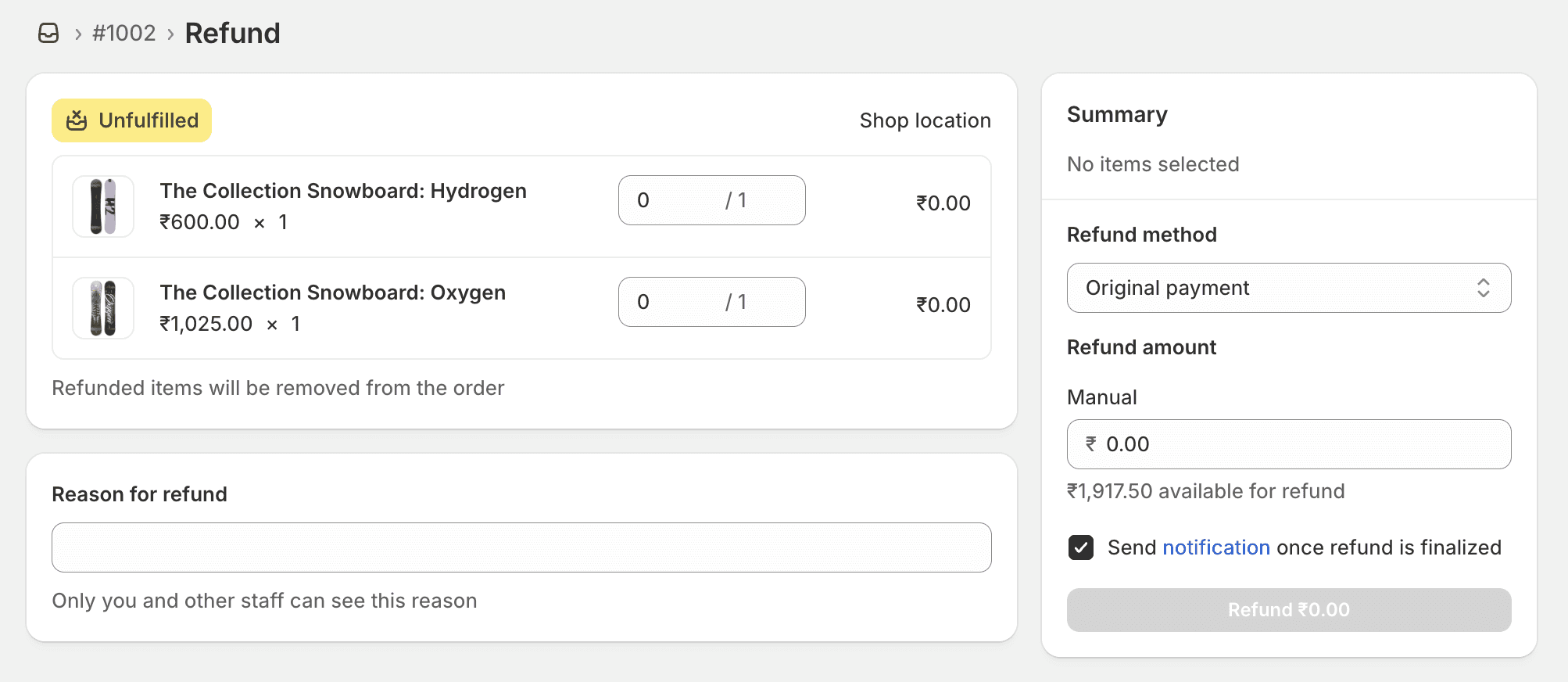
Refunds typically process in 5-10 business days.
Table of Contents
What is a Partial Refund?
When to Issue Partial Refunds
How to Do a Partial Refund on Shopify (Step-by-Step)
How to Refund Shipping Costs
Common Partial Refund Issues
Automating Partial Refunds
Best Practices
FAQ
What is a Partial Refund?
A partial refund is when you refund part of a customer's order instead of the full amount. This is useful when:
Only some items in an order are returned
You want to refund shipping costs separately
A customer received a damaged item and you're offering compensation
You're resolving a dispute with a partial credit
Unlike full refunds, partial refunds let you return only a specific dollar amount while keeping the order active in your system.
Partial Refund vs Full Refund
Feature | Partial Refund | Full Refund |
|---|---|---|
Amount | Any amount up to order total | Full order total |
Order Status | Remains "Fulfilled" | Changes to "Refunded" |
Inventory | Can restock selected items | All items restocked |
Common Use | Single item return, compensation | Order cancellation, complete return |
When to Issue Partial Refunds
Here are the most common scenarios where partial refunds make sense:
1. Single Item Returns from Multi-Item Orders
Example: Customer orders a t-shirt ($30) and shoes ($80). They return only the shoes.
Solution: Issue a $80 partial refund, keeping the $30 t-shirt transaction.
2. Damaged or Defective Items
Example: Customer receives a damaged item worth $50 in a $200 order.
Solution: Issue a $50 partial refund as compensation, let them keep the item.
3. Shipping Cost Adjustments
Example: You overcharged $10 for shipping.
Solution: Issue a $10 partial refund to cover the shipping difference.
4. Pricing Errors
Example: Item was listed at $50 but should have been $40.
Solution: Issue a $10 partial refund to correct the pricing error.
5. Customer Satisfaction Gestures
Example: Order arrived late, customer is unhappy.
Solution: Issue a $20 partial refund as goodwill compensation.
How to Do a Partial Refund on Shopify (Step-by-Step)
Follow these 5 steps to process a partial refund:
Step 1: Open the Order
Log into your Shopify admin panel
Click Orders in the left sidebar
Find the order you want to refund
Click on the order number to open it
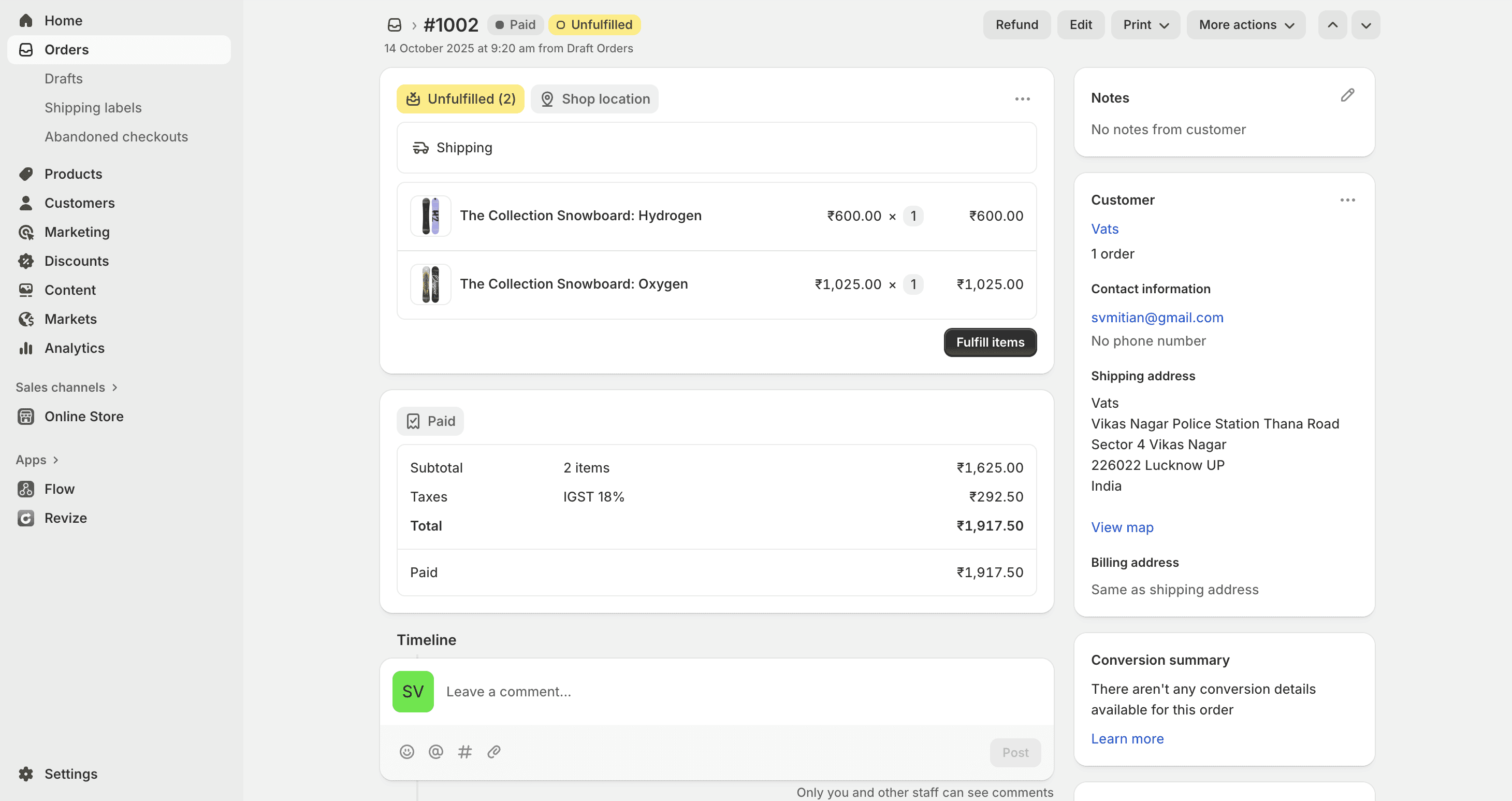
💡 Tip: Use the search bar to quickly find orders by customer name, order number, or email.
Step 2: Click "Refund"
Scroll down to the Order Details section
Click the "Refund" button (top right of the order details)
Note: If you don't see the Refund button, the order may not be fulfilled yet. You must fulfill or capture payment before refunding.
Step 3: Select Items to Refund (Optional)
If you're refunding specific items:
In the Items section, find the product to refund
Enter the quantity to refund in the "Quantity" field
The refund amount will auto-calculate based on item price
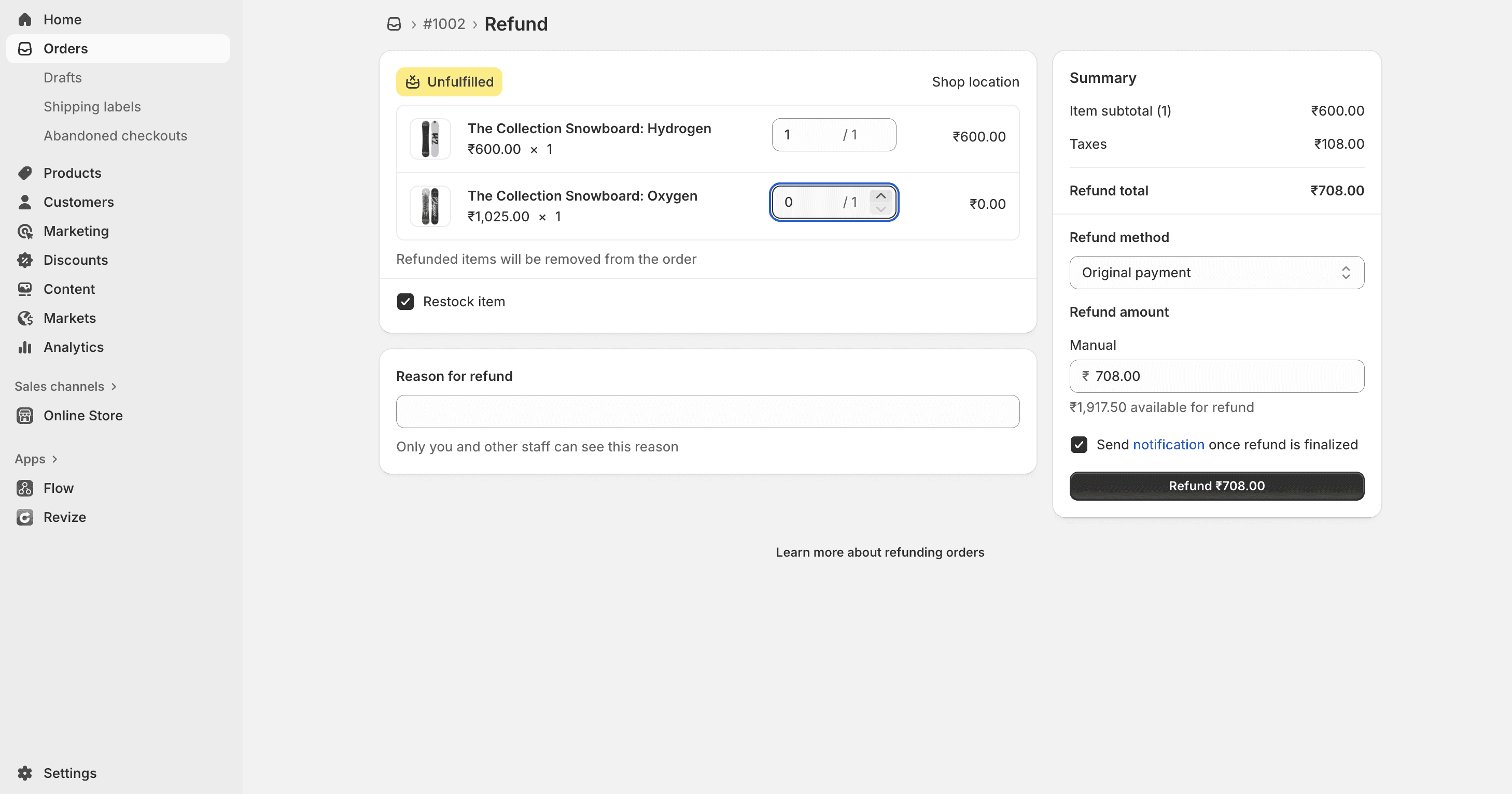
For partial quantity:
If customer ordered 3 items, enter "1" or "2" to refund partially
Shopify calculates: (Item price × Quantity)
To refund custom amount instead:
Leave all quantities at "0"
Skip to Step 4 to manually enter amount
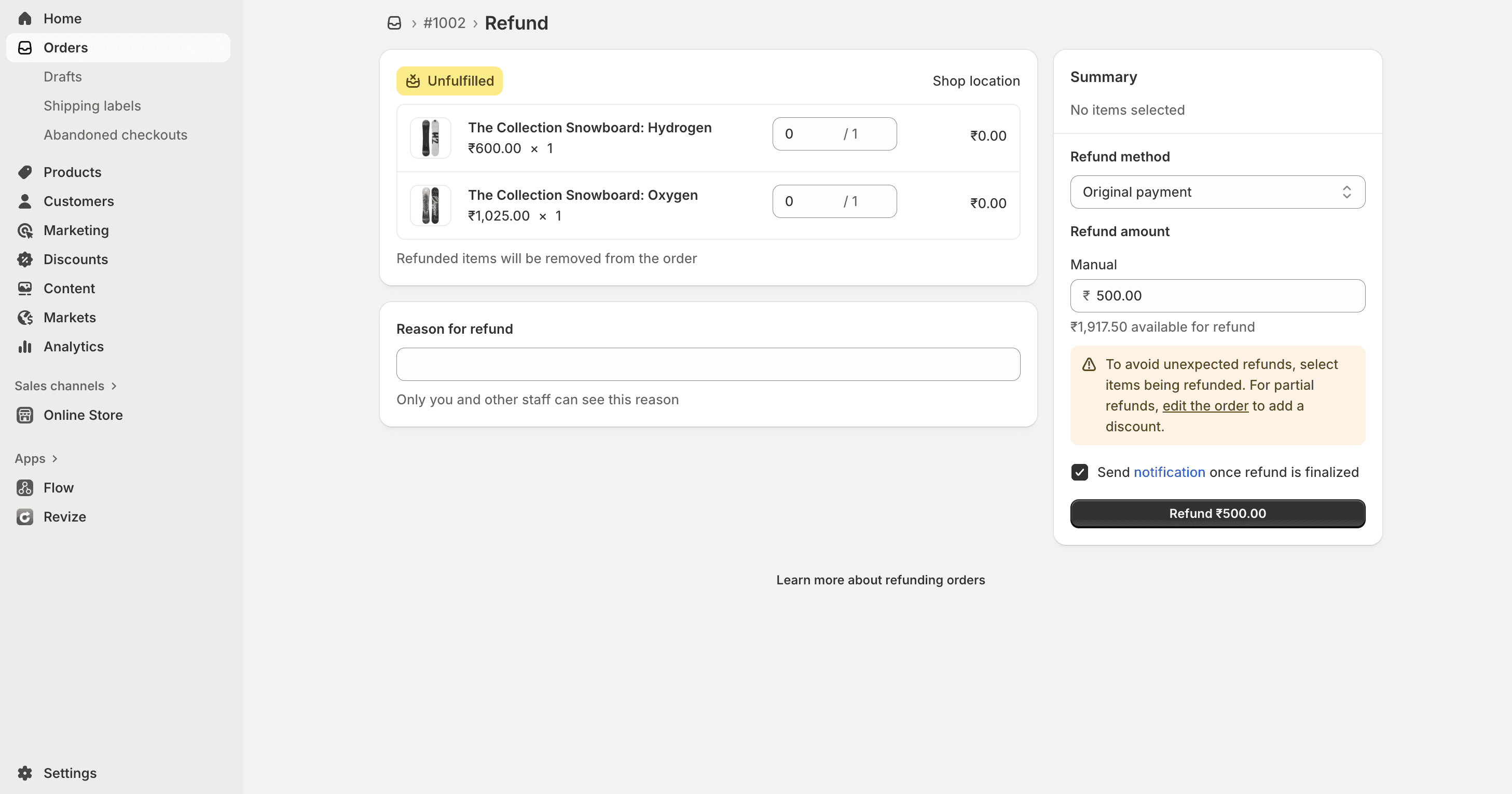
Step 4: Enter Refund Amount
Scroll to Refund Amount section
You'll see the calculated total based on items selected
To change to a custom amount:
Click the amount field
Type your desired refund amount
Must be less than or equal to the order total
Example:
Order total: $150
You can refund any amount from $0.01 to $150.00
Enter $50 for a $50 partial refund
Step 5: Add Refund Reason (Optional) and Process
Refund Reason: Select from dropdown or type custom reason
Common reasons: "Item returned", "Damaged item", "Customer request"
This is for your internal records only
Restock Items: Check box if you want to add items back to inventory
✅ Check: If item is being returned and resellable
❌ Uncheck: If item is damaged, defective, or keeping with customer
Send Notification:
✅ Check: Customer receives refund confirmation email
❌ Uncheck: Silent refund (not recommended)
Click "Refund $XX.XX" button
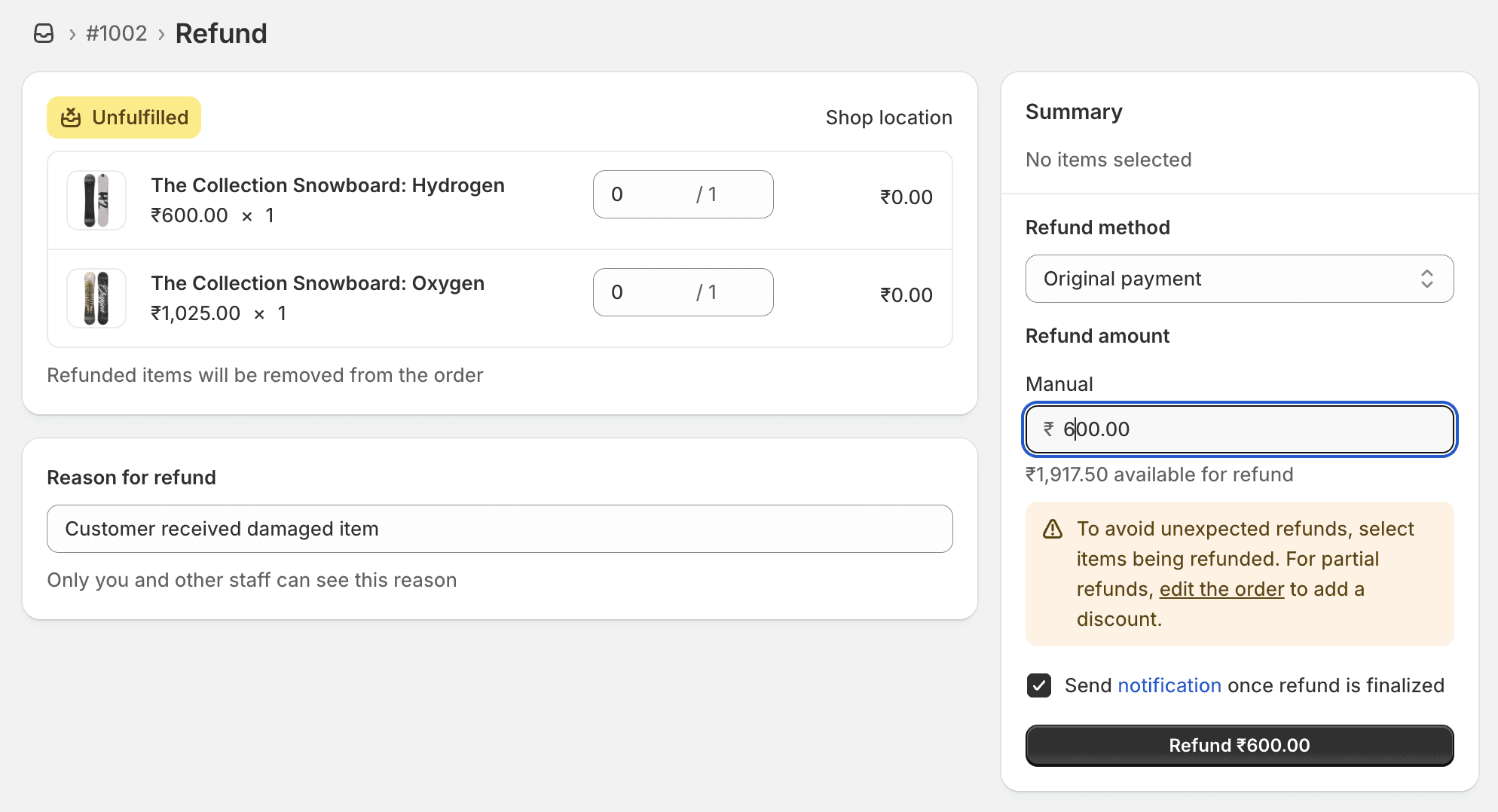
✅ Done! The refund is processed immediately.
How to Refund Shipping Costs
To refund shipping as part of a partial refund:
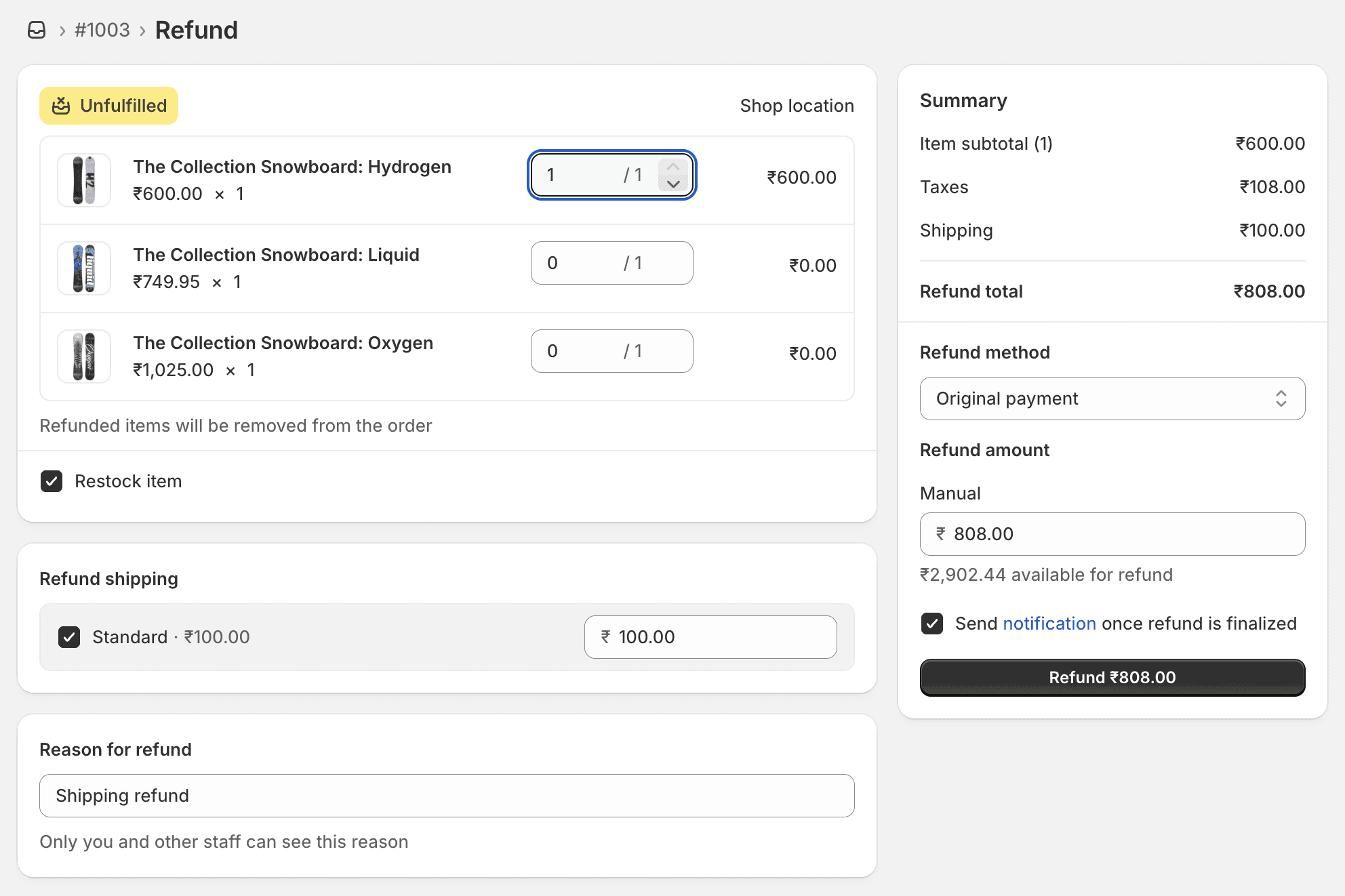
Option 1: Include in Item Refund
Follow steps 1-3 above (select items)
In Refund Shipping section, enter shipping amount
Shopify adds shipping to total refund amount
Process refund
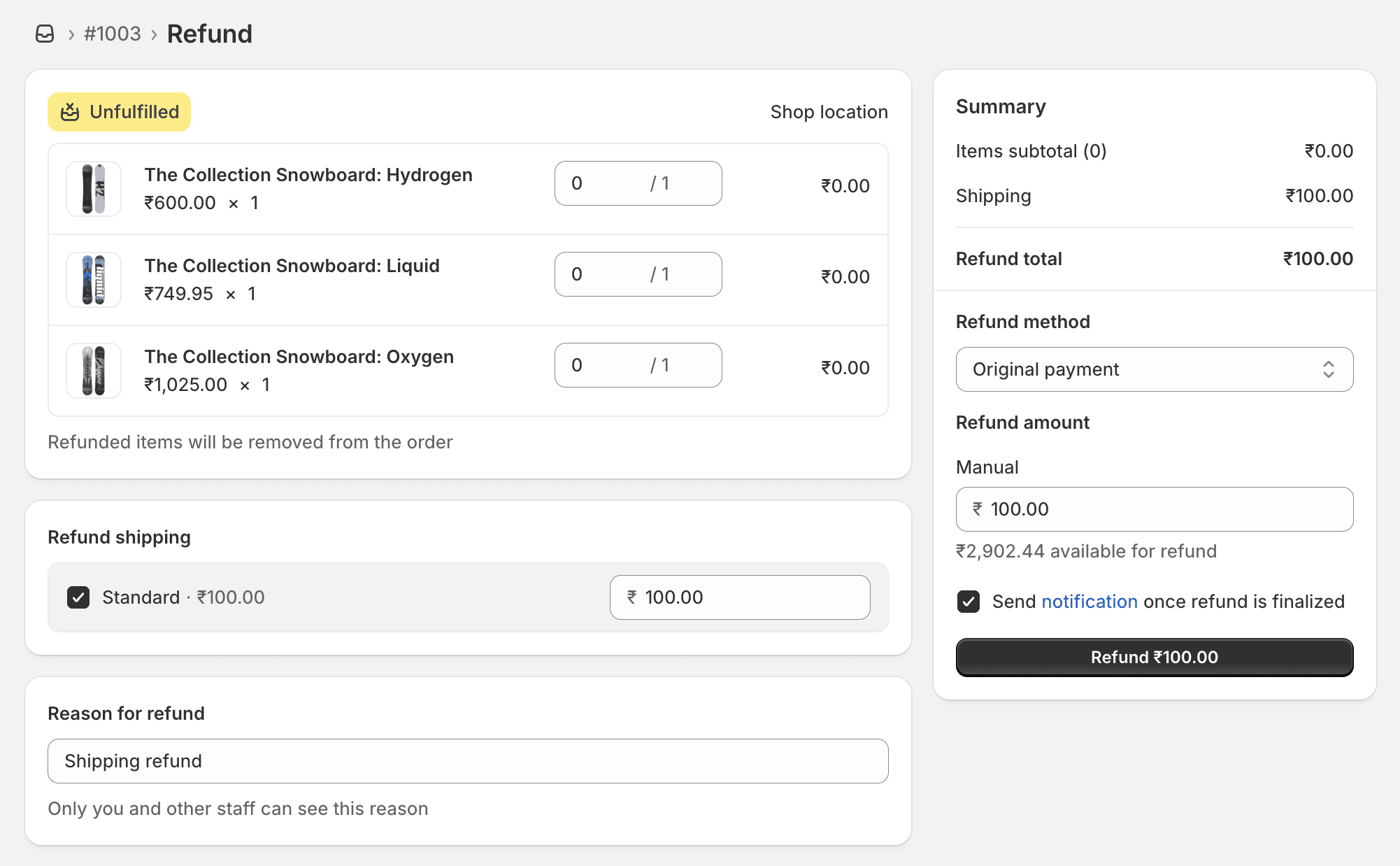
Option 2: Refund Shipping Only
Open the order → Click "Refund"
Set all item quantities to 0
In Refund Amount, enter the shipping cost manually
Example: Enter $15.00 to refund $15 shipping
Add reason: "Shipping refund"
Process refund
💡 Pro Tip: If you're refunding the full order including shipping, use "Full Refund" option instead of manually calculating.
Common Partial Refund Issues
Issue #1: "Refund Button is Greyed Out"
Cause: Payment hasn't been captured yet.
Solution:
Fulfill the order first
Make sure payment is captured
Wait 5-10 minutes, then try refunding
Issue #2: "Cannot Refund More Than Order Total"
Cause: You entered an amount higher than the order total.
Solution:
Check the original order total
Enter an amount equal to or less than that total
You cannot refund more than the customer paid
Issue #3: "Refund Failed - Payment Gateway Error"
Cause: Issue with payment processor (Shopify Payments, PayPal, etc.)
Solution:
Check your payment gateway settings
Ensure your account is in good standing
Try again in 10-15 minutes
If persists, contact Shopify Support
Issue #4: "Customer Says They Didn't Receive Refund"
Cause: Refund processing time varies by payment method.
Solution:
Credit Card: 5-10 business days
PayPal: 3-5 business days
Shopify Payments: 3-10 business days
Bank Transfer: 5-10 business days
Tell customers to check with their bank after the processing period.
Automating Partial Refunds (Save Time!)
Problem: Manual Refunds are Time-Consuming
If you process 10+ refunds per day, manually going into each order takes hours of admin time.
Solution: Self-Service Refund Portal
Modern order management apps let customers request partial refunds themselves:
How it works:
Customer logs into their account
Views their order
Selects items to return
Clicks 'Refund' and the order is updated without any manual intervention
Benefits:
✅ Reduces support tickets by 40-60%
✅ Faster processing (customers don't wait for email response)
✅ Less manual work for your team
✅ Better customer experience
Recommended Apps:
Revize Order Editing & Upsell - Self-service order editing & refunds
Rich Returns
Loop Returns
💡 Pro Tip: Apps with self-service refunds integrate directly with Shopify, so refunds are automatically processed in your admin panel.
Best Practices for Partial Refunds
1. Always Add a Refund Reason
Why: Helps you track refund trends and identify product issues.
How:
Use consistent reasons: "Item damaged", "Wrong size", "Changed mind"
Review refund reports monthly
If one product has high refunds → investigate quality issues
2. Communicate Refund Timeline
Why: Reduces "Where's my refund?" support tickets.
How:
In refund email, state: "Refund will appear in 5-10 business days"
Set up email template with timeline
Add to your returns policy page
3. Restock Items Only if Resellable
Why: Prevents inventory discrepancies.
When to restock:
Item is unopened and resellable
Wrong item was shipped
Customer changed their mind (unused item)
When NOT to restock:
Item is damaged
Item was used/opened
Item is custom/personalized
4. Use Partial Refunds for Customer Retention
Instead of full refund:
Offer 10-20% partial refund as compensation
Customer keeps product + gets discount
You keep the sale
Example:
Customer: "My order arrived 2 days late"
Bad response: Full refund + return
Good response: "We're sorry! Here's a $20 refund. Keep the item with our apologies."
Result: Customer is happy, you kept 80% of the revenue.
5. Document Everything
Why: Protects you in chargebacks and disputes.
What to document:
Screenshots of refund confirmation
Customer's refund request email
Photos of damaged items (if applicable)
Tracking information for returns
Where to save:
Add notes to Shopify order
Use order tags: "partial-refund", "damaged-item"
FAQ: Shopify Partial Refunds
Can I do a partial refund without items being returned?
Yes! You can issue a partial refund for any reason:
Customer satisfaction
Damaged items (let them keep it)
Compensation for late delivery
Pricing errors
Just enter the custom amount in Step 4 and uncheck "Restock items."
How long does a partial refund take on Shopify?
Processing: Instant in Shopify admin
Customer receives money: 3-10 business days depending on payment method:
Credit card: 5-10 days
PayPal: 3-5 days
Debit card: 3-7 days
Can I do multiple partial refunds on the same order?
Yes! You can issue multiple partial refunds on one order until you reach the order total.
Example:
Order total: $100
1st partial refund: $30
2nd partial refund: $20
You can still refund up to $50 more
Does a partial refund cancel the order on Shopify?
No. Partial refunds keep the order active as "Fulfilled" or "Partially Refunded."
Only full refunds change the order status to "Refunded."
Can customers request partial refunds themselves?
Not natively in Shopify. You need a third-party app to enable self-service partial refunds.
Recommended: Use an order management app with self-service portal. This lets customers select items to return and submit refund without emailing your support team.
Can I refund Shopify fees with a partial refund?
No. Shopify transaction fees are not refunded on partial refunds. You only recover fees on full refunds.
Example:
Order: $100 (you pay $3 in Shopify fees)
Partial refund: $50
You still pay $3 in fees (not refunded)
Final Thoughts
Processing a partial refund is straightforward once you know the steps. The key is:
Open the order
Click "Refund"
Select items
Process the refund
For high-volume stores, consider automating partial refunds with self-service tools to save time and reduce support tickets.
Need help with order management/ order editing? Revize Order Editing & Upsell offers self-service refunds, order editing, and post-purchase automation for Shopify stores. Try it free →
For more complex order management needs, you can also use draft orders to create custom invoices for customers. Learn more in our complete guide to draft orders in Shopify.
Last updated: October 2025
How to Do a Partial Refund on Shopify?
Quick Answer
To do a partial refund on Shopify:
Go to Orders → Select the order
Click "Refund"
Enter custom amount or select specific items
Click "Refund $XX.XX"
Refunds typically process in 5-10 business days.
Table of Contents
What is a Partial Refund?
When to Issue Partial Refunds
How to Do a Partial Refund on Shopify (Step-by-Step)
How to Refund Shipping Costs
Common Partial Refund Issues
Automating Partial Refunds
Best Practices
FAQ
What is a Partial Refund?
A partial refund is when you refund part of a customer's order instead of the full amount. This is useful when:
Only some items in an order are returned
You want to refund shipping costs separately
A customer received a damaged item and you're offering compensation
You're resolving a dispute with a partial credit
Unlike full refunds, partial refunds let you return only a specific dollar amount while keeping the order active in your system.
Partial Refund vs Full Refund
Feature | Partial Refund | Full Refund |
|---|---|---|
Amount | Any amount up to order total | Full order total |
Order Status | Remains "Fulfilled" | Changes to "Refunded" |
Inventory | Can restock selected items | All items restocked |
Common Use | Single item return, compensation | Order cancellation, complete return |
When to Issue Partial Refunds
Here are the most common scenarios where partial refunds make sense:
1. Single Item Returns from Multi-Item Orders
Example: Customer orders a t-shirt ($30) and shoes ($80). They return only the shoes.
Solution: Issue a $80 partial refund, keeping the $30 t-shirt transaction.
2. Damaged or Defective Items
Example: Customer receives a damaged item worth $50 in a $200 order.
Solution: Issue a $50 partial refund as compensation, let them keep the item.
3. Shipping Cost Adjustments
Example: You overcharged $10 for shipping.
Solution: Issue a $10 partial refund to cover the shipping difference.
4. Pricing Errors
Example: Item was listed at $50 but should have been $40.
Solution: Issue a $10 partial refund to correct the pricing error.
5. Customer Satisfaction Gestures
Example: Order arrived late, customer is unhappy.
Solution: Issue a $20 partial refund as goodwill compensation.
How to Do a Partial Refund on Shopify (Step-by-Step)
Follow these 5 steps to process a partial refund:
Step 1: Open the Order
Log into your Shopify admin panel
Click Orders in the left sidebar
Find the order you want to refund
Click on the order number to open it
💡 Tip: Use the search bar to quickly find orders by customer name, order number, or email.
Step 2: Click "Refund"
Scroll down to the Order Details section
Click the "Refund" button (top right of the order details)
Note: If you don't see the Refund button, the order may not be fulfilled yet. You must fulfill or capture payment before refunding.
Step 3: Select Items to Refund (Optional)
If you're refunding specific items:
In the Items section, find the product to refund
Enter the quantity to refund in the "Quantity" field
The refund amount will auto-calculate based on item price
For partial quantity:
If customer ordered 3 items, enter "1" or "2" to refund partially
Shopify calculates: (Item price × Quantity)
To refund custom amount instead:
Leave all quantities at "0"
Skip to Step 4 to manually enter amount
Step 4: Enter Refund Amount
Scroll to Refund Amount section
You'll see the calculated total based on items selected
To change to a custom amount:
Click the amount field
Type your desired refund amount
Must be less than or equal to the order total
Example:
Order total: $150
You can refund any amount from $0.01 to $150.00
Enter $50 for a $50 partial refund
Step 5: Add Refund Reason (Optional) and Process
Refund Reason: Select from dropdown or type custom reason
Common reasons: "Item returned", "Damaged item", "Customer request"
This is for your internal records only
Restock Items: Check box if you want to add items back to inventory
✅ Check: If item is being returned and resellable
❌ Uncheck: If item is damaged, defective, or keeping with customer
Send Notification:
✅ Check: Customer receives refund confirmation email
❌ Uncheck: Silent refund (not recommended)
Click "Refund $XX.XX" button
✅ Done! The refund is processed immediately.
How to Refund Shipping Costs
To refund shipping as part of a partial refund:
Option 1: Include in Item Refund
Follow steps 1-3 above (select items)
In Refund Shipping section, enter shipping amount
Shopify adds shipping to total refund amount
Process refund
Option 2: Refund Shipping Only
Open the order → Click "Refund"
Set all item quantities to 0
In Refund Amount, enter the shipping cost manually
Example: Enter $15.00 to refund $15 shipping
Add reason: "Shipping refund"
Process refund
💡 Pro Tip: If you're refunding the full order including shipping, use "Full Refund" option instead of manually calculating.
Common Partial Refund Issues
Issue #1: "Refund Button is Greyed Out"
Cause: Payment hasn't been captured yet.
Solution:
Fulfill the order first
Make sure payment is captured
Wait 5-10 minutes, then try refunding
Issue #2: "Cannot Refund More Than Order Total"
Cause: You entered an amount higher than the order total.
Solution:
Check the original order total
Enter an amount equal to or less than that total
You cannot refund more than the customer paid
Issue #3: "Refund Failed - Payment Gateway Error"
Cause: Issue with payment processor (Shopify Payments, PayPal, etc.)
Solution:
Check your payment gateway settings
Ensure your account is in good standing
Try again in 10-15 minutes
If persists, contact Shopify Support
Issue #4: "Customer Says They Didn't Receive Refund"
Cause: Refund processing time varies by payment method.
Solution:
Credit Card: 5-10 business days
PayPal: 3-5 business days
Shopify Payments: 3-10 business days
Bank Transfer: 5-10 business days
Tell customers to check with their bank after the processing period.
Automating Partial Refunds (Save Time!)
Problem: Manual Refunds are Time-Consuming
If you process 10+ refunds per day, manually going into each order takes hours of admin time.
Solution: Self-Service Refund Portal
Modern order management apps let customers request partial refunds themselves:
How it works:
Customer logs into their account
Views their order
Selects items to return
Clicks 'Refund' and the order is updated without any manual intervention
Benefits:
✅ Reduces support tickets by 40-60%
✅ Faster processing (customers don't wait for email response)
✅ Less manual work for your team
✅ Better customer experience
Recommended Apps:
Revize Order Editing & Upsell - Self-service order editing & refunds
Rich Returns
Loop Returns
💡 Pro Tip: Apps with self-service refunds integrate directly with Shopify, so refunds are automatically processed in your admin panel.
Best Practices for Partial Refunds
1. Always Add a Refund Reason
Why: Helps you track refund trends and identify product issues.
How:
Use consistent reasons: "Item damaged", "Wrong size", "Changed mind"
Review refund reports monthly
If one product has high refunds → investigate quality issues
2. Communicate Refund Timeline
Why: Reduces "Where's my refund?" support tickets.
How:
In refund email, state: "Refund will appear in 5-10 business days"
Set up email template with timeline
Add to your returns policy page
3. Restock Items Only if Resellable
Why: Prevents inventory discrepancies.
When to restock:
Item is unopened and resellable
Wrong item was shipped
Customer changed their mind (unused item)
When NOT to restock:
Item is damaged
Item was used/opened
Item is custom/personalized
4. Use Partial Refunds for Customer Retention
Instead of full refund:
Offer 10-20% partial refund as compensation
Customer keeps product + gets discount
You keep the sale
Example:
Customer: "My order arrived 2 days late"
Bad response: Full refund + return
Good response: "We're sorry! Here's a $20 refund. Keep the item with our apologies."
Result: Customer is happy, you kept 80% of the revenue.
5. Document Everything
Why: Protects you in chargebacks and disputes.
What to document:
Screenshots of refund confirmation
Customer's refund request email
Photos of damaged items (if applicable)
Tracking information for returns
Where to save:
Add notes to Shopify order
Use order tags: "partial-refund", "damaged-item"
FAQ: Shopify Partial Refunds
Can I do a partial refund without items being returned?
Yes! You can issue a partial refund for any reason:
Customer satisfaction
Damaged items (let them keep it)
Compensation for late delivery
Pricing errors
Just enter the custom amount in Step 4 and uncheck "Restock items."
How long does a partial refund take on Shopify?
Processing: Instant in Shopify admin
Customer receives money: 3-10 business days depending on payment method:
Credit card: 5-10 days
PayPal: 3-5 days
Debit card: 3-7 days
Can I do multiple partial refunds on the same order?
Yes! You can issue multiple partial refunds on one order until you reach the order total.
Example:
Order total: $100
1st partial refund: $30
2nd partial refund: $20
You can still refund up to $50 more
Does a partial refund cancel the order on Shopify?
No. Partial refunds keep the order active as "Fulfilled" or "Partially Refunded."
Only full refunds change the order status to "Refunded."
Can customers request partial refunds themselves?
Not natively in Shopify. You need a third-party app to enable self-service partial refunds.
Recommended: Use an order management app with self-service portal. This lets customers select items to return and submit refund without emailing your support team.
Can I refund Shopify fees with a partial refund?
No. Shopify transaction fees are not refunded on partial refunds. You only recover fees on full refunds.
Example:
Order: $100 (you pay $3 in Shopify fees)
Partial refund: $50
You still pay $3 in fees (not refunded)
Final Thoughts
Processing a partial refund is straightforward once you know the steps. The key is:
Open the order
Click "Refund"
Select items
Process the refund
For high-volume stores, consider automating partial refunds with self-service tools to save time and reduce support tickets.
Need help with order management/ order editing? Revize Order Editing & Upsell offers self-service refunds, order editing, and post-purchase automation for Shopify stores. Try it free →
For more complex order management needs, you can also use draft orders to create custom invoices for customers. Learn more in our complete guide to draft orders in Shopify.
Last updated: October 2025
Revize your Shopify store. Lead with customer experience.

© Copyright 2026, All Rights Reserved
Revize your Shopify store. Lead with customer experience.
© Copyright 2026, All Rights Reserved
Revize your Shopify store. Lead with customer experience.
© Copyright 2026, All Rights Reserved
Revize your Shopify store. Lead with customer experience.
© Copyright 2026, All Rights Reserved