
How to Do an Exchange on Shopify: The Complete Guide (2026)
How to Do an Exchange on Shopify: The Complete Guide (2026)
How to Do an Exchange on Shopify: The Complete Guide (2026)
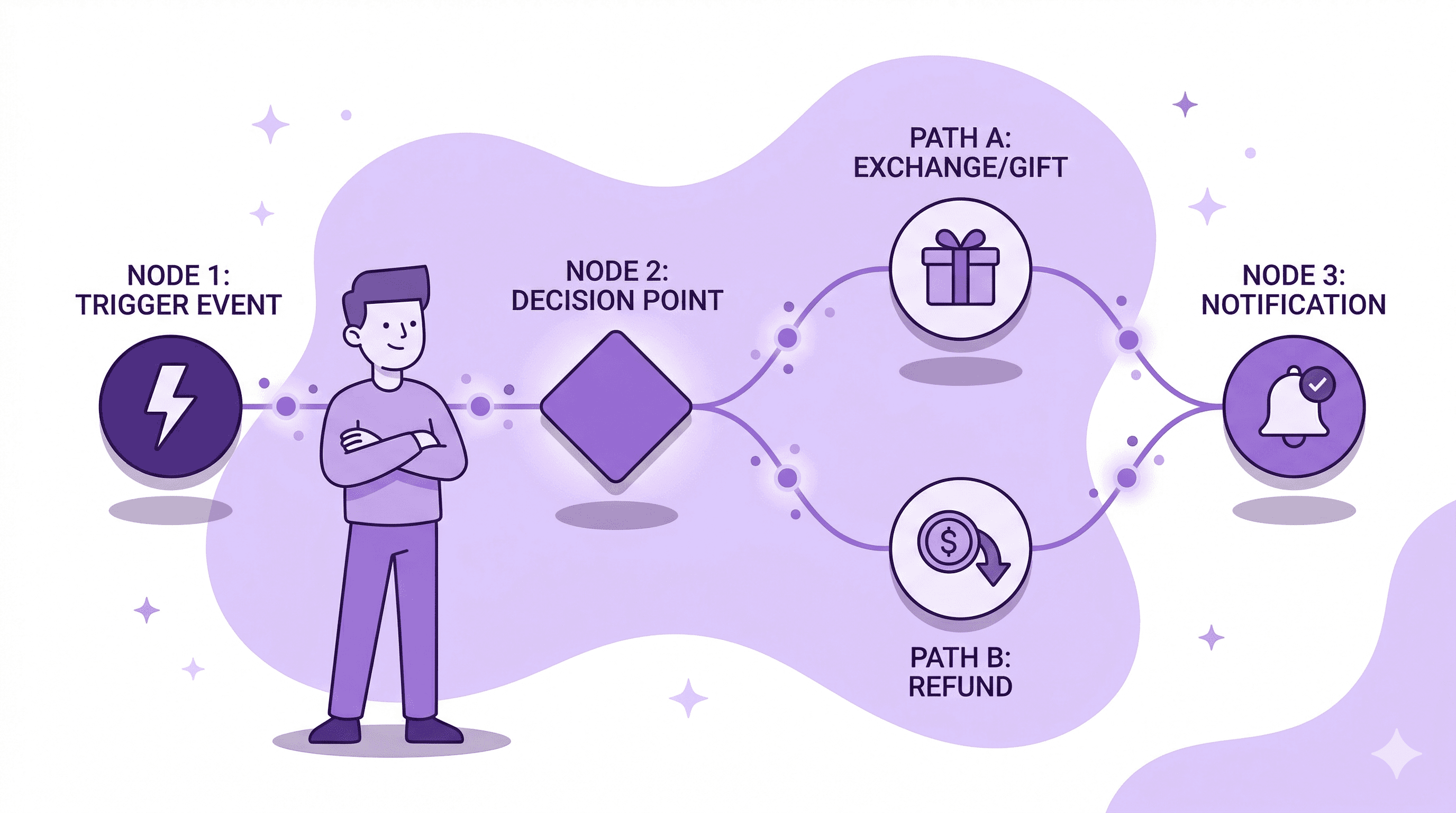
An exchange on Shopify is when a customer returns a purchased item and receives a different item in its place — typically a different size, color, or variant of the same product, or sometimes an entirely different product. Unlike a refund, the revenue stays with your store. Unlike a return, the customer walks away happy with something they actually want.
Here is the critical thing most Shopify merchants learn too late: every return that could have been an exchange is money you gave back for no reason.
Top-performing Shopify stores convert 30 to 40 percent of return requests into exchanges or store credit. The industry average sits closer to 15 to 20 percent. That gap represents thousands of dollars in monthly revenue for a store processing just 50 returns a month.
This guide covers every method available to process exchanges on Shopify in 2026 — native admin tools, Shopify POS, self-service apps, and automation with Shopify Flow. We will also walk through the strategy behind turning your exchange process into a revenue-retention machine.

What Is an Exchange on Shopify?
An exchange on Shopify is a return where the customer receives a replacement item instead of a refund. Shopify treats exchanges as part of the returns workflow. You create a return, add exchange items to it, and Shopify calculates the financial outcome automatically.
There are three scenarios:
Even exchange — the returned item and the new item cost the same. No money changes hands. The customer sends back a medium blue t-shirt and gets a large blue t-shirt.
Exchange with balance owed — the new item costs more than the returned item. The customer owes you the difference. Shopify lets you send an invoice so the customer can pay online.
Exchange with refund due — the new item costs less than the returned item. You owe the customer the difference, either as a refund to original payment method or as store credit.
Shopify handles all three natively. No workarounds needed. But there are important limitations and smarter ways to handle each, which we will cover.
Exchanges vs Returns vs Refunds: Why It Matters
Before we get into the how, it is worth understanding why exchanges deserve their own strategy — separate from your returns and refunds process.
A refund is a loss. You lose the sale, the customer acquisition cost, the shipping cost, and the transaction fees. Credit card processing fees are not returned when you issue a refund on Shopify. That is money gone.
A return with store credit is better. You keep the revenue inside your ecosystem. The customer has a reason to come back. But it still requires the customer to go through a separate shopping experience, and many store credits go unredeemed.
An exchange is the best outcome for everyone. The customer gets what they actually wanted. You keep the revenue. The order stays intact. There is no awkward refund-then-repurchase flow. And if the replacement item costs more, your average order value actually goes up.

Here is the math that makes this real:
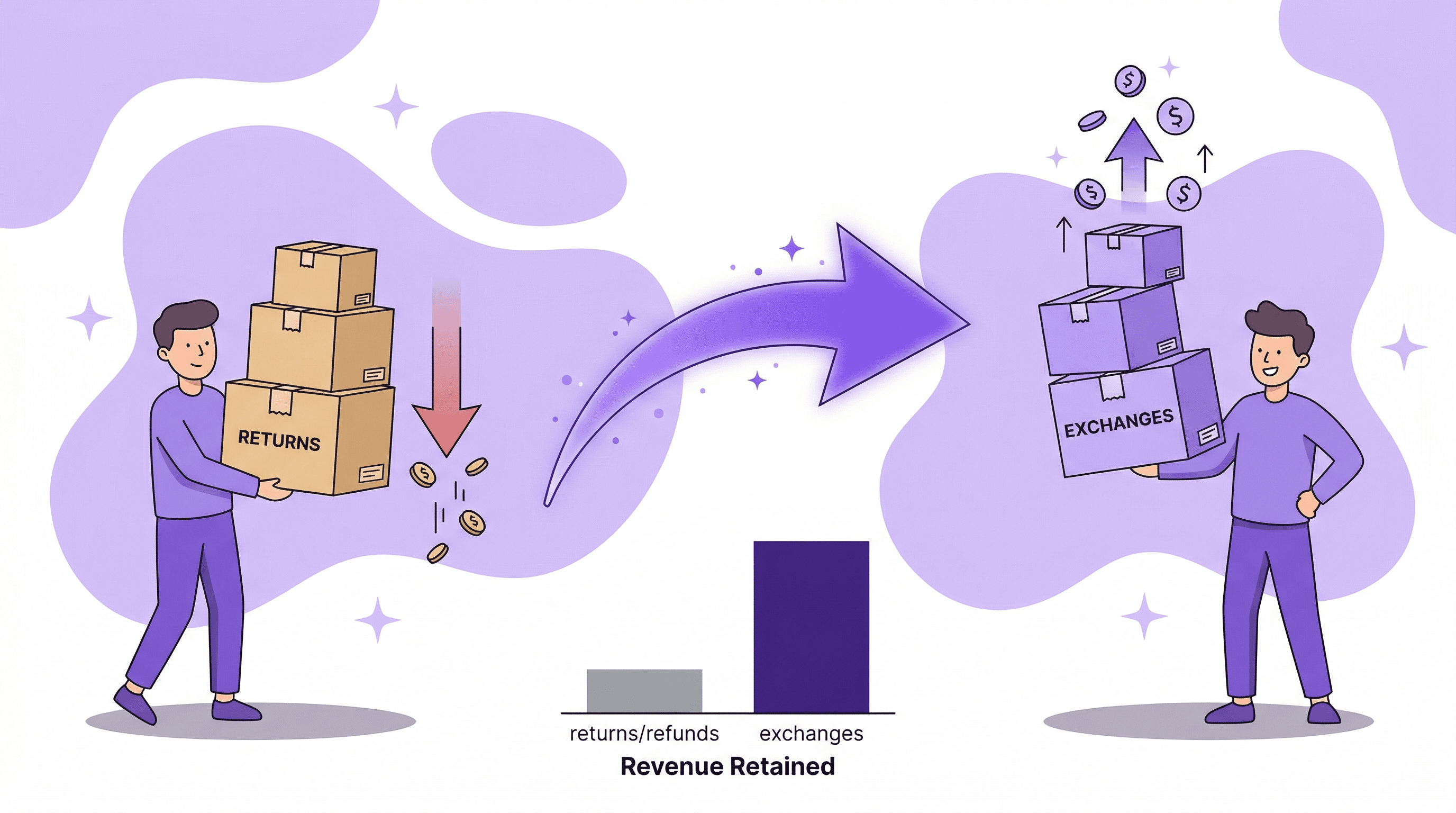
Say you process 100 returns a month with an average order value of $80.
If 100 percent of those are full refunds, you lose $8,000 in revenue.
If you convert 30 percent to exchanges, you retain $2,400 immediately — and likely more, because exchange customers frequently add items or upgrade.
If you offer 110 percent store credit as an alternative to refunds, another 20 percent might take that option, keeping an additional $1,760 in your store.
The difference between a store that just processes returns and a store that has an exchange strategy is often $3,000 to $5,000 per month in retained revenue. At scale, this becomes a serious competitive advantage.
Method 1: Processing Exchanges Through Shopify Admin
This is the native approach that works on every Shopify plan. You do not need any apps or additional tools.
Step-by-Step: Create an Exchange in Shopify Admin
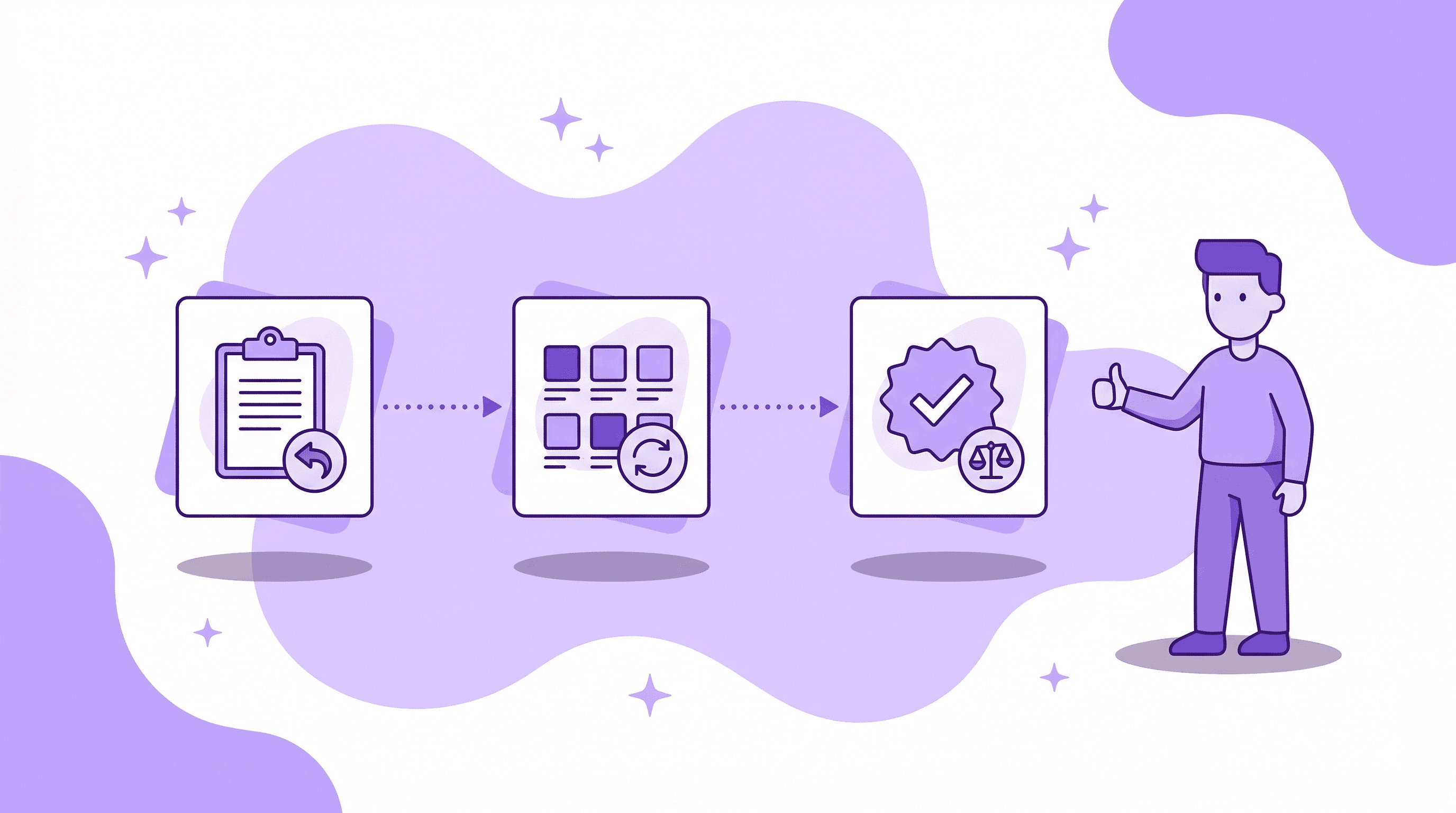
Step 1: From your Shopify admin, go to Orders and click on the order you want to process an exchange for.
Step 2: Click Return (not Refund — this is important).
Step 3: Select the items the customer wants to return. Choose a return reason from the dropdown. Shopify now offers category-specific return reasons — for example, apparel orders show options like "Too big" or "Too small."
Step 4: In the Exchange items section, search for and add the replacement product. You can add a different variant of the same product (like a different size or color) or an entirely different product.
Step 5: Review the financial summary. Shopify automatically calculates whether a refund is due, the customer owes a balance, or the exchange is even.
Step 6: Choose your return shipping option:
Create a return label in Shopify (available for US domestic shipments)
Upload a return label (PDF or JPEG)
No shipping required (for in-store or local exchanges)
Step 7: Click Create return.
Step 8: If the customer owes a balance, send them an invoice. You can do this immediately when creating the return, or later from the order details page using Shopify's invoice feature.
What Happens After You Create the Exchange
Once you create the return with exchange items, a few things happen:
The customer receives an email listing both the items being returned and the exchange items.
If the customer owes money, they can pay through the invoice link.
Exchange items that require additional payment are placed on fulfillment hold until payment is received.
Even exchanges and exchanges where the store owes a refund are not placed on hold — you can fulfill them immediately.
The order total updates to reflect the exchange, and the transaction shows in your sales reports.
Important Limitations of Native Shopify Exchanges
There are real constraints you need to know:
Only fulfilled items can be exchanged. If an item has not been fulfilled yet, you should use order editing instead of the exchange flow.
Order-level discounts do not apply to exchange items. You can add a product-specific discount to exchange items, but automatic order-level discounts will not carry over.
Exchanges cannot be requested through self-serve returns. Shopify's native self-serve returns portal only supports return requests — customers cannot initiate exchanges themselves.
Orders with duties have restrictions. You cannot add exchange items to orders that include duties.
Returns and exchanges share the same limitations as order editing. Check Shopify's editing considerations for edge cases around fulfilled, partially fulfilled, and archived orders.
That last point about self-serve is a big deal. It means every exchange through native Shopify requires a support agent to process it manually. For stores handling dozens or hundreds of exchanges per month, this creates a bottleneck.
Method 2: Exchanges on Shopify POS
If you have physical retail locations and use Shopify POS Pro, you can process exchanges directly from the POS app. This is significantly smoother for in-person transactions.
How to Process an Exchange on Shopify POS Pro
From Shopify POS, tap the ≡ menu and then tap Orders.
Tap the order you want to exchange.
Tap Exchange and select the items being returned.
Choose a return reason for each item.
Tap Next and select the replacement product from your catalog.
If there is a price difference, tap Refund or Collect to handle the balance.
If the exchange is even, tap Exchange to complete it.
POS exchanges also support store credit. If the customer is returning a $60 item and exchanging for a $40 item, you can refund the $20 difference to their store credit balance instead of their original payment method. This keeps the money in your ecosystem.
Requirements: You need Shopify POS Pro (not the free Shopify POS Lite) and you need return rules configured in your Shopify admin.
One catch: Return rules do not apply to products in orders that have already been exchanged once. So if a customer exchanges a product and then wants to exchange the replacement, the standard return rules will not apply — you will need to handle it manually or through the Shopify admin.
Method 3: Self-Service Exchanges With Apps
Here is where it gets interesting — and where most growing Shopify stores should be focusing their attention.
The biggest problem with Shopify's native exchange flow is that the customer cannot do it themselves. They have to contact your support team, explain what they want, wait for a response, and then a human has to manually process the exchange in the admin.
That is friction. And friction kills exchanges.
Think about what happens when a customer buys a shirt in the wrong size. If the exchange process requires emailing your team and waiting 24 to 48 hours for a response, a significant percentage of those customers will just request a full refund instead. It is the path of least resistance.
Self-service changes the equation entirely.
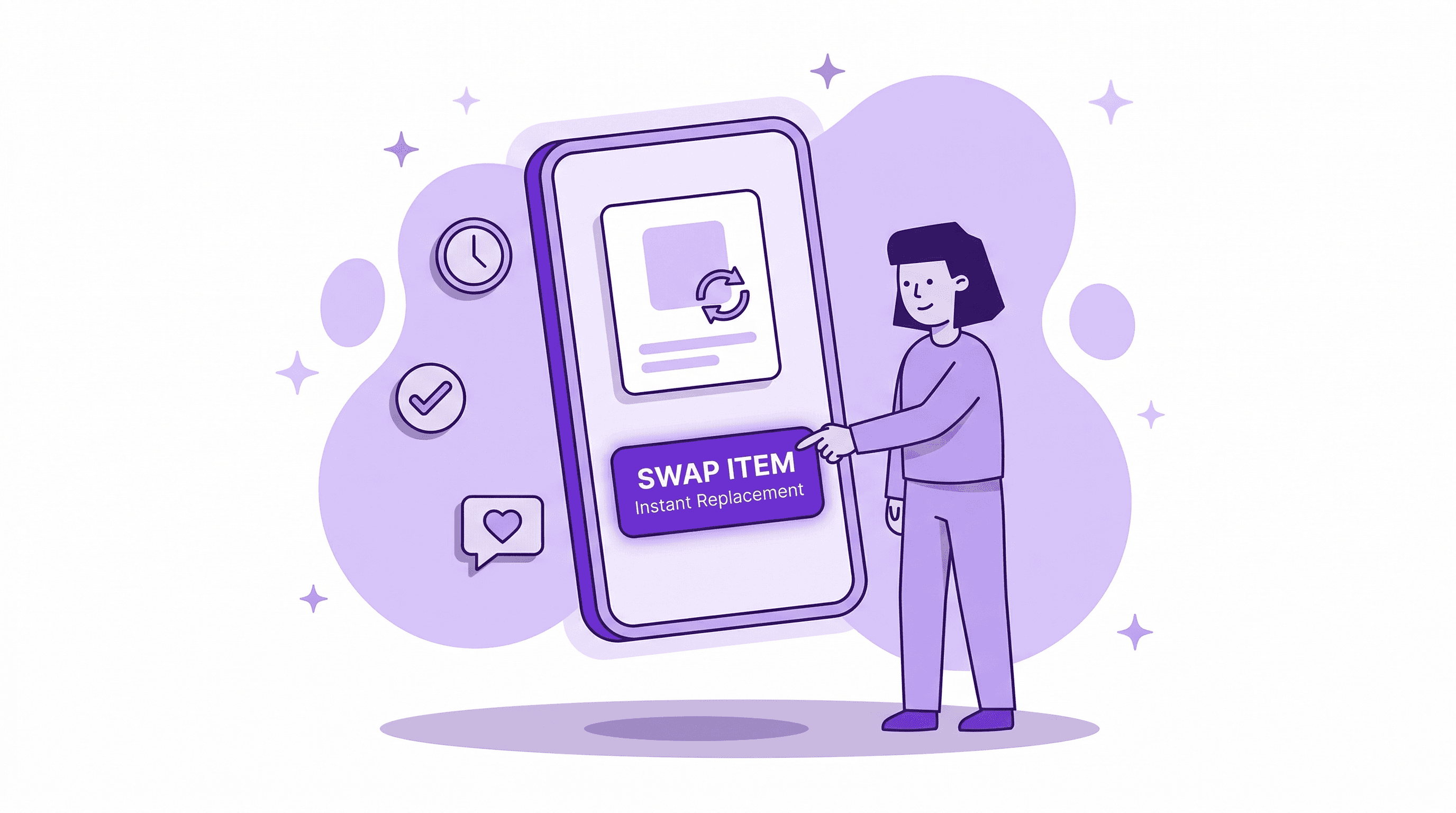
With a self-service order editing app like Revize, customers can swap products, change variants, update sizes, and modify their orders directly from their order status page — no support ticket required.
Here is how it works in practice:
Customer receives their order confirmation and lands on the order status page (or Thank You page).
They see a self-service editing portal embedded directly into the page.
They select the item they want to change.
They pick a new variant (different size, color, or style) or replace it with a different product entirely.
The system calculates any price difference automatically.
If they owe more, they pay the difference right there. If they are owed a refund, it is processed automatically.
Done. No email. No ticket. No waiting.
The key difference: this happens before fulfillment. Instead of the traditional return-then-exchange flow (ship item back → inspect → ship new item), the customer catches their mistake immediately and the correct item ships the first time.
This is not just faster — it eliminates return shipping costs, reduces warehouse handling, and prevents the customer from ever reaching the "I will just get a refund" mindset.
Stores using self-service order editing see exchange and modification rates that dwarf what traditional return-exchange flows produce. When the friction drops to near zero, customers choose editing over canceling and exchanging over refunding.
Pre-Fulfillment Exchanges vs Post-Fulfillment Exchanges
This distinction matters more than most merchants realize.
Pre-fulfillment exchange (order editing): The customer changes their order before it ships. The wrong item never leaves your warehouse. You save on shipping both ways. The customer gets the right product faster. This is the ideal scenario.
Post-fulfillment exchange (traditional return + exchange): The wrong item has already shipped. The customer receives it, initiates a return, ships it back, you inspect it, then ship the replacement. This takes 7 to 14 days minimum and costs you return shipping, reprocessing, and potential restock losses.
The financial impact is dramatic. A pre-fulfillment exchange costs essentially nothing — it is just a database update before the pick-and-pack stage. A post-fulfillment exchange can cost $15 to $30 or more in logistics alone, not counting the customer satisfaction hit of waiting two weeks.
This is why the most effective exchange strategy is not just about handling exchanges well — it is about catching them before they become returns in the first place.
Setting Up Exchange-Friendly Return Rules on Shopify
Shopify lets you configure return rules that define your exchange and return policy at the system level. These rules display automatically when you or your staff process returns, and they appear in the self-serve returns portal for customers.
How to Configure Return Rules
Go to Settings → Policies in your Shopify admin.
Click Manage in the Return rules section.
Set your return window — how many days after delivery a customer can request a return. Common settings are 14, 30, or 60 days.
Set your return shipping cost — free returns, flat rate, or customer pays.
Optionally add a restocking fee as a percentage of the item price.
Define final sale items — products or collections that are not eligible for returns or exchanges.
Click Turn on to activate.
Pro tip: Return rules are saved to the order at the time the order is placed. If you change your rules later, the new rules only apply to future orders. Existing orders retain whatever rules were active when they were created.
Strategic Approach: Encourage Exchanges Over Refunds
Your return rules should make exchanges the most attractive option:
Offer free return shipping only for exchanges. Charge for return shipping on refund requests. This creates a financial incentive to choose an exchange.
Offer store credit bonuses. Give customers 110 percent of the item value as store credit if they choose store credit over a cash refund. You keep the revenue, they get a bonus.
Make exchanges instant. Ship the replacement immediately upon receiving the return request, rather than waiting for the returned item to arrive. This only works if you trust your customer base, but it dramatically improves the exchange experience.
Use product recommendations. When a customer initiates an exchange, suggest related or upgraded products. A customer exchanging a basic model might be happy to pay the difference for the premium version.
Automating Exchanges With Shopify Flow
For stores on Shopify Plus (or any plan with access to Shopify Flow), you can automate parts of the exchange process to reduce manual work and improve response times.
Useful Flow Automations for Exchanges
Auto-tag exchange orders: Create a Flow that triggers on "Return created" and adds a tag like exchange to orders that include exchange items. This helps your fulfillment team prioritize exchange shipments.
Notify your team instantly: Trigger a Slack notification or email when an exchange is created, so your fulfillment team can prioritize getting the replacement item out fast.
Track exchange patterns: Use Flow to tag products that are frequently exchanged with reasons. If the same product keeps getting "Too small" exchanges, that is a signal to update your size guide or product description.
Incentivize exchanges over refunds: When a return is created without exchange items, trigger an automated email offering a 10 percent bonus if the customer chooses store credit or an exchange instead.
Hold fulfillment for editing window: Set up a Flow that holds new orders for 30 to 60 minutes before releasing them to your fulfillment pipeline. During this window, customers can use self-service editing to fix mistakes — catching potential exchanges before the order even ships.
Real Cost Comparison: Refund vs Exchange vs Self-Service Edit
Here is what each scenario actually costs you when a customer wants a different product:
Scenario: Customer ordered a blue shirt (medium) but wants a red shirt (large). Order value: $50.
Full refund:
Revenue lost: $50
Credit card fees not returned: ~$1.75
Return shipping (if you pay): ~$8
Customer acquisition cost wasted: ~$15–30
Total damage: $75 to $90 lost
Post-fulfillment exchange (traditional):
Revenue retained: $50
Return shipping cost: ~$8
Outbound shipping for replacement: ~$5
Warehouse reprocessing: ~$3
Net cost: ~$16 in logistics
Pre-fulfillment self-service edit (via Revize):
Revenue retained: $50
Return shipping cost: $0 (item never shipped wrong)
Additional shipping: $0 (correct item ships first time)
Warehouse handling: $0 (order updated before pick)
Net cost: $0
The math is not subtle. Pre-fulfillment self-service editing is not just cheaper — it is free compared to every alternative.
Handling Price Differences in Exchanges
When exchange items have different prices than the returned items, you need to handle the financial difference correctly. Shopify manages most of this automatically, but there are nuances.
When the Customer Owes You Money
If the exchange item costs more, Shopify creates a balance due on the order. You have two options:
Send an invoice immediately. Shopify's
orderInvoiceSendfeature emails the customer a payment link. They can pay online using any payment method your store accepts.Send the invoice later. If you want to ship the replacement first and collect later, you can send the invoice from the order details page at any time.
Important: Exchange fulfillment orders with a balance owed are placed on hold automatically. You must collect payment and release the hold before you can fulfill the exchange. If you want to ship first and collect later, you will need to manually release the fulfillment hold.
When You Owe the Customer Money
If the exchange item costs less, you owe the customer the difference. Options:
Refund to original payment method. The standard approach.
Issue store credit. This is the smarter move — the customer gets their difference back, and the money stays in your store. Shopify now supports store credit natively with the new customer accounts system.
Even Exchanges
No money changes hands. These are the simplest to process and do not create fulfillment holds. You can ship the replacement immediately.
Common Exchange Mistakes (And How to Avoid Them)
Mistake 1: Treating every return as a refund by default.
Most Shopify stores have a returns process. Very few have an exchange strategy. If your default response to "I want to return this" is to process a refund, you are leaving money on the table. Train your team (or configure your automation) to always offer an exchange first.
Mistake 2: Making exchanges harder than refunds.
If getting a refund takes 2 minutes but getting an exchange requires emailing support, waiting 48 hours, and having a conversation — customers will choose the refund every time. Make the exchange path equal or easier.
Mistake 3: Ignoring pre-fulfillment opportunities.
The best exchange is one that never becomes a return. If you give customers a window to edit their own orders immediately after purchase — swap sizes, change colors, update products — most of the situations that lead to returns simply never happen.
Mistake 4: Not tracking exchange data.
Shopify's analytics show return reasons by product category. If a product generates frequent "Wrong size" exchanges, that is not a returns problem — it is a product page problem. Use that data to fix size guides, improve product photos, or add better variant descriptions.
Mistake 5: Forgetting about transaction fees.
Credit card processing fees are not refunded when you issue a refund on Shopify. On a $50 order with a 2.9% + $0.30 fee structure, that is $1.75 you lose permanently. On exchanges, there is no refund, so there are no lost transaction fees. This adds up fast at scale.
How Revize Turns Exchanges Into a Revenue Channel
Revize approaches exchanges differently than traditional return management apps. Instead of managing returns after the fact, Revize prevents the need for returns entirely by letting customers edit their orders themselves, immediately after purchase.
Here is what that looks like in practice:
A customer buys a size medium. They realize they need a large. Instead of waiting for the medium to arrive, wearing it, deciding it does not fit, requesting a return, shipping it back, and then getting a replacement — they simply open the order editing portal on their Order Status page, swap medium for large, and the correct item ships first time.
A customer forgets to add a product to their order. Instead of placing a second order (and paying shipping twice), they add it to their existing order through self-service editing.
A customer wants to apply a discount code they forgot at checkout. Instead of emailing support, they apply it themselves through Revize's post-purchase discount feature.
The result: fewer returns, fewer exchanges, fewer support tickets, and significantly more revenue retained. Stores using Revize see support ticket reductions of 40 to 60 percent on order modification requests alone.
Self-service order editing is not a replacement for your return and exchange process. You will still need traditional exchanges for post-delivery scenarios. But it dramatically reduces the volume of exchanges your team needs to handle manually, because the most common exchange triggers (wrong size, wrong color, forgot an item, wrong address) get caught before the order ships.
Frequently Asked Questions
Can customers exchange orders on Shopify themselves?
Not through Shopify's native self-serve returns portal — it only supports return requests, not exchanges. Customers must contact your support team for exchanges through native Shopify tools. However, third-party apps like Revize let customers swap products, change sizes, and modify orders themselves through a self-service portal on the order status page, before the order ships.
How do I process an exchange on Shopify?
Go to Orders in your Shopify admin, click the order, click Return, select the items being returned, add the exchange items in the Exchange items section, configure return shipping, and click Create Return. Shopify automatically calculates whether a refund is due or the customer owes a balance.
Can you exchange items on Shopify POS?
Yes, but only with Shopify POS Pro. From the POS app, tap Orders, select the order, tap Exchange, choose the returned items and replacement items, and handle any price difference. POS exchanges also support store credit for refund balances.
What is the difference between a return and an exchange on Shopify?
A return on Shopify means receiving items back from a customer and issuing a refund (full or partial). An exchange means receiving items back and sending a replacement product instead of a refund. Exchanges keep the revenue in your store, while returns result in money going back to the customer.
Can I exchange an unfulfilled order on Shopify?
No. Shopify's exchange flow only works for fulfilled items. If the order has not been fulfilled yet, you should use order editing instead — either through Shopify's native Edit Order feature or through a self-service app like Revize. Order editing before fulfillment is faster and cheaper than processing a post-delivery exchange.
How do I handle price differences in Shopify exchanges?
Shopify calculates the financial outcome automatically. If the replacement item costs more, you can send the customer an invoice to collect the difference. If the replacement costs less, you can refund the difference to the original payment method or issue store credit. Even exchanges require no financial adjustment.
How do I reduce exchanges on my Shopify store?
The best way to reduce unnecessary exchanges is to improve your product information: detailed size guides, accurate product photos from multiple angles, clear variant descriptions, and honest product reviews. For exchanges caused by ordering mistakes (wrong size, wrong color), offer self-service order editing so customers can fix errors before the order ships, eliminating the need for a post-delivery exchange entirely.
Do I lose credit card fees on Shopify exchanges?
No — this is one of the biggest financial advantages of exchanges over refunds. When you process a refund on Shopify, the credit card processing fees (typically 2.9% + $0.30 per transaction) are not returned. With an exchange, no refund is issued, so you do not lose those fees. On 100 exchanges per month at an average of $50 per order, that is $175 in saved transaction fees compared to processing them as refunds.
What apps help with Shopify exchanges?
For pre-fulfillment exchanges (order editing), Revize lets customers swap products and variants themselves from the order status page. For post-fulfillment exchanges (traditional returns), apps like Loop Returns, Return Prime, and AfterShip Returns handle the return-and-replace workflow with branded portals and automated label generation. The most effective strategy uses both — self-service editing for pre-fulfillment and a returns app for post-delivery.
Can I automate exchanges with Shopify Flow?
Yes. Shopify Flow can automate exchange-related tasks like tagging exchange orders for fulfillment priority, sending Slack notifications to your team when exchanges are created, tracking frequently exchanged products to identify product page issues, and triggering emails that encourage customers to choose exchanges over refunds. Flow cannot process the exchange itself, but it can automate everything around it.
Related Articles
An exchange on Shopify is when a customer returns a purchased item and receives a different item in its place — typically a different size, color, or variant of the same product, or sometimes an entirely different product. Unlike a refund, the revenue stays with your store. Unlike a return, the customer walks away happy with something they actually want.
Here is the critical thing most Shopify merchants learn too late: every return that could have been an exchange is money you gave back for no reason.
Top-performing Shopify stores convert 30 to 40 percent of return requests into exchanges or store credit. The industry average sits closer to 15 to 20 percent. That gap represents thousands of dollars in monthly revenue for a store processing just 50 returns a month.
This guide covers every method available to process exchanges on Shopify in 2026 — native admin tools, Shopify POS, self-service apps, and automation with Shopify Flow. We will also walk through the strategy behind turning your exchange process into a revenue-retention machine.
What Is an Exchange on Shopify?
An exchange on Shopify is a return where the customer receives a replacement item instead of a refund. Shopify treats exchanges as part of the returns workflow. You create a return, add exchange items to it, and Shopify calculates the financial outcome automatically.
There are three scenarios:
Even exchange — the returned item and the new item cost the same. No money changes hands. The customer sends back a medium blue t-shirt and gets a large blue t-shirt.
Exchange with balance owed — the new item costs more than the returned item. The customer owes you the difference. Shopify lets you send an invoice so the customer can pay online.
Exchange with refund due — the new item costs less than the returned item. You owe the customer the difference, either as a refund to original payment method or as store credit.
Shopify handles all three natively. No workarounds needed. But there are important limitations and smarter ways to handle each, which we will cover.
Exchanges vs Returns vs Refunds: Why It Matters
Before we get into the how, it is worth understanding why exchanges deserve their own strategy — separate from your returns and refunds process.
A refund is a loss. You lose the sale, the customer acquisition cost, the shipping cost, and the transaction fees. Credit card processing fees are not returned when you issue a refund on Shopify. That is money gone.
A return with store credit is better. You keep the revenue inside your ecosystem. The customer has a reason to come back. But it still requires the customer to go through a separate shopping experience, and many store credits go unredeemed.
An exchange is the best outcome for everyone. The customer gets what they actually wanted. You keep the revenue. The order stays intact. There is no awkward refund-then-repurchase flow. And if the replacement item costs more, your average order value actually goes up.
Here is the math that makes this real:
Say you process 100 returns a month with an average order value of $80.
If 100 percent of those are full refunds, you lose $8,000 in revenue.
If you convert 30 percent to exchanges, you retain $2,400 immediately — and likely more, because exchange customers frequently add items or upgrade.
If you offer 110 percent store credit as an alternative to refunds, another 20 percent might take that option, keeping an additional $1,760 in your store.
The difference between a store that just processes returns and a store that has an exchange strategy is often $3,000 to $5,000 per month in retained revenue. At scale, this becomes a serious competitive advantage.
Method 1: Processing Exchanges Through Shopify Admin
This is the native approach that works on every Shopify plan. You do not need any apps or additional tools.
Step-by-Step: Create an Exchange in Shopify Admin
Step 1: From your Shopify admin, go to Orders and click on the order you want to process an exchange for.
Step 2: Click Return (not Refund — this is important).
Step 3: Select the items the customer wants to return. Choose a return reason from the dropdown. Shopify now offers category-specific return reasons — for example, apparel orders show options like "Too big" or "Too small."
Step 4: In the Exchange items section, search for and add the replacement product. You can add a different variant of the same product (like a different size or color) or an entirely different product.
Step 5: Review the financial summary. Shopify automatically calculates whether a refund is due, the customer owes a balance, or the exchange is even.
Step 6: Choose your return shipping option:
Create a return label in Shopify (available for US domestic shipments)
Upload a return label (PDF or JPEG)
No shipping required (for in-store or local exchanges)
Step 7: Click Create return.
Step 8: If the customer owes a balance, send them an invoice. You can do this immediately when creating the return, or later from the order details page using Shopify's invoice feature.
What Happens After You Create the Exchange
Once you create the return with exchange items, a few things happen:
The customer receives an email listing both the items being returned and the exchange items.
If the customer owes money, they can pay through the invoice link.
Exchange items that require additional payment are placed on fulfillment hold until payment is received.
Even exchanges and exchanges where the store owes a refund are not placed on hold — you can fulfill them immediately.
The order total updates to reflect the exchange, and the transaction shows in your sales reports.
Important Limitations of Native Shopify Exchanges
There are real constraints you need to know:
Only fulfilled items can be exchanged. If an item has not been fulfilled yet, you should use order editing instead of the exchange flow.
Order-level discounts do not apply to exchange items. You can add a product-specific discount to exchange items, but automatic order-level discounts will not carry over.
Exchanges cannot be requested through self-serve returns. Shopify's native self-serve returns portal only supports return requests — customers cannot initiate exchanges themselves.
Orders with duties have restrictions. You cannot add exchange items to orders that include duties.
Returns and exchanges share the same limitations as order editing. Check Shopify's editing considerations for edge cases around fulfilled, partially fulfilled, and archived orders.
That last point about self-serve is a big deal. It means every exchange through native Shopify requires a support agent to process it manually. For stores handling dozens or hundreds of exchanges per month, this creates a bottleneck.
Method 2: Exchanges on Shopify POS
If you have physical retail locations and use Shopify POS Pro, you can process exchanges directly from the POS app. This is significantly smoother for in-person transactions.
How to Process an Exchange on Shopify POS Pro
From Shopify POS, tap the ≡ menu and then tap Orders.
Tap the order you want to exchange.
Tap Exchange and select the items being returned.
Choose a return reason for each item.
Tap Next and select the replacement product from your catalog.
If there is a price difference, tap Refund or Collect to handle the balance.
If the exchange is even, tap Exchange to complete it.
POS exchanges also support store credit. If the customer is returning a $60 item and exchanging for a $40 item, you can refund the $20 difference to their store credit balance instead of their original payment method. This keeps the money in your ecosystem.
Requirements: You need Shopify POS Pro (not the free Shopify POS Lite) and you need return rules configured in your Shopify admin.
One catch: Return rules do not apply to products in orders that have already been exchanged once. So if a customer exchanges a product and then wants to exchange the replacement, the standard return rules will not apply — you will need to handle it manually or through the Shopify admin.
Method 3: Self-Service Exchanges With Apps
Here is where it gets interesting — and where most growing Shopify stores should be focusing their attention.
The biggest problem with Shopify's native exchange flow is that the customer cannot do it themselves. They have to contact your support team, explain what they want, wait for a response, and then a human has to manually process the exchange in the admin.
That is friction. And friction kills exchanges.
Think about what happens when a customer buys a shirt in the wrong size. If the exchange process requires emailing your team and waiting 24 to 48 hours for a response, a significant percentage of those customers will just request a full refund instead. It is the path of least resistance.
Self-service changes the equation entirely.
With a self-service order editing app like Revize, customers can swap products, change variants, update sizes, and modify their orders directly from their order status page — no support ticket required.
Here is how it works in practice:
Customer receives their order confirmation and lands on the order status page (or Thank You page).
They see a self-service editing portal embedded directly into the page.
They select the item they want to change.
They pick a new variant (different size, color, or style) or replace it with a different product entirely.
The system calculates any price difference automatically.
If they owe more, they pay the difference right there. If they are owed a refund, it is processed automatically.
Done. No email. No ticket. No waiting.
The key difference: this happens before fulfillment. Instead of the traditional return-then-exchange flow (ship item back → inspect → ship new item), the customer catches their mistake immediately and the correct item ships the first time.
This is not just faster — it eliminates return shipping costs, reduces warehouse handling, and prevents the customer from ever reaching the "I will just get a refund" mindset.
Stores using self-service order editing see exchange and modification rates that dwarf what traditional return-exchange flows produce. When the friction drops to near zero, customers choose editing over canceling and exchanging over refunding.
Pre-Fulfillment Exchanges vs Post-Fulfillment Exchanges
This distinction matters more than most merchants realize.
Pre-fulfillment exchange (order editing): The customer changes their order before it ships. The wrong item never leaves your warehouse. You save on shipping both ways. The customer gets the right product faster. This is the ideal scenario.
Post-fulfillment exchange (traditional return + exchange): The wrong item has already shipped. The customer receives it, initiates a return, ships it back, you inspect it, then ship the replacement. This takes 7 to 14 days minimum and costs you return shipping, reprocessing, and potential restock losses.
The financial impact is dramatic. A pre-fulfillment exchange costs essentially nothing — it is just a database update before the pick-and-pack stage. A post-fulfillment exchange can cost $15 to $30 or more in logistics alone, not counting the customer satisfaction hit of waiting two weeks.
This is why the most effective exchange strategy is not just about handling exchanges well — it is about catching them before they become returns in the first place.
Setting Up Exchange-Friendly Return Rules on Shopify
Shopify lets you configure return rules that define your exchange and return policy at the system level. These rules display automatically when you or your staff process returns, and they appear in the self-serve returns portal for customers.
How to Configure Return Rules
Go to Settings → Policies in your Shopify admin.
Click Manage in the Return rules section.
Set your return window — how many days after delivery a customer can request a return. Common settings are 14, 30, or 60 days.
Set your return shipping cost — free returns, flat rate, or customer pays.
Optionally add a restocking fee as a percentage of the item price.
Define final sale items — products or collections that are not eligible for returns or exchanges.
Click Turn on to activate.
Pro tip: Return rules are saved to the order at the time the order is placed. If you change your rules later, the new rules only apply to future orders. Existing orders retain whatever rules were active when they were created.
Strategic Approach: Encourage Exchanges Over Refunds
Your return rules should make exchanges the most attractive option:
Offer free return shipping only for exchanges. Charge for return shipping on refund requests. This creates a financial incentive to choose an exchange.
Offer store credit bonuses. Give customers 110 percent of the item value as store credit if they choose store credit over a cash refund. You keep the revenue, they get a bonus.
Make exchanges instant. Ship the replacement immediately upon receiving the return request, rather than waiting for the returned item to arrive. This only works if you trust your customer base, but it dramatically improves the exchange experience.
Use product recommendations. When a customer initiates an exchange, suggest related or upgraded products. A customer exchanging a basic model might be happy to pay the difference for the premium version.
Automating Exchanges With Shopify Flow
For stores on Shopify Plus (or any plan with access to Shopify Flow), you can automate parts of the exchange process to reduce manual work and improve response times.
Useful Flow Automations for Exchanges
Auto-tag exchange orders: Create a Flow that triggers on "Return created" and adds a tag like exchange to orders that include exchange items. This helps your fulfillment team prioritize exchange shipments.
Notify your team instantly: Trigger a Slack notification or email when an exchange is created, so your fulfillment team can prioritize getting the replacement item out fast.
Track exchange patterns: Use Flow to tag products that are frequently exchanged with reasons. If the same product keeps getting "Too small" exchanges, that is a signal to update your size guide or product description.
Incentivize exchanges over refunds: When a return is created without exchange items, trigger an automated email offering a 10 percent bonus if the customer chooses store credit or an exchange instead.
Hold fulfillment for editing window: Set up a Flow that holds new orders for 30 to 60 minutes before releasing them to your fulfillment pipeline. During this window, customers can use self-service editing to fix mistakes — catching potential exchanges before the order even ships.
Real Cost Comparison: Refund vs Exchange vs Self-Service Edit
Here is what each scenario actually costs you when a customer wants a different product:
Scenario: Customer ordered a blue shirt (medium) but wants a red shirt (large). Order value: $50.
Full refund:
Revenue lost: $50
Credit card fees not returned: ~$1.75
Return shipping (if you pay): ~$8
Customer acquisition cost wasted: ~$15–30
Total damage: $75 to $90 lost
Post-fulfillment exchange (traditional):
Revenue retained: $50
Return shipping cost: ~$8
Outbound shipping for replacement: ~$5
Warehouse reprocessing: ~$3
Net cost: ~$16 in logistics
Pre-fulfillment self-service edit (via Revize):
Revenue retained: $50
Return shipping cost: $0 (item never shipped wrong)
Additional shipping: $0 (correct item ships first time)
Warehouse handling: $0 (order updated before pick)
Net cost: $0
The math is not subtle. Pre-fulfillment self-service editing is not just cheaper — it is free compared to every alternative.
Handling Price Differences in Exchanges
When exchange items have different prices than the returned items, you need to handle the financial difference correctly. Shopify manages most of this automatically, but there are nuances.
When the Customer Owes You Money
If the exchange item costs more, Shopify creates a balance due on the order. You have two options:
Send an invoice immediately. Shopify's
orderInvoiceSendfeature emails the customer a payment link. They can pay online using any payment method your store accepts.Send the invoice later. If you want to ship the replacement first and collect later, you can send the invoice from the order details page at any time.
Important: Exchange fulfillment orders with a balance owed are placed on hold automatically. You must collect payment and release the hold before you can fulfill the exchange. If you want to ship first and collect later, you will need to manually release the fulfillment hold.
When You Owe the Customer Money
If the exchange item costs less, you owe the customer the difference. Options:
Refund to original payment method. The standard approach.
Issue store credit. This is the smarter move — the customer gets their difference back, and the money stays in your store. Shopify now supports store credit natively with the new customer accounts system.
Even Exchanges
No money changes hands. These are the simplest to process and do not create fulfillment holds. You can ship the replacement immediately.
Common Exchange Mistakes (And How to Avoid Them)
Mistake 1: Treating every return as a refund by default.
Most Shopify stores have a returns process. Very few have an exchange strategy. If your default response to "I want to return this" is to process a refund, you are leaving money on the table. Train your team (or configure your automation) to always offer an exchange first.
Mistake 2: Making exchanges harder than refunds.
If getting a refund takes 2 minutes but getting an exchange requires emailing support, waiting 48 hours, and having a conversation — customers will choose the refund every time. Make the exchange path equal or easier.
Mistake 3: Ignoring pre-fulfillment opportunities.
The best exchange is one that never becomes a return. If you give customers a window to edit their own orders immediately after purchase — swap sizes, change colors, update products — most of the situations that lead to returns simply never happen.
Mistake 4: Not tracking exchange data.
Shopify's analytics show return reasons by product category. If a product generates frequent "Wrong size" exchanges, that is not a returns problem — it is a product page problem. Use that data to fix size guides, improve product photos, or add better variant descriptions.
Mistake 5: Forgetting about transaction fees.
Credit card processing fees are not refunded when you issue a refund on Shopify. On a $50 order with a 2.9% + $0.30 fee structure, that is $1.75 you lose permanently. On exchanges, there is no refund, so there are no lost transaction fees. This adds up fast at scale.
How Revize Turns Exchanges Into a Revenue Channel
Revize approaches exchanges differently than traditional return management apps. Instead of managing returns after the fact, Revize prevents the need for returns entirely by letting customers edit their orders themselves, immediately after purchase.
Here is what that looks like in practice:
A customer buys a size medium. They realize they need a large. Instead of waiting for the medium to arrive, wearing it, deciding it does not fit, requesting a return, shipping it back, and then getting a replacement — they simply open the order editing portal on their Order Status page, swap medium for large, and the correct item ships first time.
A customer forgets to add a product to their order. Instead of placing a second order (and paying shipping twice), they add it to their existing order through self-service editing.
A customer wants to apply a discount code they forgot at checkout. Instead of emailing support, they apply it themselves through Revize's post-purchase discount feature.
The result: fewer returns, fewer exchanges, fewer support tickets, and significantly more revenue retained. Stores using Revize see support ticket reductions of 40 to 60 percent on order modification requests alone.
Self-service order editing is not a replacement for your return and exchange process. You will still need traditional exchanges for post-delivery scenarios. But it dramatically reduces the volume of exchanges your team needs to handle manually, because the most common exchange triggers (wrong size, wrong color, forgot an item, wrong address) get caught before the order ships.
Frequently Asked Questions
Can customers exchange orders on Shopify themselves?
Not through Shopify's native self-serve returns portal — it only supports return requests, not exchanges. Customers must contact your support team for exchanges through native Shopify tools. However, third-party apps like Revize let customers swap products, change sizes, and modify orders themselves through a self-service portal on the order status page, before the order ships.
How do I process an exchange on Shopify?
Go to Orders in your Shopify admin, click the order, click Return, select the items being returned, add the exchange items in the Exchange items section, configure return shipping, and click Create Return. Shopify automatically calculates whether a refund is due or the customer owes a balance.
Can you exchange items on Shopify POS?
Yes, but only with Shopify POS Pro. From the POS app, tap Orders, select the order, tap Exchange, choose the returned items and replacement items, and handle any price difference. POS exchanges also support store credit for refund balances.
What is the difference between a return and an exchange on Shopify?
A return on Shopify means receiving items back from a customer and issuing a refund (full or partial). An exchange means receiving items back and sending a replacement product instead of a refund. Exchanges keep the revenue in your store, while returns result in money going back to the customer.
Can I exchange an unfulfilled order on Shopify?
No. Shopify's exchange flow only works for fulfilled items. If the order has not been fulfilled yet, you should use order editing instead — either through Shopify's native Edit Order feature or through a self-service app like Revize. Order editing before fulfillment is faster and cheaper than processing a post-delivery exchange.
How do I handle price differences in Shopify exchanges?
Shopify calculates the financial outcome automatically. If the replacement item costs more, you can send the customer an invoice to collect the difference. If the replacement costs less, you can refund the difference to the original payment method or issue store credit. Even exchanges require no financial adjustment.
How do I reduce exchanges on my Shopify store?
The best way to reduce unnecessary exchanges is to improve your product information: detailed size guides, accurate product photos from multiple angles, clear variant descriptions, and honest product reviews. For exchanges caused by ordering mistakes (wrong size, wrong color), offer self-service order editing so customers can fix errors before the order ships, eliminating the need for a post-delivery exchange entirely.
Do I lose credit card fees on Shopify exchanges?
No — this is one of the biggest financial advantages of exchanges over refunds. When you process a refund on Shopify, the credit card processing fees (typically 2.9% + $0.30 per transaction) are not returned. With an exchange, no refund is issued, so you do not lose those fees. On 100 exchanges per month at an average of $50 per order, that is $175 in saved transaction fees compared to processing them as refunds.
What apps help with Shopify exchanges?
For pre-fulfillment exchanges (order editing), Revize lets customers swap products and variants themselves from the order status page. For post-fulfillment exchanges (traditional returns), apps like Loop Returns, Return Prime, and AfterShip Returns handle the return-and-replace workflow with branded portals and automated label generation. The most effective strategy uses both — self-service editing for pre-fulfillment and a returns app for post-delivery.
Can I automate exchanges with Shopify Flow?
Yes. Shopify Flow can automate exchange-related tasks like tagging exchange orders for fulfillment priority, sending Slack notifications to your team when exchanges are created, tracking frequently exchanged products to identify product page issues, and triggering emails that encourage customers to choose exchanges over refunds. Flow cannot process the exchange itself, but it can automate everything around it.
Related Articles

Revize your Shopify store, and lead with
customer experience

© Copyright 2024, All Rights Reserved
Revize your Shopify store, and lead with
customer experience
© Copyright 2024, All Rights Reserved
Revize your Shopify store, and lead with
customer experience
© Copyright 2024, All Rights Reserved
Revize your Shopify store, and lead with
customer experience
© Copyright 2024, All Rights Reserved